Help Center
Score on Apple Watch or add a played match in Pro on iPhone. Find help for month and year recaps, Match Highlights, Rivalries, sharing, scoring formats, workouts and iCloud sync.
Getting started
Everything you need to prepare Tennis Score Wizard and begin scoring your first match.
Live scoring requires a compatible Apple Watch with Tennis Score Wizard installed. Pro on iPhone also lets you add a match you’ve already played. Health access is optional and is used only for workout recording and available workout measurements.
Open the app on Apple Watch, choose Singles or Doubles, select One Set, Best of 3, or Best of 5, choose the set and game rules, choose the first server, optionally enable Record Workout, and then start the match.
The app remembers your previous match configuration so you can prepare a similar match more quickly the next time you play. You can still change any option before starting.
Yes. Match scoring, statistics, and history work without Health access. Permission is needed only for workout recording and related measurements such as heart rate and active energy.
Add or edit a match you’ve played
Pro on iPhone · Save the result you know, then keep it alongside your Watch history.
On the Matches tab, tap Add Played Match. Choose Singles or Doubles, enter an optional opponent name or choose a saved player for a singles match, select the scoring format, and enter the set scores. Tap Save when you’ve finished entering the details.
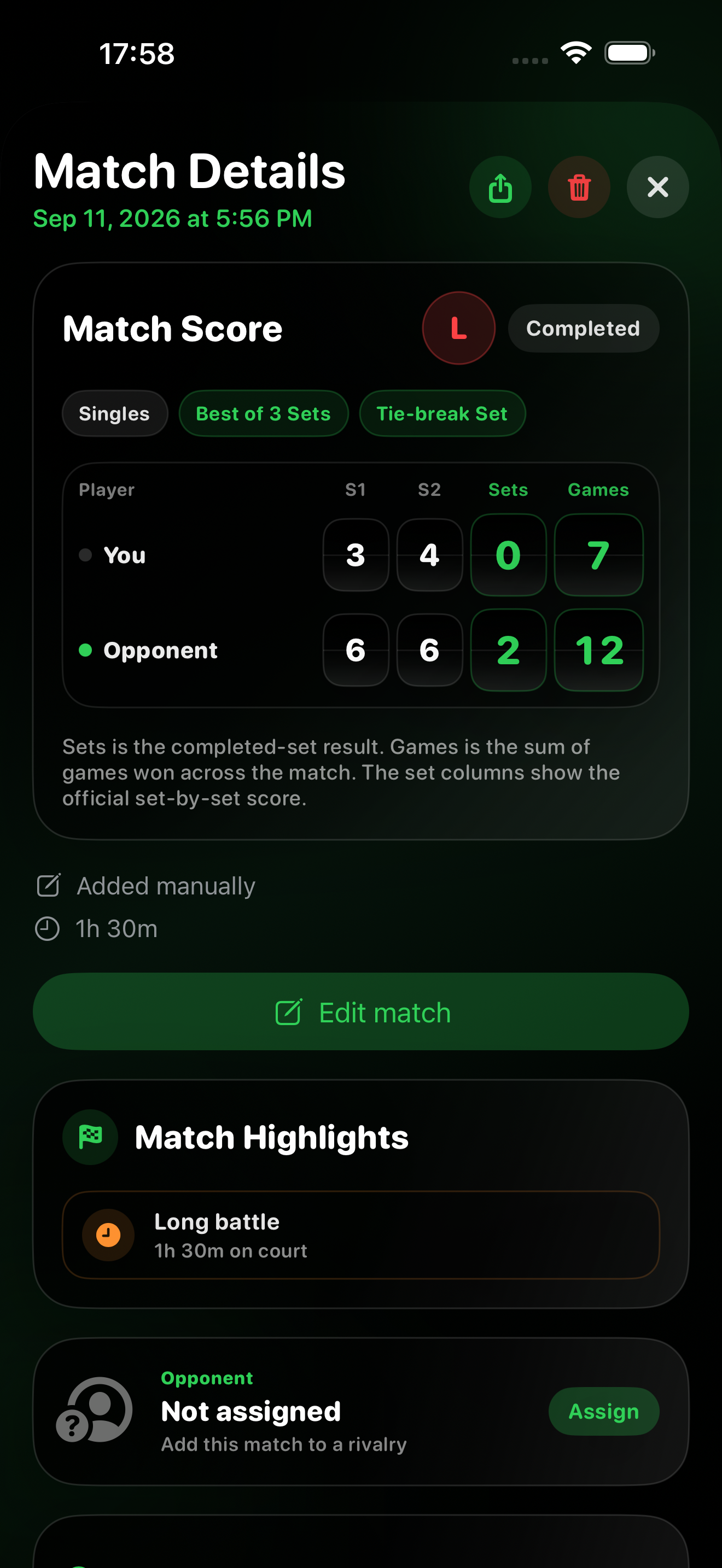
Yes. Open Match Details and tap Edit match. Correct its date and time, duration, scoring rules, set scores, tie-break points or Completed/Stopped status. Save updates the existing match rather than creating a second copy; Cancel leaves it unchanged. The editor keeps Singles/Doubles and the players unchanged. Use the separate opponent assignment and Match context controls to change those details.
Yes. An edited manual match updates the same saved record on the paired Pro Watch and can synchronize to Standalone through private iCloud under the same Apple Account. Keep the apps updated and allow synchronization to finish. Relevant statistics and history-based highlights use the corrected result.
Yes. Choose Stopped if play ended before the selected format had a winner. Enter the scores reached, including any unfinished set. A tied result can be saved. Choose Completed only when the score includes the winner required by the selected format.
Enter the games first. When the score indicates a tie-break under your chosen set rules — for example 7–6 — extra fields appear for each player’s tie-break points. Enter both scores if you know them, or leave both blank. For a deciding Match Tie-Break, enter points directly rather than games, as explained below.
For a deciding tie-break in Best of 3 or Best of 5, turn on Match tie-break in deciding set, choose the 7- or 10-point target, and enter points directly in the deciding row — for example 10–8, not 1–0 in games. If the entire match was a Match Tie-Break, choose Match Tie-break as the set rule instead. A completed Match Tie-Break must be won by two points.
Choose Stopped and enter the tied game score at which your set tie-break started, such as 6–6. Fields appear for the tie-break points reached when play stopped. Enter both if known, or leave both blank.
Choose Start & end and enter both dates and times; duration is calculated automatically. If you played past midnight, set the end date to the following day. Alternatively, choose End & duration and enter the duration in minutes. If you don’t remember how long you played, leave the optional duration blank. When supplied, duration must be at least one minute and no more than 24 hours.
This form records a match already played, not a scheduled match. Its end time cannot be in the future. In Start & end mode, the start must be before the end.
Tap any score tile directly, or use Back and Next above the keyboard. The cursor does not jump after one digit, so you can enter two-digit scores. Done closes the keyboard; tapping outside a field or scrolling also dismisses it.
The saved result, sets, games, entered tie-break results and optional duration contribute to the relevant history and summaries. Point-by-point, serve, return, break-point and workout measurements appear for Watch-recorded matches when available. Manual matches are marked Added manually.
Yes. Saved manual entries can synchronize to the paired Pro Watch and through private iCloud to Standalone under the same Apple Account. Both Watch apps preserve the manual-entry label and hide unavailable statistics. Keep both products updated and allow synchronization to finish.
No. Adding a played match is separate from editing a Watch recording. You can change the opponent assignment and optional match context for an existing match without changing its recorded score or statistics.
Remember the court and the match
All optional. Add context during manual entry or later in Match Details on iPhone.
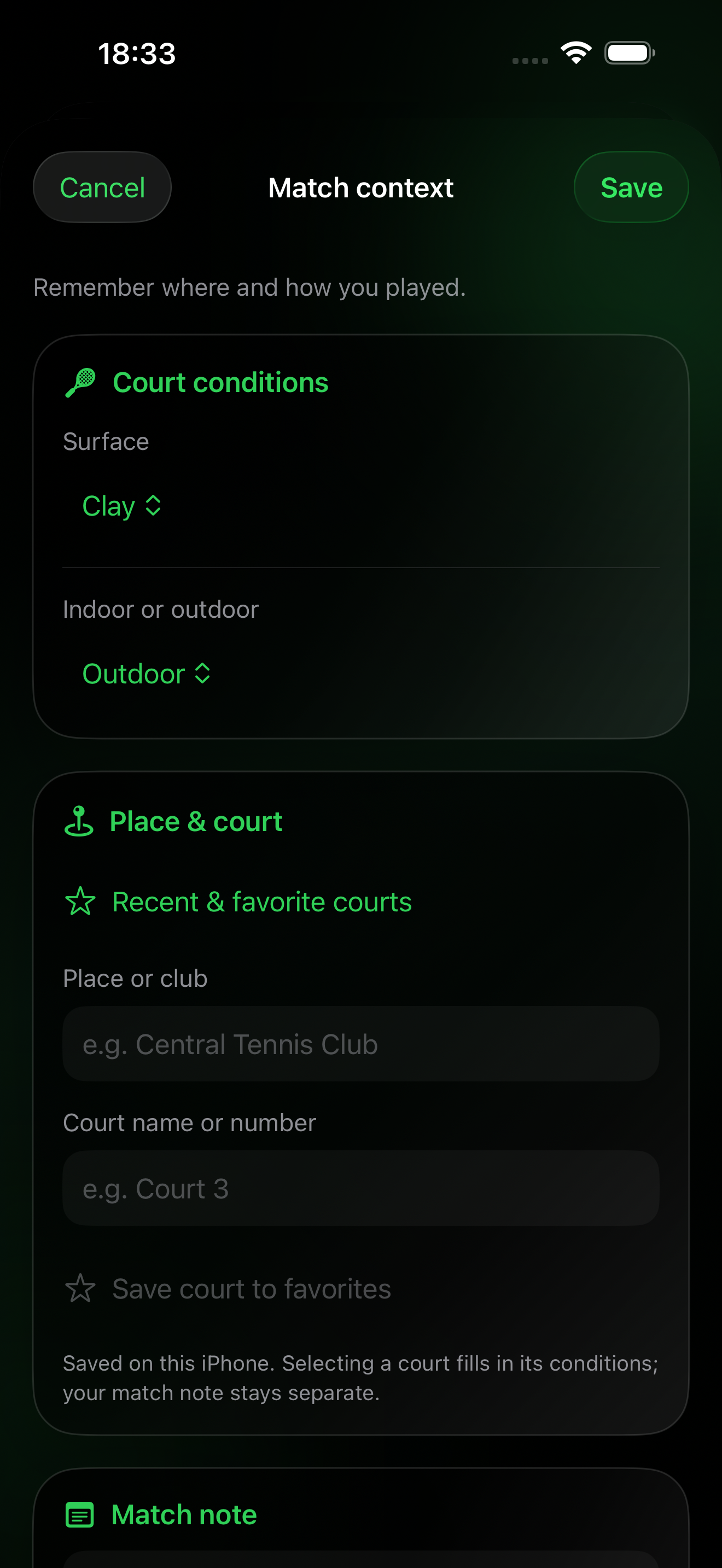
Choose the surface and indoor or outdoor setting, enter the place or club and court name or number, and add a private note for this particular match. You can also add context to older matches recorded on Apple Watch.
No. Place and court names are entered manually. This feature does not look up courts on a map or record your GPS position.
Yes. Choose from Recent & favorite courts. Favorites are saved on this iPhone and kept separate by Apple Account. Choosing a court fills in its place and conditions, but does not replace the note for the current match. Favorites themselves are not an iCloud-synced list.
Court details and match notes sync with the saved result through paired-device transfer and private iCloud sync. The original score and recorded statistics remain unchanged. Add, view and edit context on iPhone; Watch records preserve it for sync, but do not provide a context editor.
Entered court conditions and location appear on the match image. Personal match notes and private Rivalry notes do not. Check the preview before sharing, especially if you do not want to disclose a venue.
No. Surface, indoor/outdoor setting, venue and notes describe where and how you played. They do not affect Match Highlights or create surface-specific or court-specific records.
Match Highlights and sharing
The app has 26 event types, not 26 guaranteed cards per match. Match Details on iPhone shows all applicable highlights supported by the saved data. A shared image includes up to six, prioritized to surface the most noteworthy moments. With no qualifying highlights, the section is omitted.
Examples include comebacks, a deciding set or Match Tie-Break, close tie-break battles, straight-set results, streaks, milestone wins, personal records and serve or return patterns. Some require recorded point statistics; others can be supported by the set score and saved history.
No. They describe the history recorded in the app. Adding an older result, correcting a manual match’s score or date, deleting a match or changing its opponent can change relevant comparisons and Rivalry highlights. Later matches are not used as earlier history for an older result. Milestone wins are based on qualifying completed wins.
Stats and Rivalries can count stopped matches with a clear leader as decided results. Win-streak and milestone Highlights use completed wins, so an unfinished match does not earn a completed-win achievement. Both use the saved history available for the relevant comparison.
No. Match Highlights are shown in Pro’s iPhone Match Details and shared images. Watch history keeps the saved result and available statistics without a separate highlights section.
Manual matches can show highlights based on their saved score or match history. Serve, return and break-point highlights need recorded point data.
Match Flow and Momentum
Pro shows three Match Flow views in recorded match details; both Watch apps show compact Momentum in History.
When a saved match has a valid point-by-point record. Newly recorded matches keep this history automatically, and some older records have enough data too. Otherwise, the Match Flow section is hidden.
Each bar is one recorded game: green when you won it, red when your opponent won it. Taller bars represent games with more recorded points, not a larger winning margin. The tile beside each bar is the running game score after that game. Tie-breaks are identified separately.
Scores lists the running result after each game and its recorded point count. Key Moments selects events supported by the point history, such as a long game, a break or a turning point. Pro shows these views in Match Details; Watch History has the smaller Momentum view.
No. Continue scoring points as usual. Match Flow uses the saved scoring sequence, with no new on-court controls or extra taps.
Export and restore match history
Match History Files is available in Pro on iPhone.
Use CSV, Excel or PDF to read or analyze a report. Use JSON or the Complete backup ZIP if you may need to restore matches in Pro later. ZIP includes the JSON archive, match and point CSV files, an Excel workbook, a PDF report and a short guide. Reports alone cannot be imported.
Open Match History Files in Pro, tap Export a Copy, choose a format and save or share the resulting file. To restore, tap Import Backup and select a JSON or ZIP backup. Review the preview before importing missing matches.
No. An existing match ID is skipped, and IDs previously deleted from your history remain deleted. Import adds only eligible missing matches. Keep a separate copy of your backup file in a location you control.
JSON and ZIP keep the saved canonical match data, including recorded points where available. Older and manually entered matches may not have point-by-point history. Export does not create missing measurements.
Setting up a match
Choose the format and rules that match the way you are playing.
Choose Singles for one player on each side and Doubles for two players on each side. The selected format is saved with the match and is also used when a workout is recorded.
Best of 3 means the first side to win two sets wins the match. Best of 5 means the first side to win three sets wins the match.
One Set makes the selected set the entire match. The chosen set rule still decides how many games are required and whether a tie‑break is played.
Select the set rule that matches your format. No Tie‑Break and Tie‑Break Set keep traditional six-game sets, Short Sets provide official faster options, and Custom Set lets you choose each set parameter. The app applies the complete selected rule automatically.
A Short Set is first to four games. Choose whether the tie‑break starts at 3–3 or 4–4, then choose a regular tie‑break to 7, win by 2, or a 5-point tie‑break with a deciding point at 4–4. The selected combination is shown in setup, live scoring, and History.
No‑Ad changes only the game rule. At deuce, the next point decides the game. It can be combined with the available set formats without changing their game target or tie‑break settings.
Custom Set lets you choose the game target, the winning margin, whether and when a tie-break starts, and its point target and winning margin. For example, you can set a target of eight games. The setup summary keeps these rules together so you can check the complete format.
No. Match length decides how many sets are needed; the set rule decides how each regular set ends; Standard Game or No‑Ad decides how deuce is handled inside games; and the optional Match Tie‑Break replaces only the deciding final set when that choice becomes available.
You can select the first server manually during setup or use the built-in coin toss when you want the decision to be randomized.
The coin toss randomly chooses the opening result and helps you decide who serves first. You can confirm the resulting setup before starting the match.
When enabled and authorized, Record Workout starts a tennis workout alongside the match. It can collect available heart rate, active energy, and duration data and save the workout to the Health app.
Scoring a match
Record each point while the app manages tennis scoring automatically.
Use the scoring controls to record whether you or the opponent won the point. The score updates immediately after each selection.
Yes. Tennis Score Wizard advances points, games, sets, deuce, advantage, and tie‑break states automatically according to the selected match rules.
With Standard Game, 40–40 becomes deuce: a side must gain the advantage and then win the following point. With No‑Ad, the next point at deuce decides the game.
When the selected rule requires a tie‑break, the app switches from normal tennis points to numerical tie‑break points and determines the winner using the configured tie‑break rule.
A Match Tie‑Break replaces the deciding final set. When the score is one set all in Best of 3, or two sets all in Best of 5, open Menu before the deciding set begins and choose Match Tie‑Break. Then select To 7 or To 10. The winner must reach the selected target and lead by two points. It works in Singles and Doubles, and the result is saved in History, match details, statistics, and share cards.
A set tie‑break decides one set, usually at 6–6, and the set is recorded as 7–6. A Match Tie‑Break replaces the entire deciding set and is recorded separately in brackets, such as [10–7].
When you serve, the tennis ball highlights the side you should serve from. When the opponent serves, it shows the opponent’s serve side from your watch view.
The app advances the server automatically as games and tie‑break points are completed. You can also correct the server manually from the match menu if the real match and the watch become out of sync.
The app displays a side-change reminder at the appropriate game changes. The reminder is informational and disappears after play resumes.
Match controls
Correct mistakes, manage the current match, and safely stop an unfinished session.
Undo reverses the most recently recorded point and restores the previous match state, including points, games, sets, server, serve position, tie‑break state, and the related automatic statistics counters.
During a live match, Menu provides access to additional actions such as correcting the server, opening match history, stopping the current match, or preparing a new match.
Use Switch Server when the server shown by the app does not match the real match. This corrects the current serving side without adding or removing a point.
An unfinished match can be saved with its current score, elapsed time, completed sets, current set progress, points, and available statistics. History keeps the Stopped label. If one side led when play stopped, the result also counts toward Match Record, Win Rate, and streaks; a tied stopped match is neutral.
An empty match has no score progress to save. Workout information appears only when a workout was recorded.
Yes. After the current match is completed or stopped, you can return to setup and start another match with the previous configuration available for reuse.
Use Undo as soon as possible. It restores the complete state from before the incorrect point and is safer than trying to compensate by awarding another point.
Opponents and Rivalries
Choose a saved singles opponent on Apple Watch and build a private Head‑to‑Head record automatically.
Open Rivalries in Pro on iPhone. Enter the full name and a short Watch name there. The Watch name is limited to 16 characters so it remains readable in match setup and live scoring. Standalone on Apple Watch can then select synchronized opponents, but it cannot create or edit player profiles.
In Rivalries on iPhone, touch and hold the player’s card, choose Delete Player, then confirm. Matches assigned to that player stay in Match History and become unassigned, so you can assign them to another player later.
Choose Singles during match setup, open Opponent, and select Guest or a saved player before starting. Guest records a normal match without adding it to a Rivalry. Doubles does not assign one opponent to the team match.
Head‑to‑Head uses decided singles meetings assigned to that player. Completed matches and stopped matches with a clear leader contribute to the record; a tied stopped match remains neutral. The Rivalry can also show sets, games, tie‑breaks, points, serve and return, break points, time, workout summaries, and the saved match list when those values were recorded.
It compares your match win rate in the latest five decided meetings with your win rate across the full selected period. If fewer than five decided meetings exist, it uses the available meetings. The comparison changes when you select All Time, This Year, or Last 30 Days.
It is a decided match you won after losing the first completed set. The detail text shows how many such wins you recorded and how many qualifying matches began with a first-set loss. For example, 2 of 5 means two wins from five qualifying matches, not two attempts out of an arbitrary limit.
Current Streak is the latest uninterrupted sequence of decided wins or losses. Best Win Streak is the longest uninterrupted run of decided match wins in the selected period.
Yes. Open the saved singles match on iPhone, choose Assign in the Opponent section, and select the correct player. You can change or remove the assignment later without changing the score or recorded statistics. The updated assignment is sent back to paired Pro history and can also reach Standalone through private iCloud synchronization.
Each player has a stable internal identifier, while creation also checks normalized full and Watch names to prevent accidental duplicates. Synchronization uses the stable identifier and deletion records so the same profile is updated rather than recreated on another device.
No. A private note stays in the Rivalry profile and is excluded from shared text and visual cards. Shared visual cards use the active time filter and keep a fixed order: record and recent meetings, match performance, then patterns and workout context.
Understanding match statistics
Learn what the saved match numbers represent and how they are produced.
Total points show how many scored points were recorded during the match. The point summary separates the points won by you from the points won by the opponent.
Recorded Games are games that contain point-by-point data. In a stopped match, this can include the current unfinished game, so this value is not the official game score.
They show Break Points Faced and Saved on your serve, plus Break Point Opportunities and Break Points Converted on return. Tie‑break points are excluded.
Yes. Statistics are updated from the points you record. Undo also reverses the statistical effect of the last point so the figures continue to match the restored score.
A stopped match includes only the points and situations that occurred before it was stopped. Statistics that require later match events or normal completion may therefore be absent or less complete.
Matches saved by earlier app versions may not contain every statistic introduced later. Their available detail reflects what was recorded at the time.
Pro and iPhone sync
Pro includes the complete Apple Watch scoring app and match analysis on iPhone. No separate purchase of Tennis Score Wizard (Standalone) is needed.
Score on Apple Watch, then explore synchronized match history, results, statistics, and workout insights on iPhone.
Live match setup and point-by-point scoring stay on Apple Watch. Pro on iPhone also lets you enter the result of a match you’ve played, edit optional court context, review saved matches and share highlights. Manual entry is not a live iPhone scoreboard.
The iPhone app shows your latest result and match history, including manually added matches, set and tie-break scores, optional court context and supported Match Highlights. Matches recorded on Apple Watch can also include point, serve, return, break-point and match-flow statistics, plus available workout summaries.
Pro has two independent synchronization paths. Watch Connectivity can send a saved match directly between the paired Apple Watch and iPhone, which is usually the fastest local path when both devices are available. CloudKit separately provides durable iCloud synchronization and restore across Standalone and Pro under the same Apple Account. Neither path has to finish before the other; if both deliver the same match, the apps keep one up-to-date record.
Yes. The opponent assignment is part of the saved match. Pro can deliver the update directly to its paired Apple Watch, and private iCloud synchronization can deliver it to Standalone when the apps use the same Apple Account. Keep the apps available briefly if the update has not appeared yet.
Confirm that the correct Apple Watch is paired, keep both devices nearby, and open Tennis Score Wizard on Apple Watch and iPhone. Also confirm that both devices use the intended Apple Account and check the iCloud status in History. A saved match remains protected locally while it is waiting and can synchronize when either the paired-device connection or iCloud becomes available.
When workout data is available, Pro can show Match Duration, Average Heart Rate, Maximum Heart Rate, and Active Energy with the saved match on both devices.
Deleting an individual match or the complete history in Pro synchronizes that change between iPhone and Apple Watch and, when available, through iCloud. The app asks for confirmation before deleting the complete history.
iCloud match sync and restore
Synchronize saved matches between Standalone and Pro without creating a Tennis Score Wizard account.
Make sure Apple Watch and, for Pro, iPhone use the same Apple Account. Enable iCloud Drive, keep an internet connection available, and allow time for the first sync to finish. You can continue scoring when iCloud is unavailable.
Yes. Both releases use the same iCloud storage for saved matches. When both apps use the same Apple Account, a match saved in Standalone can appear in Pro, and a match saved in Pro can appear in Standalone.
Open History and check the iCloud status row. Synced means the latest sync finished successfully and shows its date and time. Syncing means synchronization is active. Waiting with Saving means a local change is safely queued for iCloud. Sync paused with Retry means the latest attempt could not finish; tap the row to try again.
Each Apple Account has its own private CloudKit match history. Histories from different accounts are kept separate and are not merged. When the app detects a change, it shows the local and iCloud history for the current Apple Account; switching back restores the previous account’s view after synchronization. Before the previous account’s local cache is removed from that device, matches still waiting to sync are preserved in an encrypted recovery copy tied to that account. They are not uploaded to the new account, and changing accounts does not delete records already stored in either account’s iCloud database.
Yes, if the matches completed a successful sync before the app was removed. Confirm that History shows Synced first. After reinstalling, use the same Apple Account, keep iCloud Drive enabled, open the app, and allow time for the matches to download.
No. Removing the app does not by itself delete match records that have already synchronized with iCloud. Those records can download again after reinstalling. Deleting matches from inside Tennis Score Wizard synchronizes those deletions when iCloud becomes available.
No. CloudKit stores synchronized records in the private database for your Apple Account. By default, only that user can access the private database.
Health and workouts
Record your tennis session and understand the health information shown after the match.
Enable Record Workout during match setup and allow the requested Health access. The workout starts with the match and is completed when the match is finished or stopped.
During a recorded workout, the app displays live heart rate when access is allowed and Apple Watch is currently providing a heart rate sample.
Average heart rate summarizes the available heart rate samples collected during the workout. Maximum heart rate is the highest available heart rate sample recorded for that workout.
Active energy is the estimated energy burned through activity during the workout. Apple Watch estimates this value from the health and motion information available to it, and the app displays the workout total provided through HealthKit.
After successful completion, the workout is saved to Health and can also appear in the Fitness app on iPhone, subject to the permissions and synchronization behavior of your devices.
Health may need a short time to finish saving workout measurements after the workout ends. Wait briefly before checking the completed match again.
A value can be unavailable when permission was not granted, the sensor did not provide enough samples, workout recording was disabled, or Health had not yet finished saving the workout data.
The match score and match history are separate from Health. A permission or workout-data problem does not prevent the scoring record itself from being saved.
Match history
Find saved matches by year and month on Apple Watch, then review the result in compact tennis notation.
In History, tap Period, choose a year, then a month or Entire year. Only years and months with saved matches are offered. Choose All dates to clear the period, and use All, 1v1 or 2v2 to filter the match type. These controls are available in both Pro and Standalone.
No. It starts by displaying 50 matching records and loads older matches in further groups of 50 as you browse. You can also use Load older matches. The summary covers all matching saved records, not just the first page. The period menu lists years and months from your complete saved history; your older records are not deleted.
Win means you won the completed match by sets. Loss means the opponent won the completed match by sets.
Stopped means the match was saved before normal completion. The app keeps the real match context collected up to that moment. A stopped match with a leader counts toward Match Record, Win Rate, and streaks; a tied stopped match is neutral.
S1 through S5 mean Set 1 through Set 5. The number of columns depends on the match: a completed or stopped result can show one to five regular sets. For example, S1 6–3 means the first set ended with six games to three.
TB shows the tie‑break points recorded inside the set. For example, 7–6 · TB 7–3 means the set ended 7–6 and the tie‑break score was 7–3.
In the compact result line, the small parenthesized number is the losing player’s tie-break score. For example, 7–6(6) means the tie-break was won 8–6. The set-by-set table can show both players’ tie-break points when recorded.
The app compares completed sets first. If they are tied, it checks games in the current unfinished set, then any recorded tie-break or game points. Games from earlier sets are not added together to decide the leader. A match stopped between sets is tied if the completed sets are level. A clear leader counts as a win or loss in statistics; the match still keeps its Stopped label.
If the current set contains progress when the match is stopped, it is stored with the match. This preserves the real context, such as S3 0–1.
A saved match can include its scoring format, result, set and tie-break scores, timing and opponent assignment. Manually entered matches are marked Added manually. You can add court conditions, a place and a private match note on iPhone. Point-by-point and workout statistics appear when recorded.
History shows the readable format name and the relevant rules, such as the game target, win-by requirement, and tie‑break start and target. Compact list rows keep the essentials visible, while match details show the full configuration.
Set tie-break points sit beside the game score. Cells can widen for two-digit game scores so the numbers stay separate and readable. A deciding Match Tie‑Break is shown separately in brackets, such as [10–7]. Shared text also includes the full result in a readable form.
Yes. Use the delete action in match history and confirm the removal. Deleting a match removes that saved history entry from the app.
Month and year recaps
Review saved-match activity on either Watch app, or use the larger recap in Pro on iPhone.
On Apple Watch, open History, tap Period and choose a year or a month with saved matches. Then tap Year in Tennis or Month in Tennis. In Pro on iPhone, open Calendar and tap the recap button for the selected month or year.
Each bar counts saved matches in that week or month. Green shows completed wins, red shows completed losses and yellow shows stopped matches. The number above a bar is its match total. Completed wins and losses are shown separately from stopped matches in the overview.
Week boundaries follow your device’s calendar settings. A month can contain parts of five or six calendar weeks. Week-to-week comparison appears when the selected month contains two complete weeks to compare.
The recap compares match count and win rate with the previous month or year when comparable history is available. For a month or year still in progress, it compares through the same point in both periods. Win rate uses completed wins and losses only, so stopped and tied matches do not affect it.
Both Watch apps show achievements from the selected period. In Pro on iPhone, tap an achievement to open its match, or use Share to create a month or year card.
Optional development support
One-time support helps future development but never unlocks features or changes the app.
No. Apple tips and cryptocurrency support are optional. Every app feature remains available according to the product you purchased, whether or not you leave a tip.
Select a one-time amount in Info → Support Development and confirm it through Apple’s purchase sheet. Apple processes the payment using the payment method connected to your App Store account.
Confirm the currency, network, and complete destination address in your wallet before sending. Blockchain transfers are generally irreversible. Tennis Score Wizard does not attach match, Rivalry, workout, or Health data to the transaction.
Apple Watch face complications
Add quick access to Tennis Score Wizard directly from a supported watch face.
The complication acts as a quick launcher. Tapping it opens Tennis Score Wizard on Apple Watch so you can reach the app directly from your watch face.
Tennis Score Wizard supports circular and corner complication positions on compatible Apple Watch faces.
Edit a compatible watch face on Apple Watch or in the Watch app on iPhone, select a supported complication position, and choose Tennis Score Wizard from the available complications.
Confirm that the app is installed on Apple Watch and that the selected watch face position supports one of the available complication families. The available positions vary between watch faces.
Apple Watch controls the shape and available space of each complication position. Tennis Score Wizard adapts its launcher to the supported circular or corner presentation.
Troubleshooting
Common checks when scoring, workout information, or watch-face access does not behave as expected.
Confirm that Record Workout was enabled, Health access was allowed, and the watch is being worn securely. Heart rate appears only when Apple Watch provides an available sample.
Allow time for processing, then check Health permissions and confirm that workout recording was enabled for the match. Also verify that the workout was properly completed by finishing or stopping the match.
Open the completed match again after Health has had time to finish saving the workout. A measurement can remain unavailable when Health did not provide enough underlying data.
Open Menu and use Switch Server to align the app with the real match. This changes the serving side without changing the score.
Use Undo to restore the exact state from before the last point, including the score, server, tie‑break state, and related statistics.
Try a circular or corner complication position. Not every position on every watch face supports the same type of complication.
First open History and confirm that the iCloud row shows Synced. After reinstalling, use the same Apple Account with iCloud Drive enabled and allow time for restoration. Matches that never completed an iCloud sync remain only on the original device.
Waiting with Saving means a local change is queued and can upload when iCloud becomes available. For Sync paused with Retry, confirm that the device is signed in to the intended Apple Account, iCloud Drive is enabled, the network is available, and iCloud storage is not full, then tap the status row. Local matches are not removed merely because iCloud is unavailable.
Support
Need help or want to suggest a feature?
Contact: tennisscorewizard@gmail.com