Tennis scoring for Apple Watch — with or without iPhone Score on WatchExplore more on iPhone

A little retro magic.
For every point.

Keep score with a tap on Apple Watch. Hear the click of a classic flip scoreboard. Then rewind the turning points with Time Machine. Choose Pro for the bigger picture on iPhone, or keep the whole match on your wrist with Standalone.

NEW IN PRO 2.1 Your tennis, unfolded. A bigger view on iPhone Duo. A smoother flow on every iPhone. Watch Pro 2.1 in action
Automatic match stats Flexible scoring formats Head‑to‑Head Rivalries Serve & return insights Break points Workouts in Health Live heart rate iCloud match sync Add played matches on iPhone Match context & highlights Month, year & all-time views Time Machine replay

Choose your Tennis Score Wizard

Two ways to keep your tennis close. The same complete Watch scoreboard in both. A whole new perspective on iPhone with Pro.

Pro

Tennis Scoring & Match Stats

Score on your wrist. Replay, explore and share on iPhone. Pro includes both apps in one purchase—there is no need to buy Standalone too.

  • The complete Watch scoreboard, Time Machine and optional workouts
  • iPhone replay, match analysis, calendar and trends
  • Rivalries, played-match entry, beautiful sharing cards and backups
Download on the App Store Version 2.1
Standalone

Apple Watch only

Your scoreboard, match journal and point-by-point replay companion, right on Apple Watch. No iPhone app is needed to keep score or revisit your matches.

  • One Set, Short Sets, No‑Ad, and Custom Set
  • Time Machine, match statistics and private iCloud sync
  • Month, Year and All Time in Tennis on your wrist
  • Optional workouts in Health
Download on the App Store Version 2.0
Compare features
New in Pro 2.1 · Made for iPhone Duo

Your tennis.
Room to unfold.

Open up a bigger view of your matches. Pro 2.1 adapts as you fold, unfold and rotate iPhone Duo, with a more fluid experience on every supported iPhone.

02 · Time Machine on iPhone Duo

Give the turning points more room.

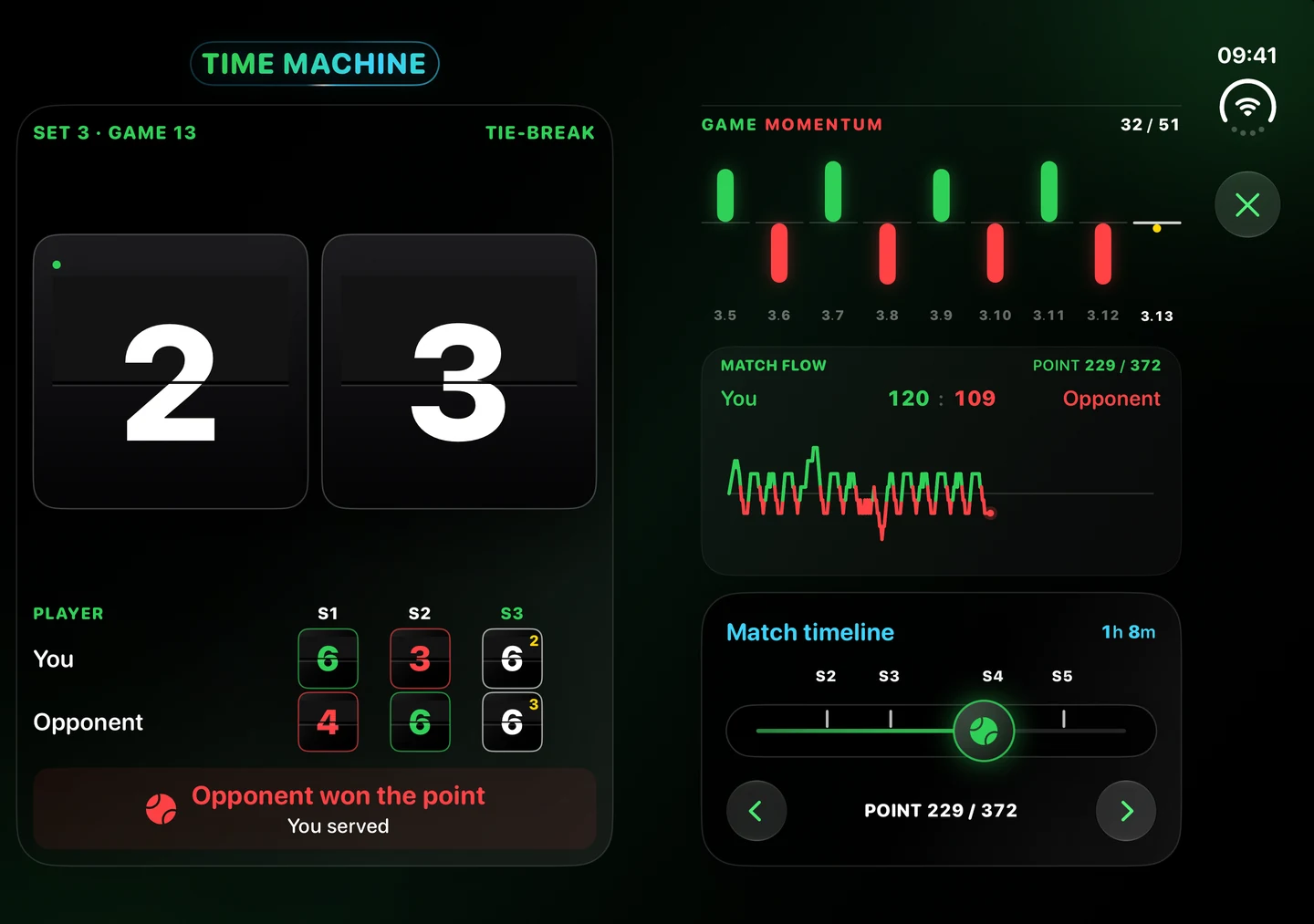
Move through recorded points, follow the server and scrub the match timeline. A wider view brings the score and the story together.

Real app recordings with demonstration matches. Time Machine replays recorded scores, not camera footage.

Previous release · Pro 2.0 / Standalone 2.0

A classic feel. A new way to relive.

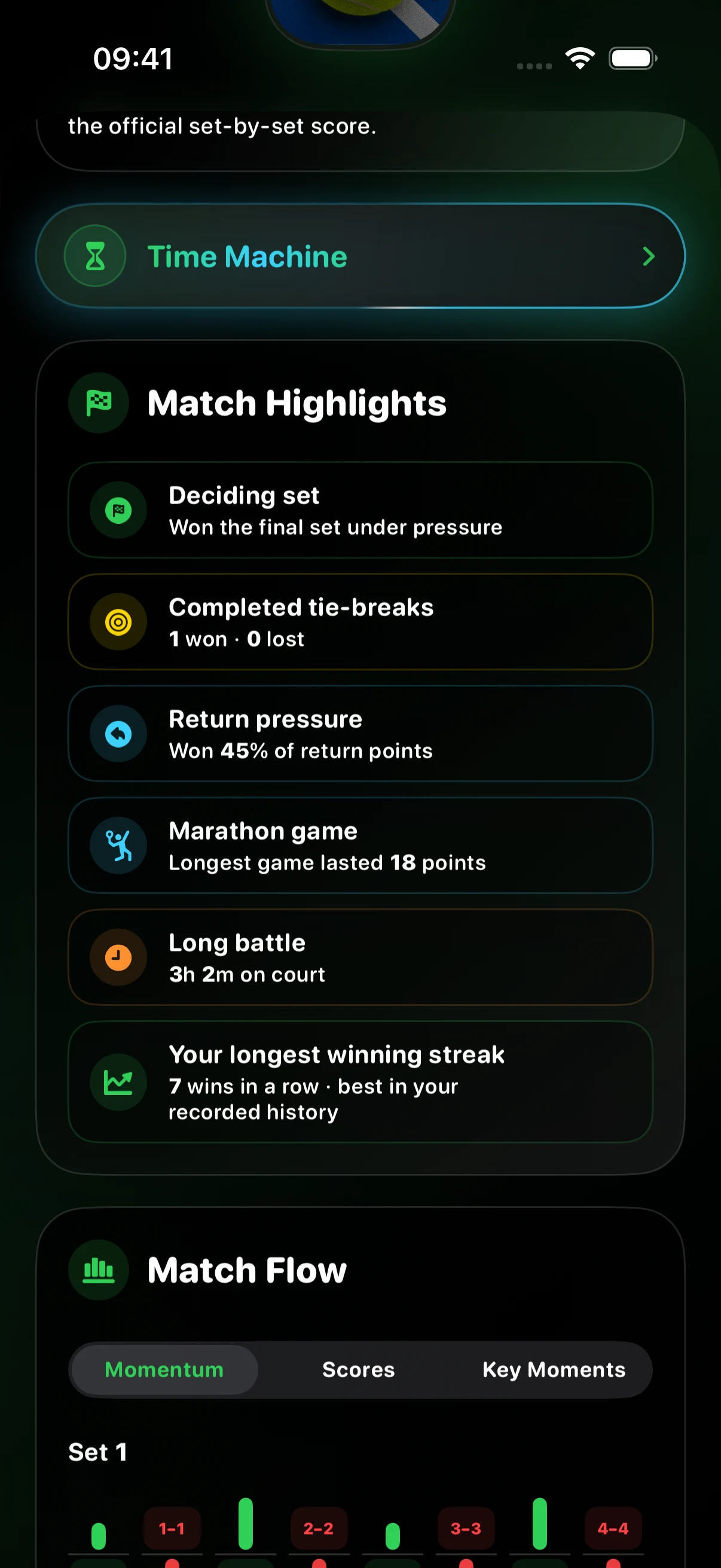
A scoreboard with character. A replay with a story. Version 2.0 pairs bold flip-style scoring and satisfying mechanical-style clicks with Time Machine on Watch and iPhone. Your next match deserves more than a final score.

01 · Apple Watch · Both apps

A score that comes alive.

Tap the player who won the point. Watch the digits flip and hear that satisfying click. The app handles games, sets and tie-breaks while you stay with the play.

02 · Time Machine · Pro on iPhone

The whole match, once more.

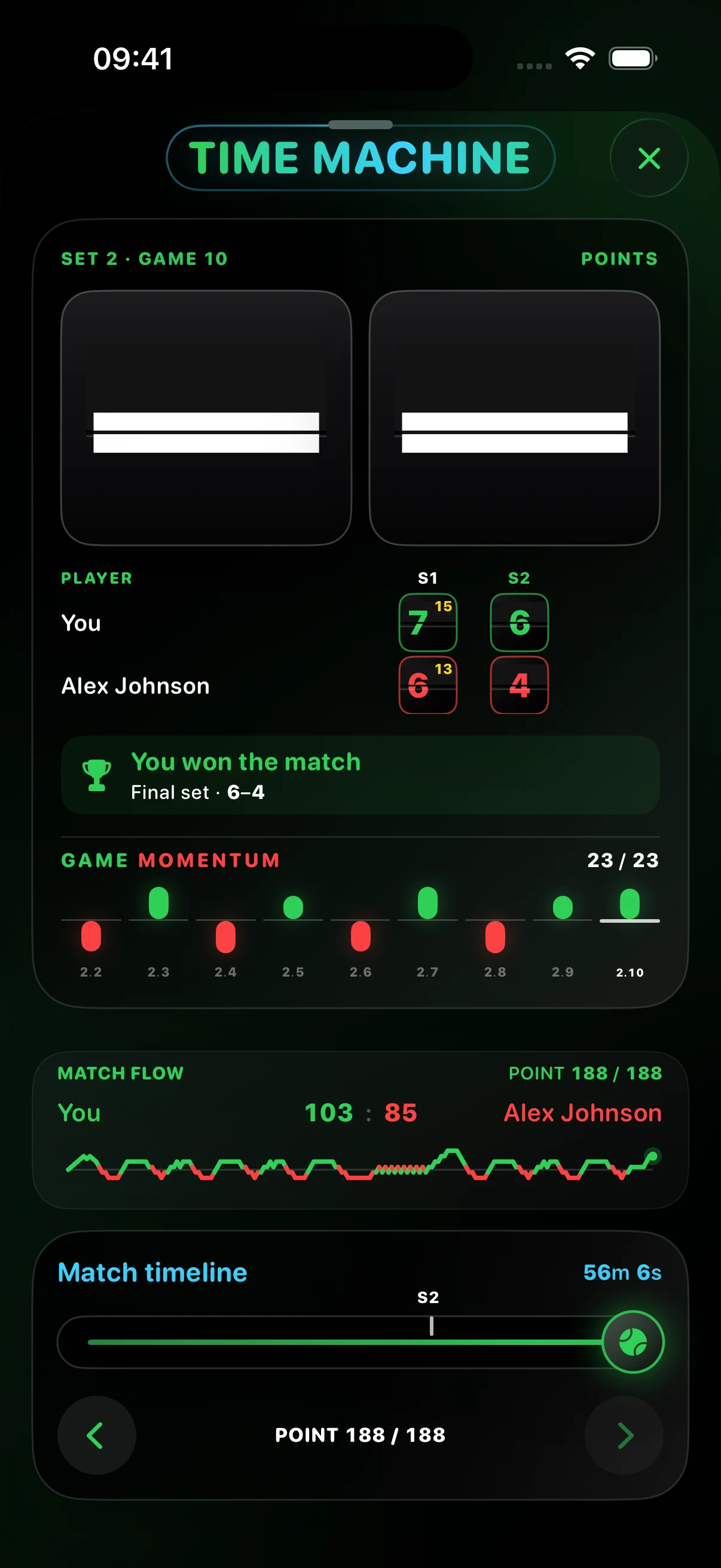
The long deuce. The comeback. The tie-break you still talk about. Revisit recorded points on iPhone, scrub the timeline and turn sideways for a wider view.

03 · Time Machine · Both Watch apps

Replay every point on Apple Watch.

Go back a point, a game or to the start of the story. Follow the server, set scores and Game Momentum on your Watch—even during the current match, before returning to play.

Pro experience

One complete experience. Two screens.

Stay in the game on Apple Watch. Make sense of it afterwards on iPhone. Pro brings the full Watch experience together with replay, Rivalries, personal match notes and more ways to see your progress.

On court · Apple Watch

Less to think about. More tennis to play.

Choose your format, follow the serve indicator and tap each point. Correct a mistake with Undo, record an optional workout and keep every result close. The complete Watch app is included.

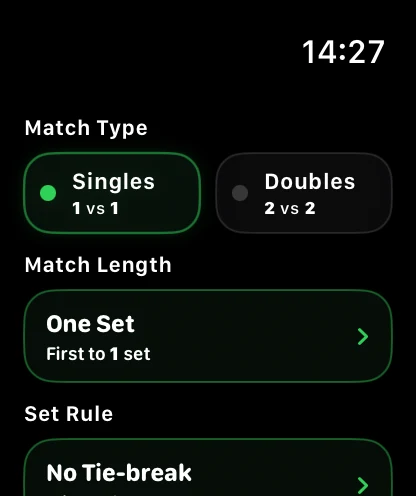
Apple Watch match setup with Singles, Doubles and One Set selected
Setup
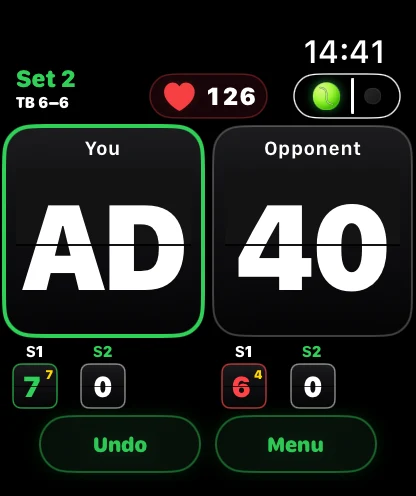
Apple Watch scoreboard at Advantage–40, with yellow tie-break indices and 126 BPM heart rate
Live scoring
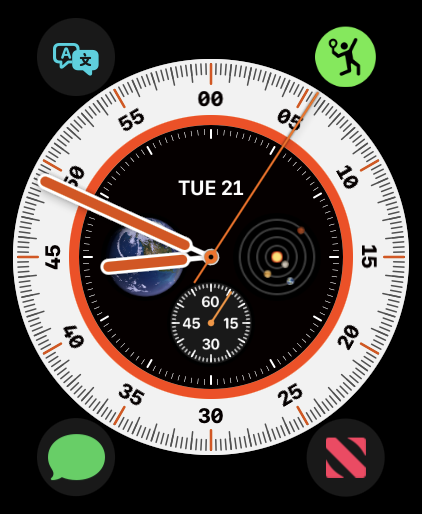
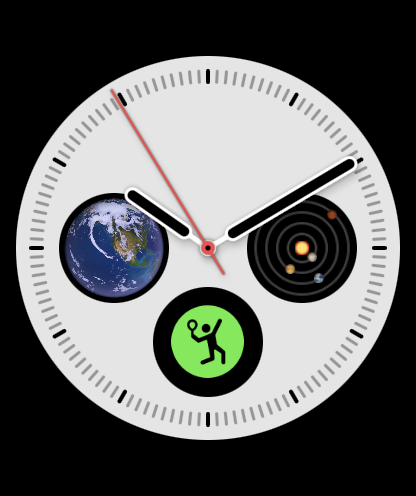
Tennis Score Wizard complication on Apple Watch
Complications
Beyond the court · iPhone

Every match, with room for the details.

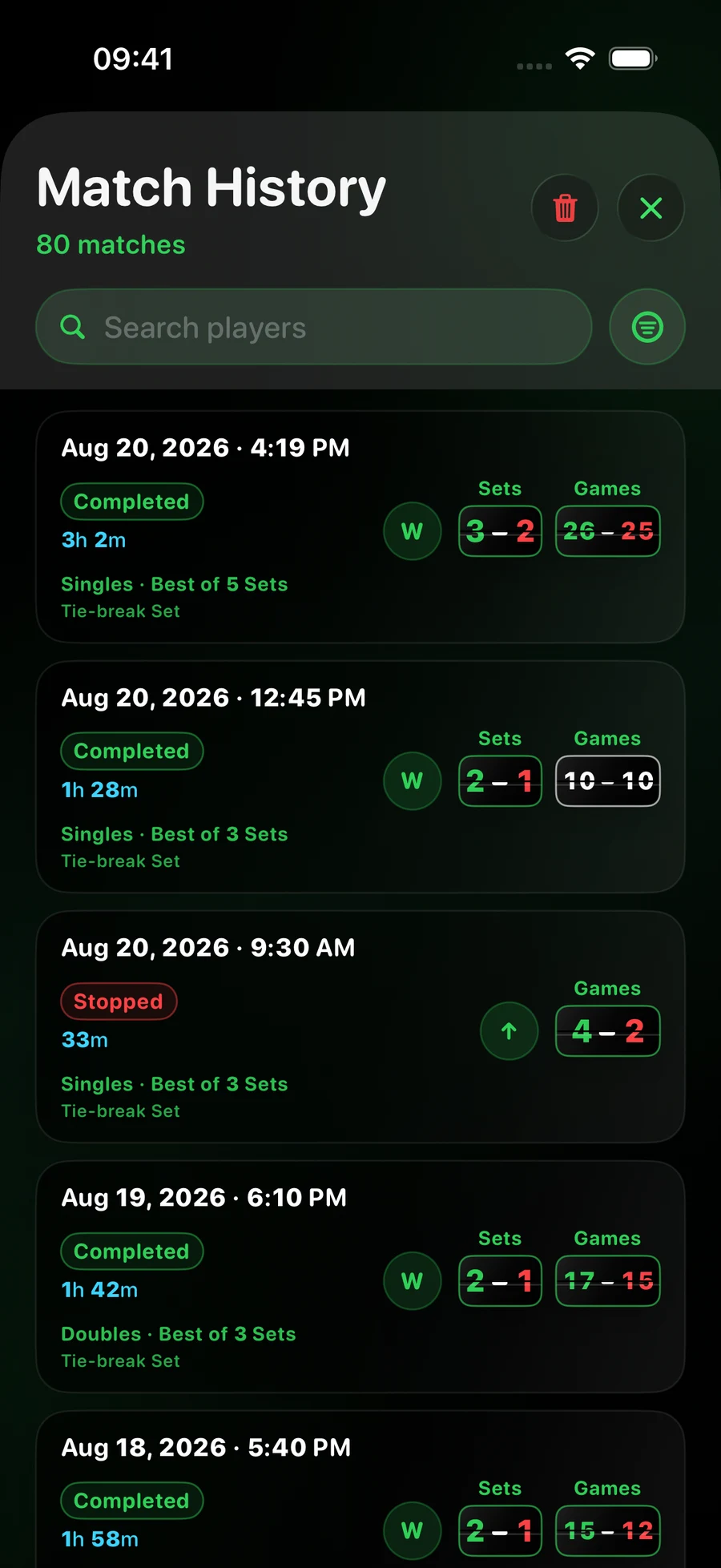
Revisit a Watch-recorded match or add a result you scored yourself. Keep the court, conditions and your own notes beside the score. Explore the recorded points, statistics and workout details on a bigger screen.

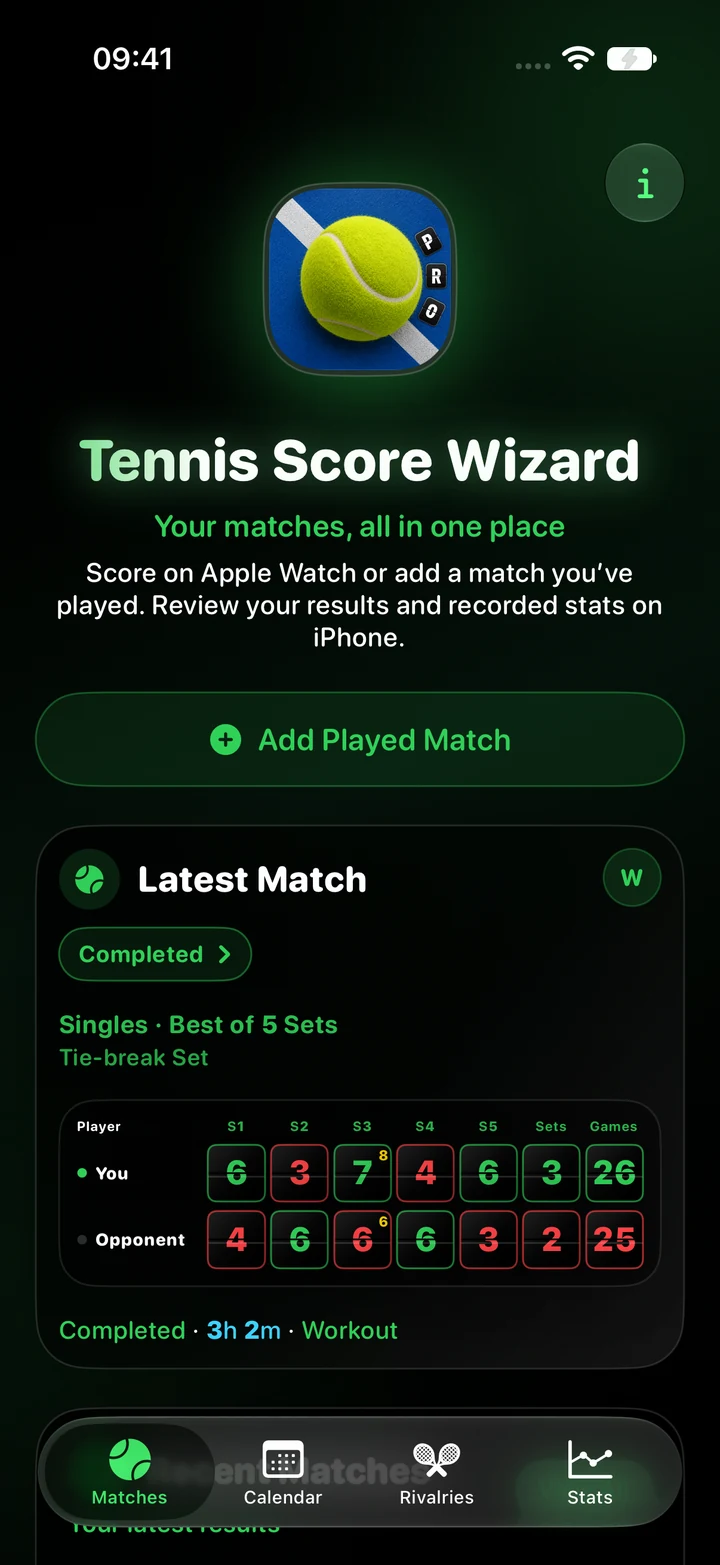
Tennis Score Wizard Pro on iPhone with matches synced from Apple Watch
01

Complete Apple Watch app

The same live scoring, Time Machine, history and optional workouts as Standalone. No second purchase.

02

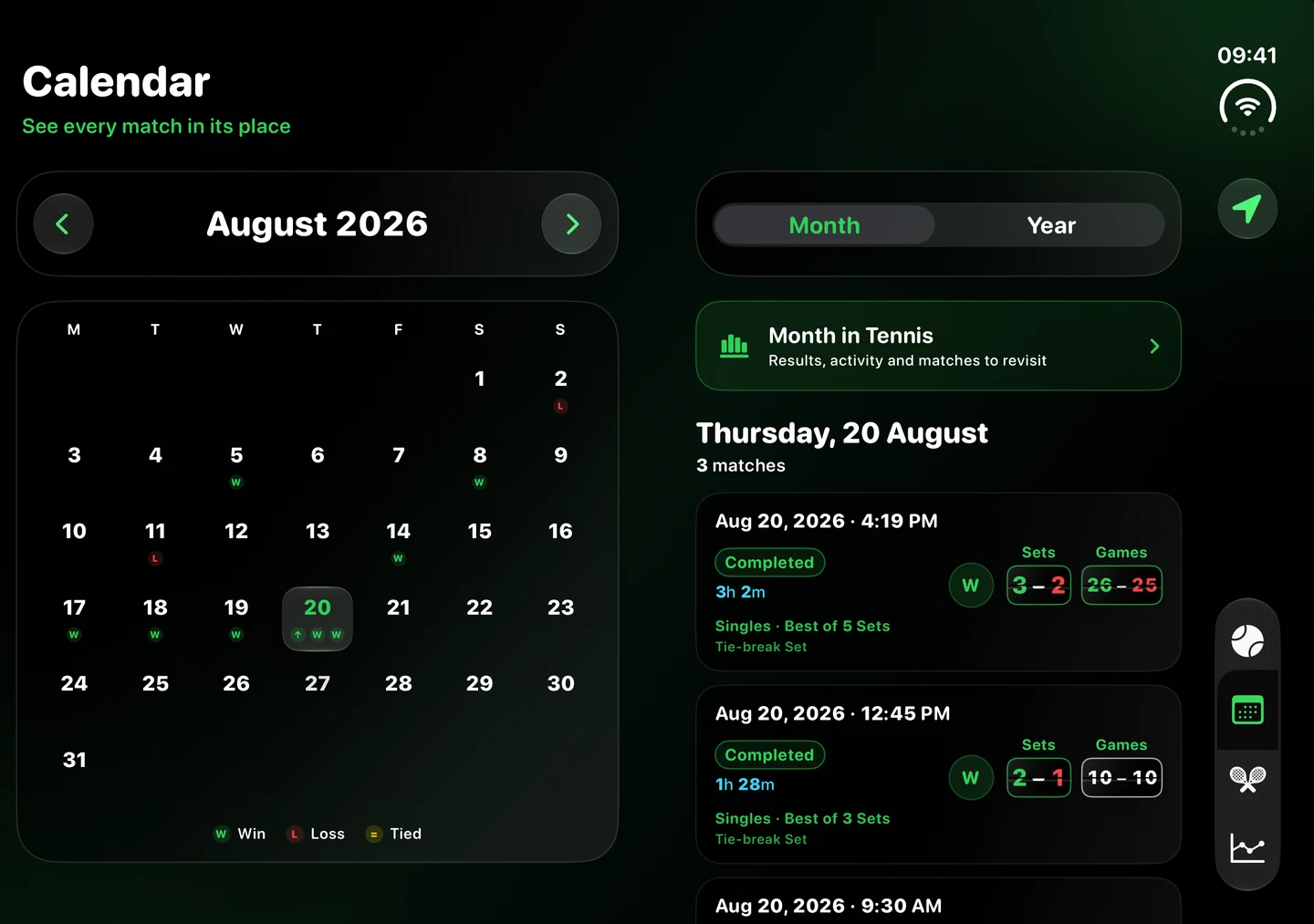
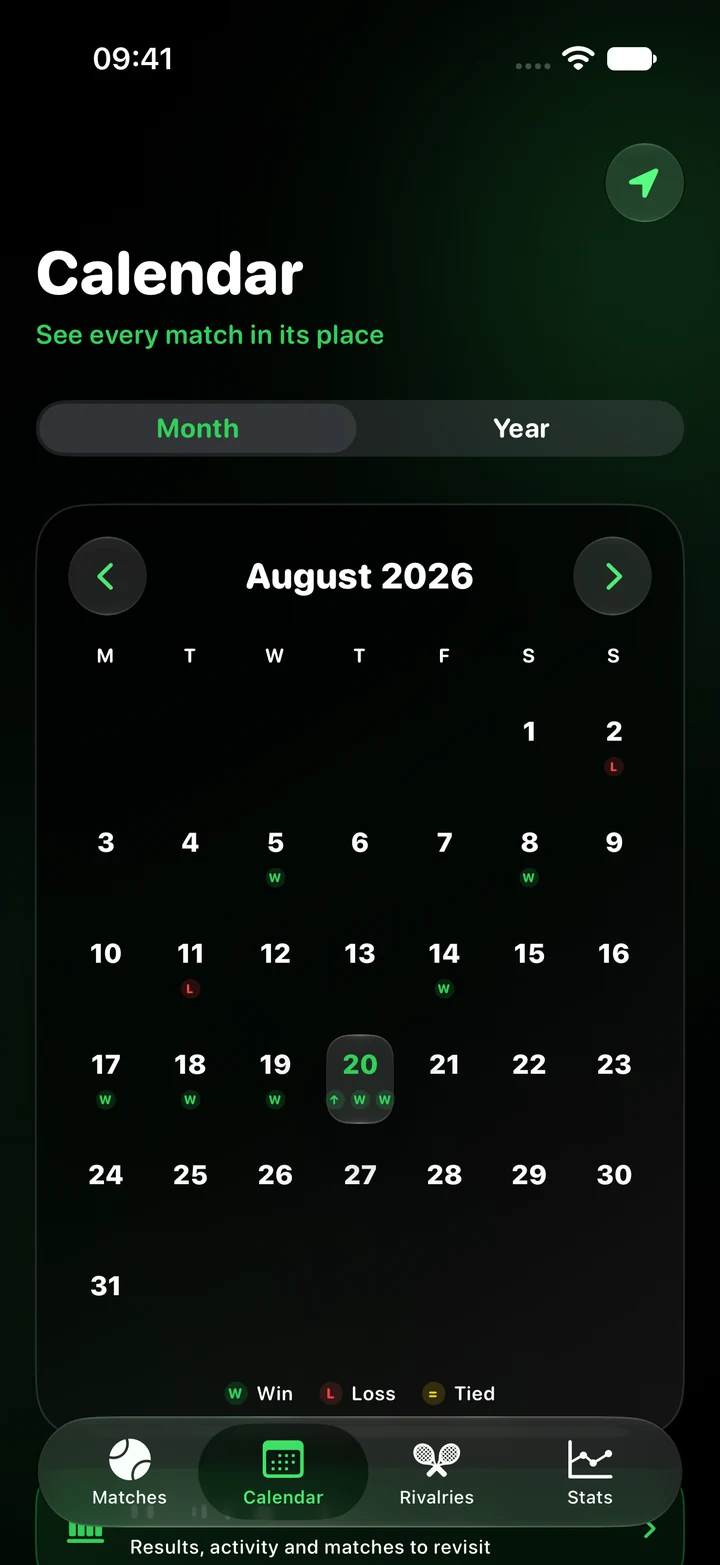
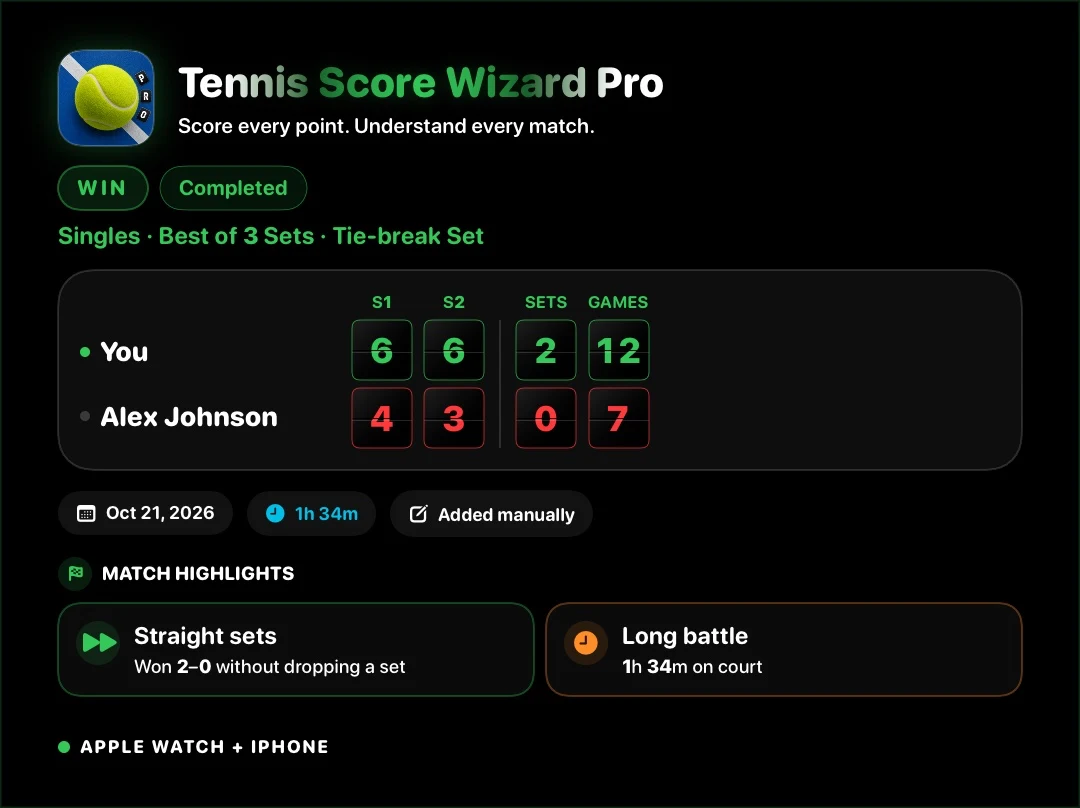
Calendar and match history

Find that match by date, revisit a busy month or look back on the season. Your results stay together, whether recorded on Watch or added later.

03

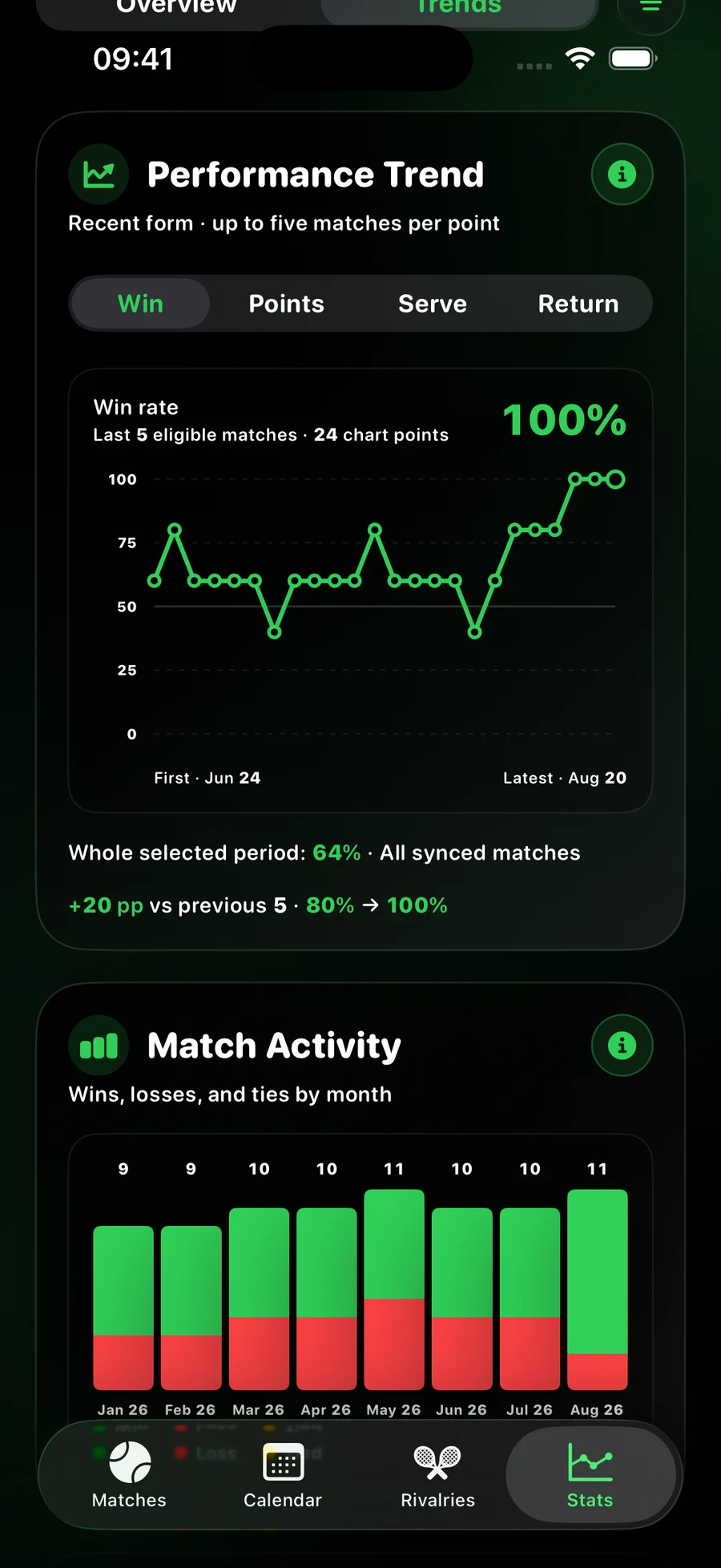
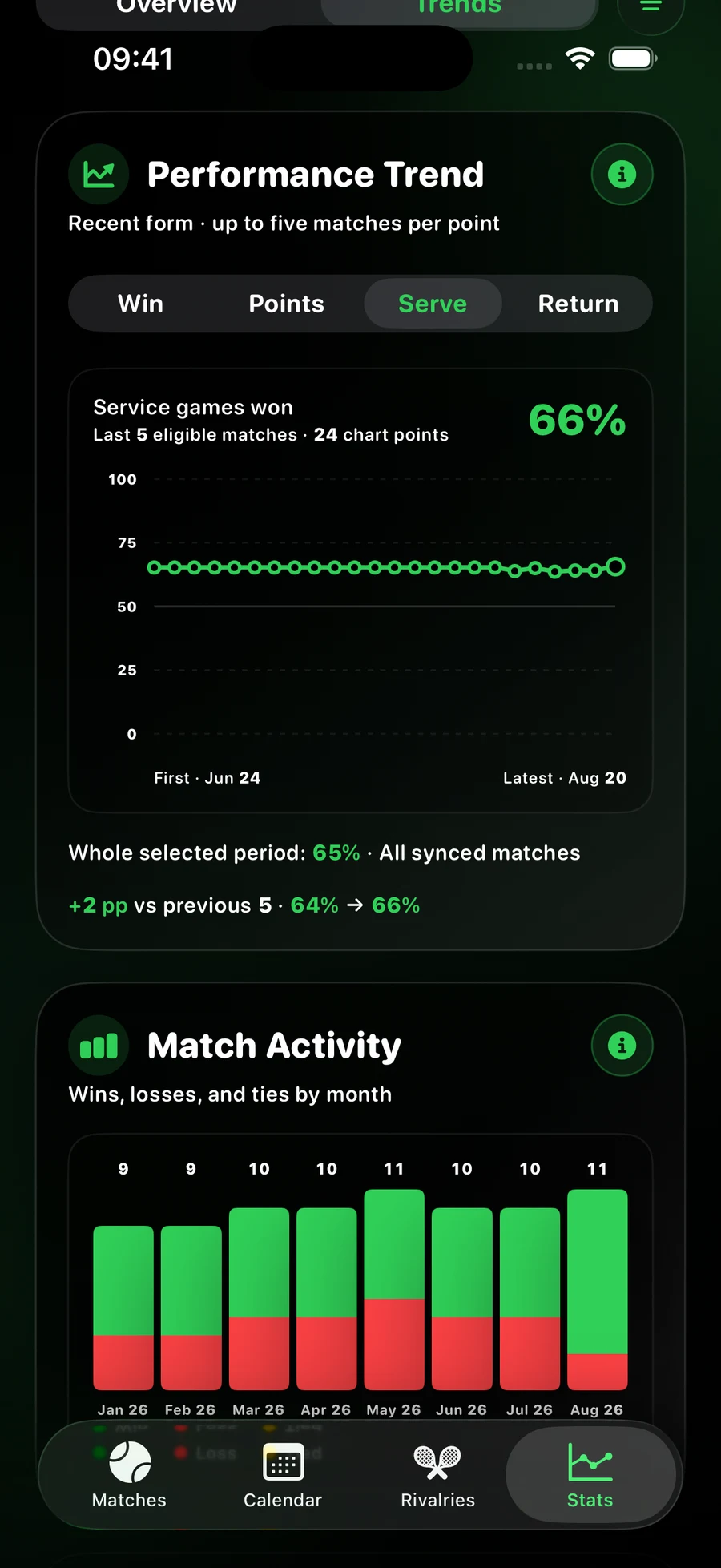
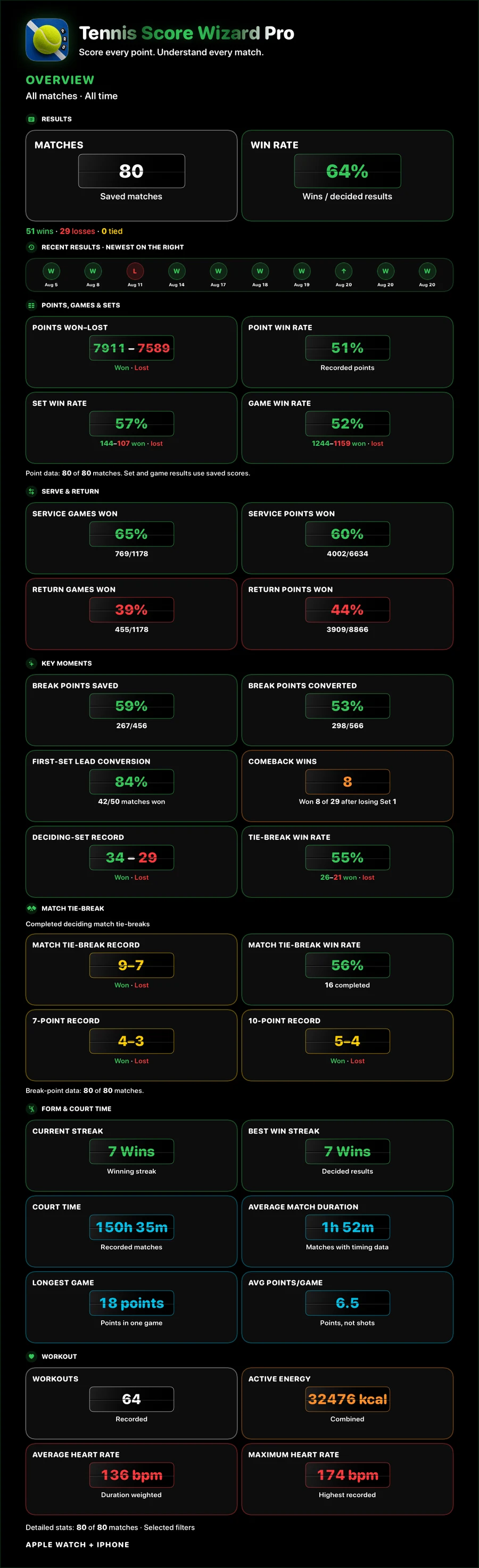
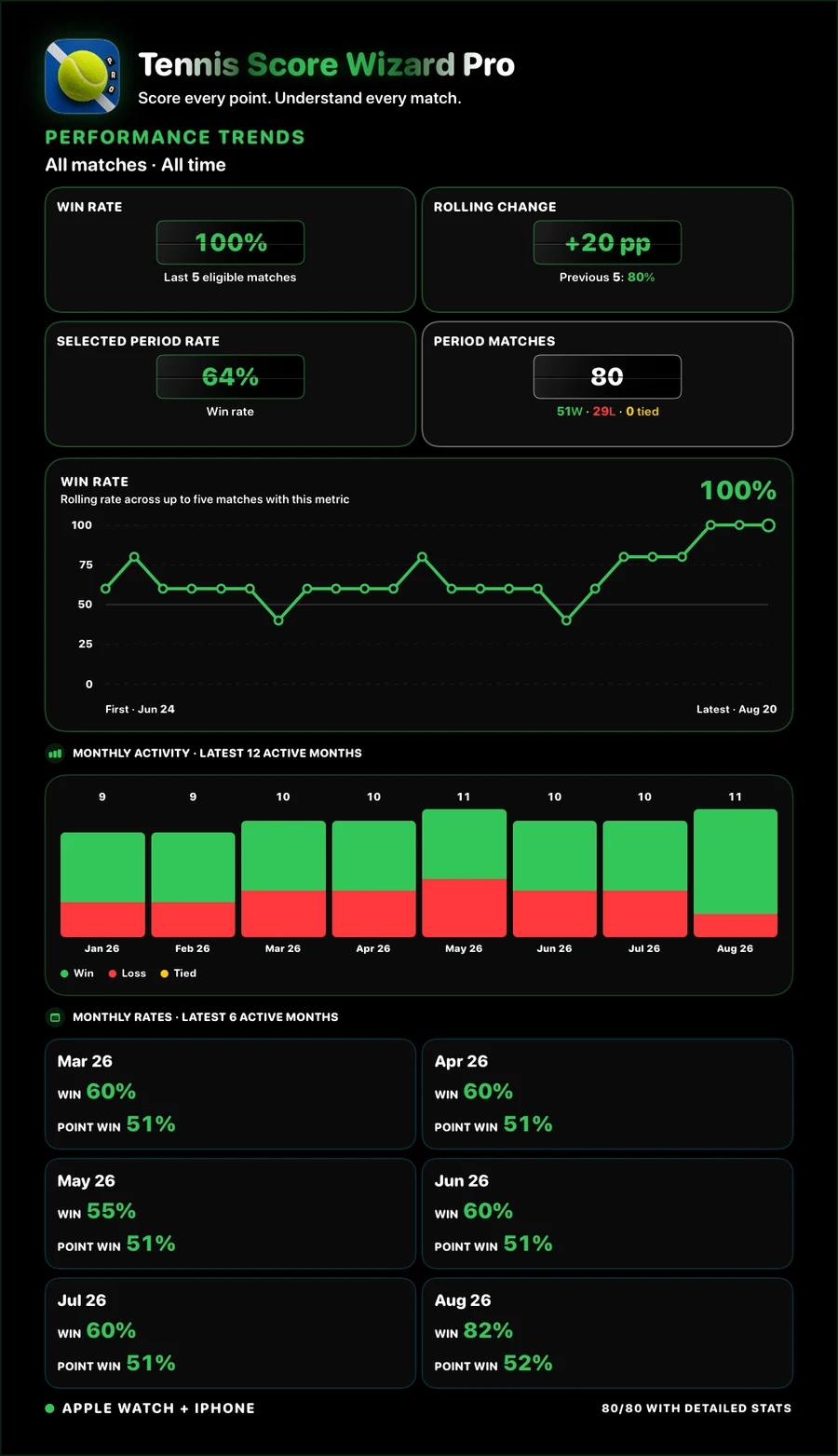
Performance stats and trends

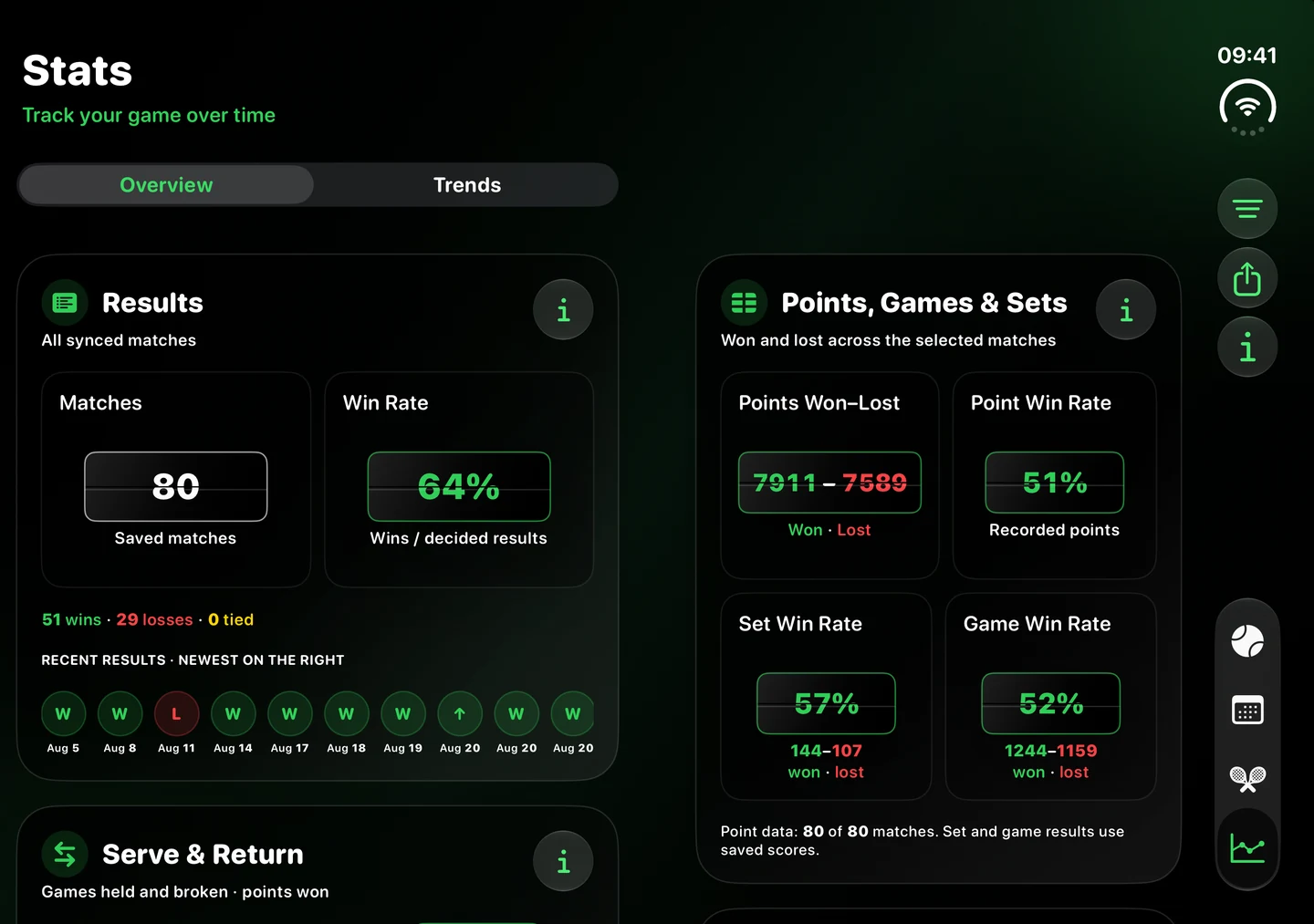
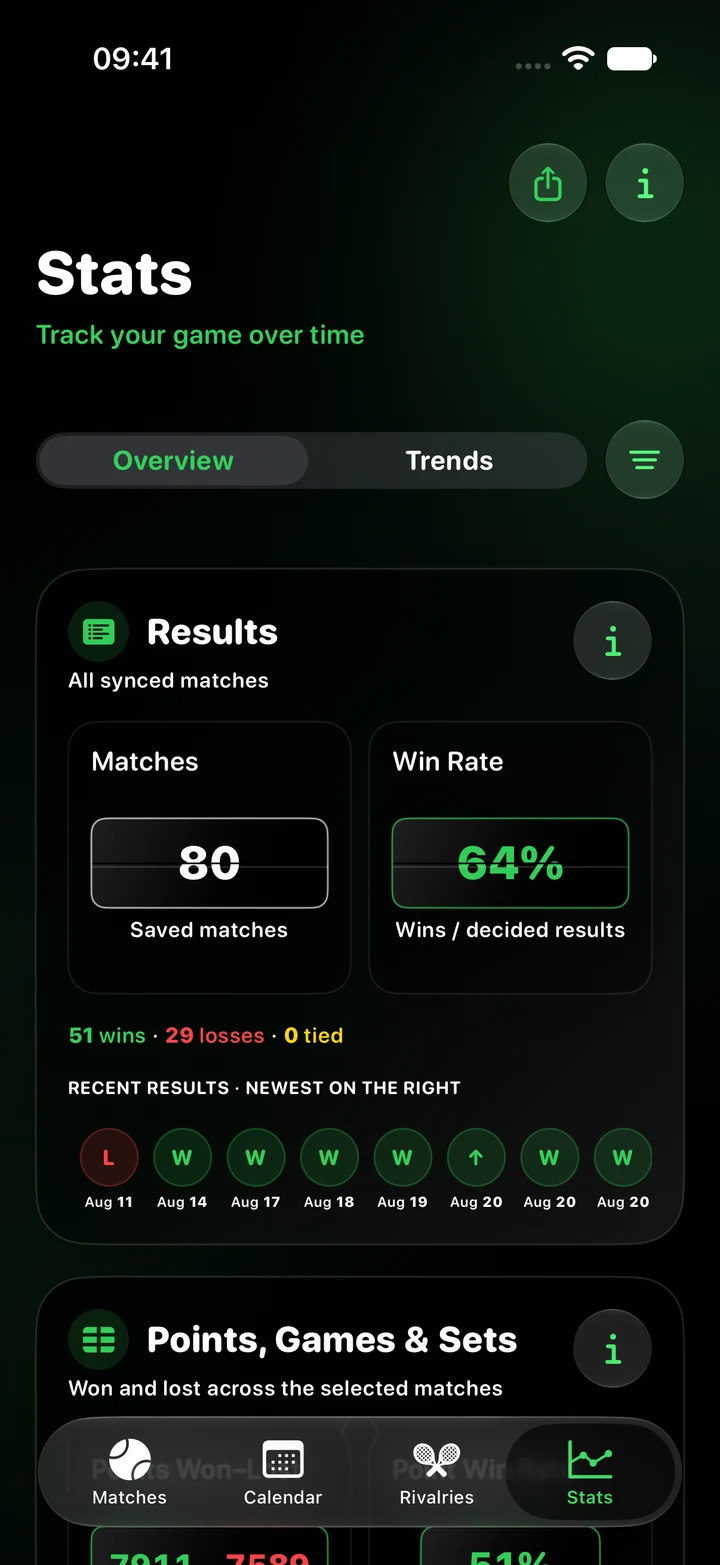
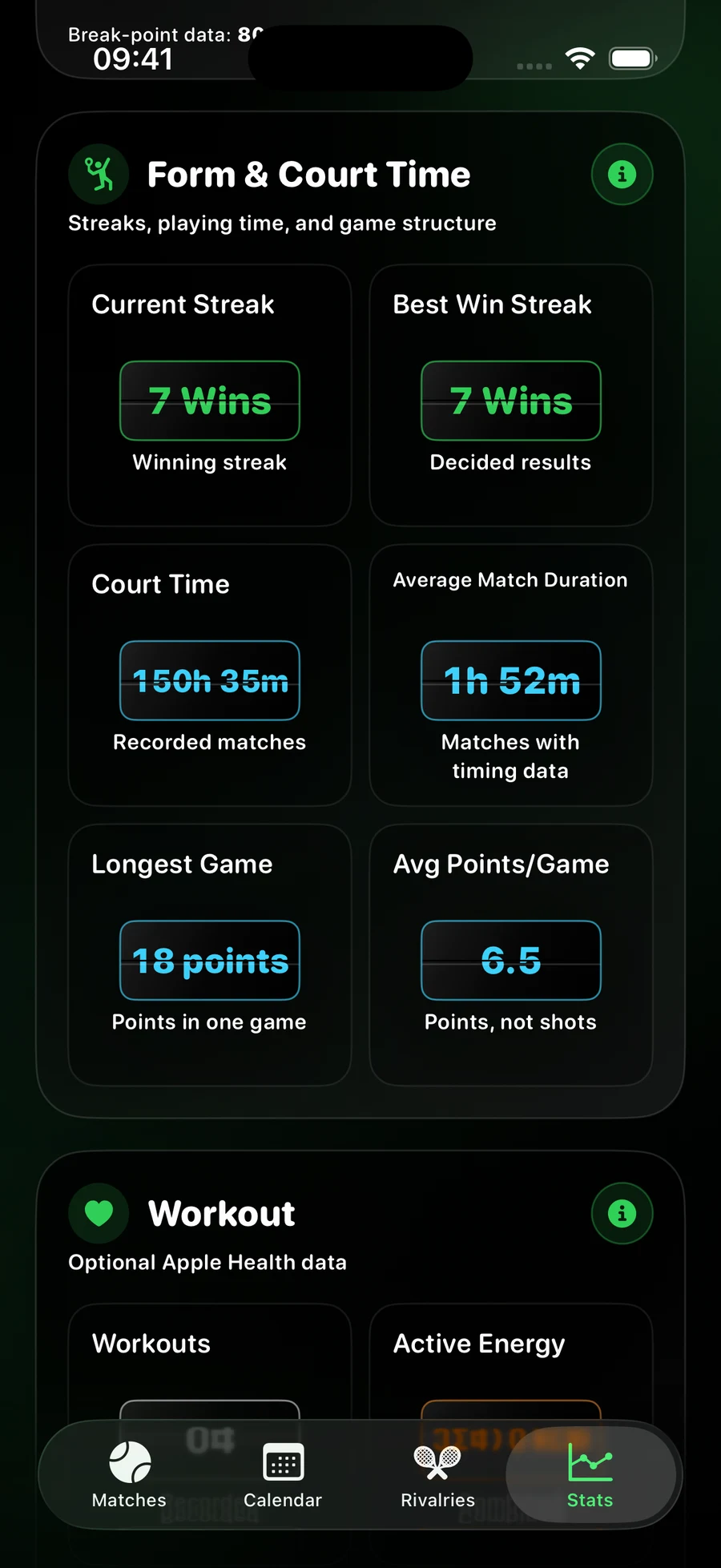
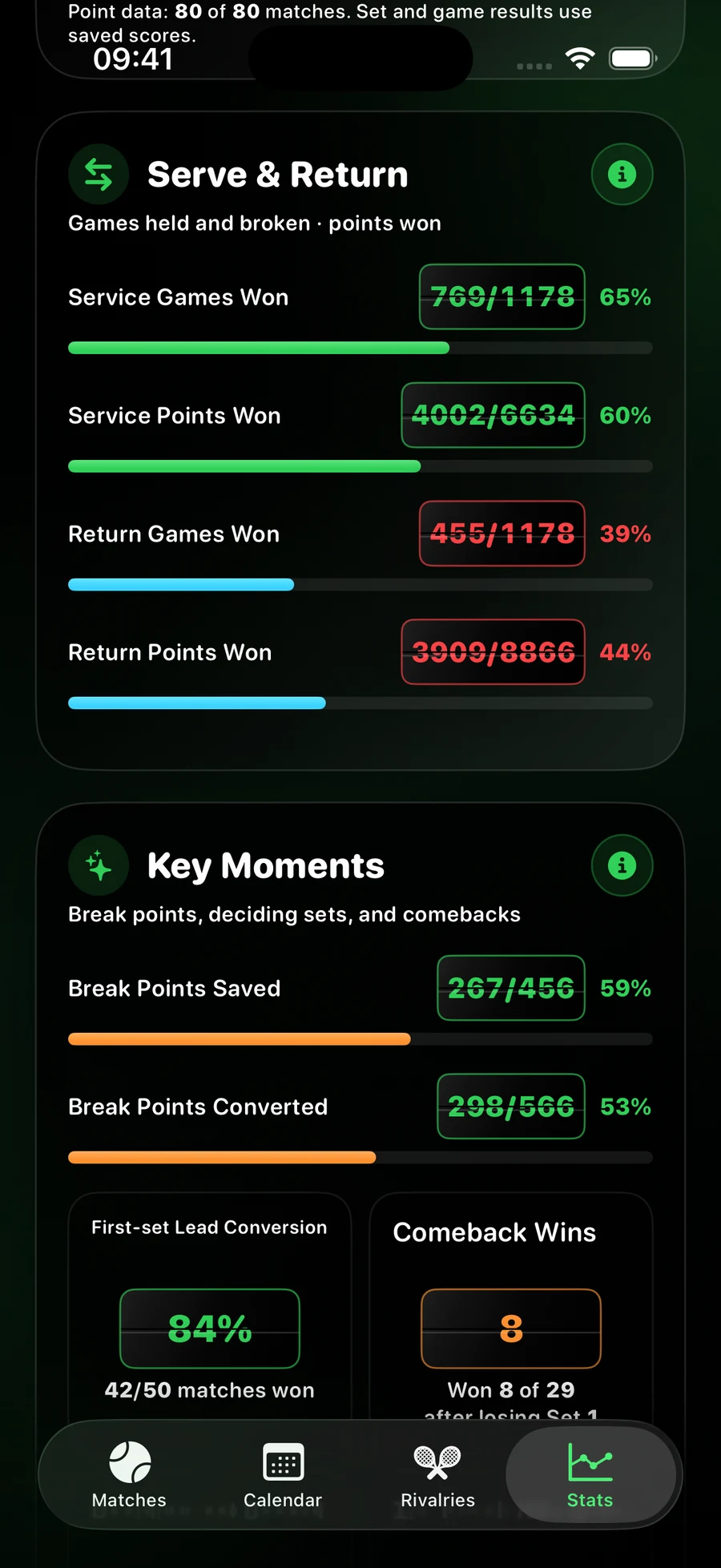
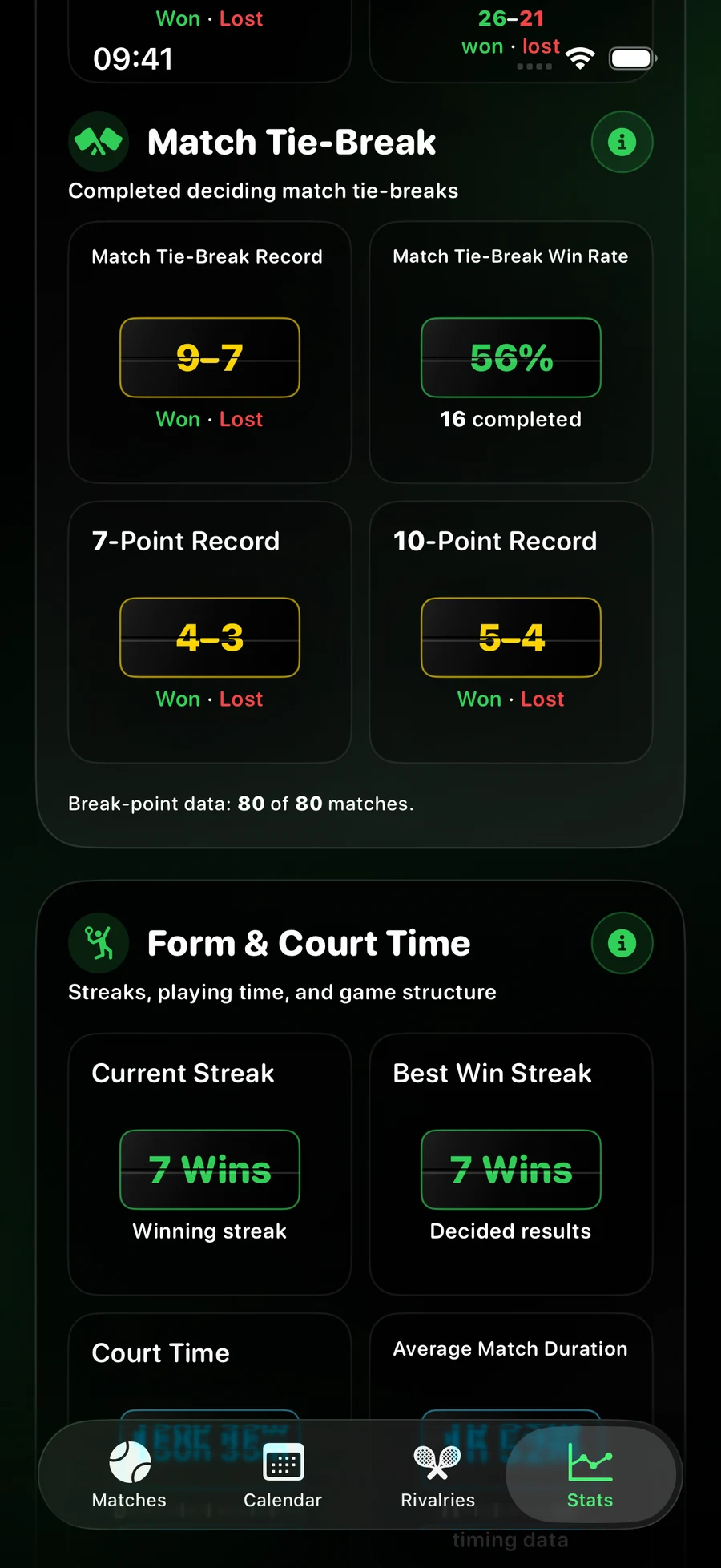
Go beyond wins and losses. Discover your serve and return strengths, pressure points and recent form, using the data you recorded.

04

Shareable result cards

A memorable match deserves a great card. Share the score, up to six highlights and optional court details—or tell the story of a Rivalry or a season. Your notes stay private.

Pro on iPhone Duo

A bigger picture.
The same tennis story.

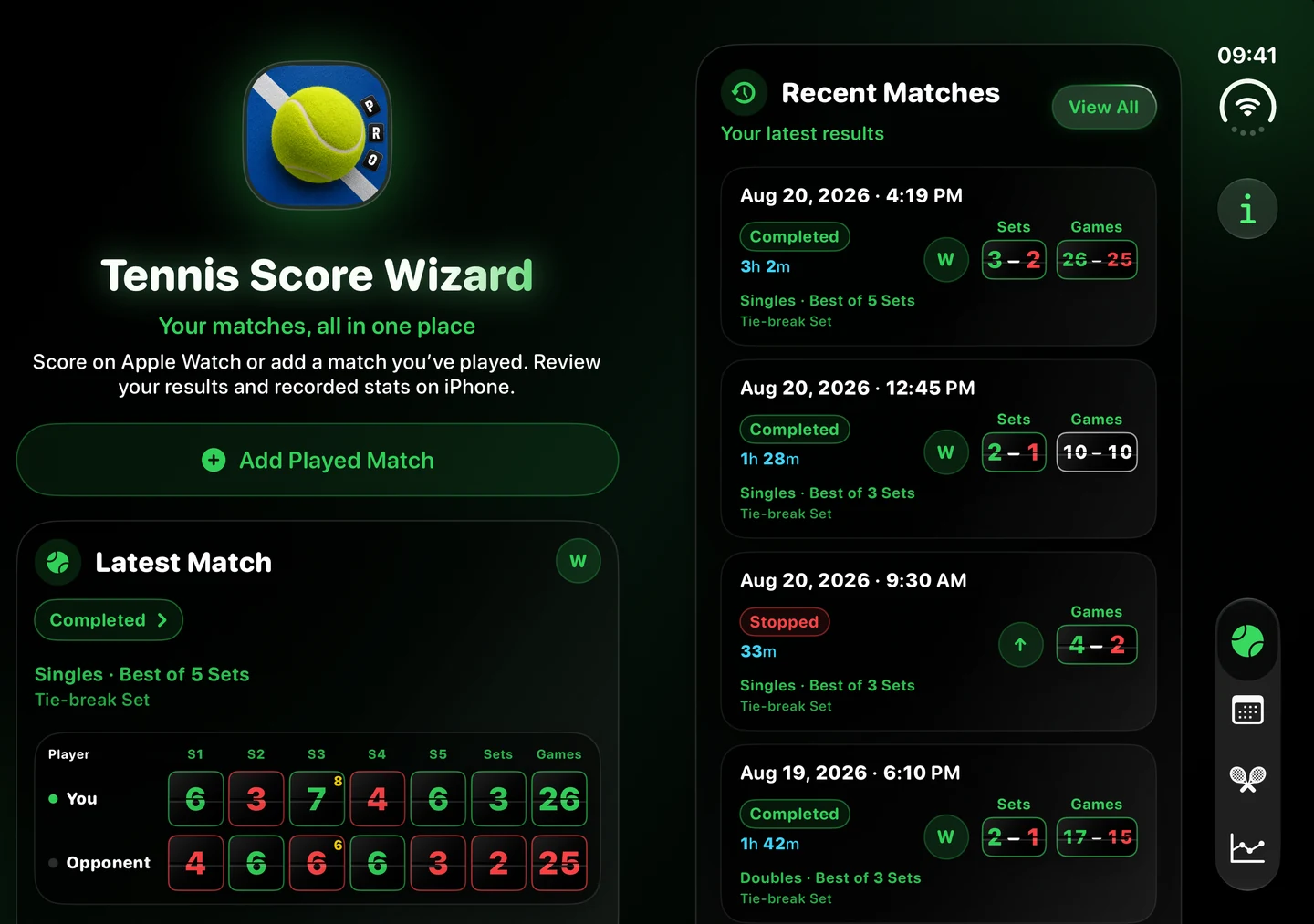
Keep your latest result close on the outer screen. Open Duo for side-by-side views of your match history, calendar and performance. The layout follows the space you have.

The latest recorded result beside recent matches on the larger Duo display.
Your matches, side by sideThe latest recorded result beside recent matches on the larger Duo display.
Fold. Unfold. Rotate.

More room when you want it.

Closed, partially folded or fully open: explore your tennis with a layout suited to the available display.

  • Review match history alongside your latest result.
  • Explore Rivalries, Calendar and Stats in wider layouts.
  • Keep replay open as you change perspective.
Read the Pro 2.1 release notes →

Shown in Pro on iPhone Duo using demonstration matches. Point and workout insights depend on the data recorded for each match.

Pro 2.0 · Standalone 2.0

Your month. Your season. Your tennis.

One great week is worth remembering. So is the season it became. Explore monthly and yearly recaps on both Watch apps, with a larger, shareable view on iPhone in Pro. All Time in Tennis on Watch brings your whole saved history together.

01 · PRO ON IPHONE

See your month take shape.

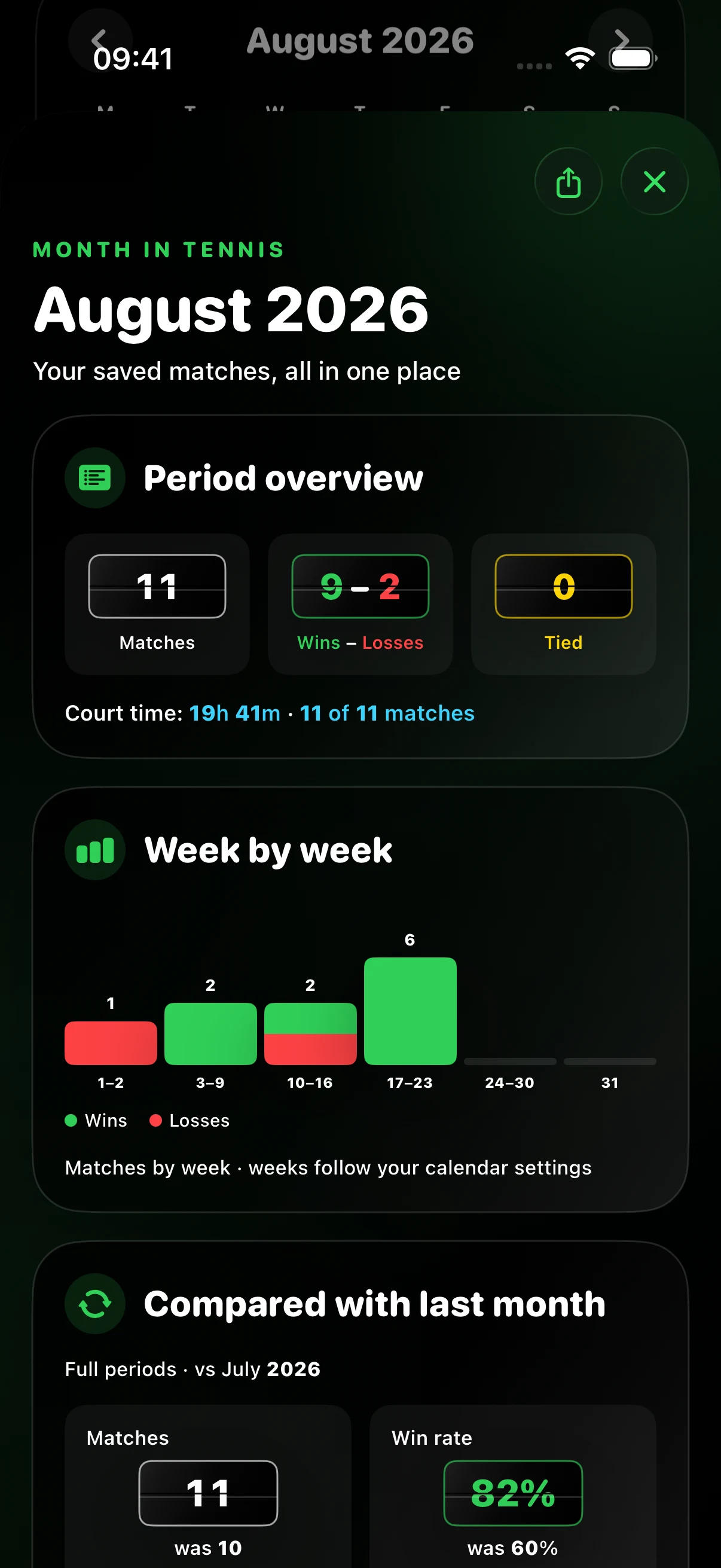
See your playing weeks in color, revisit the results and compare with last month. Turn the period into a recap card to share from Pro on iPhone.

Pro Month in Tennis: 11 saved matches, color-coded weekly activity and comparison with last month
02 · PRO ON IPHONE

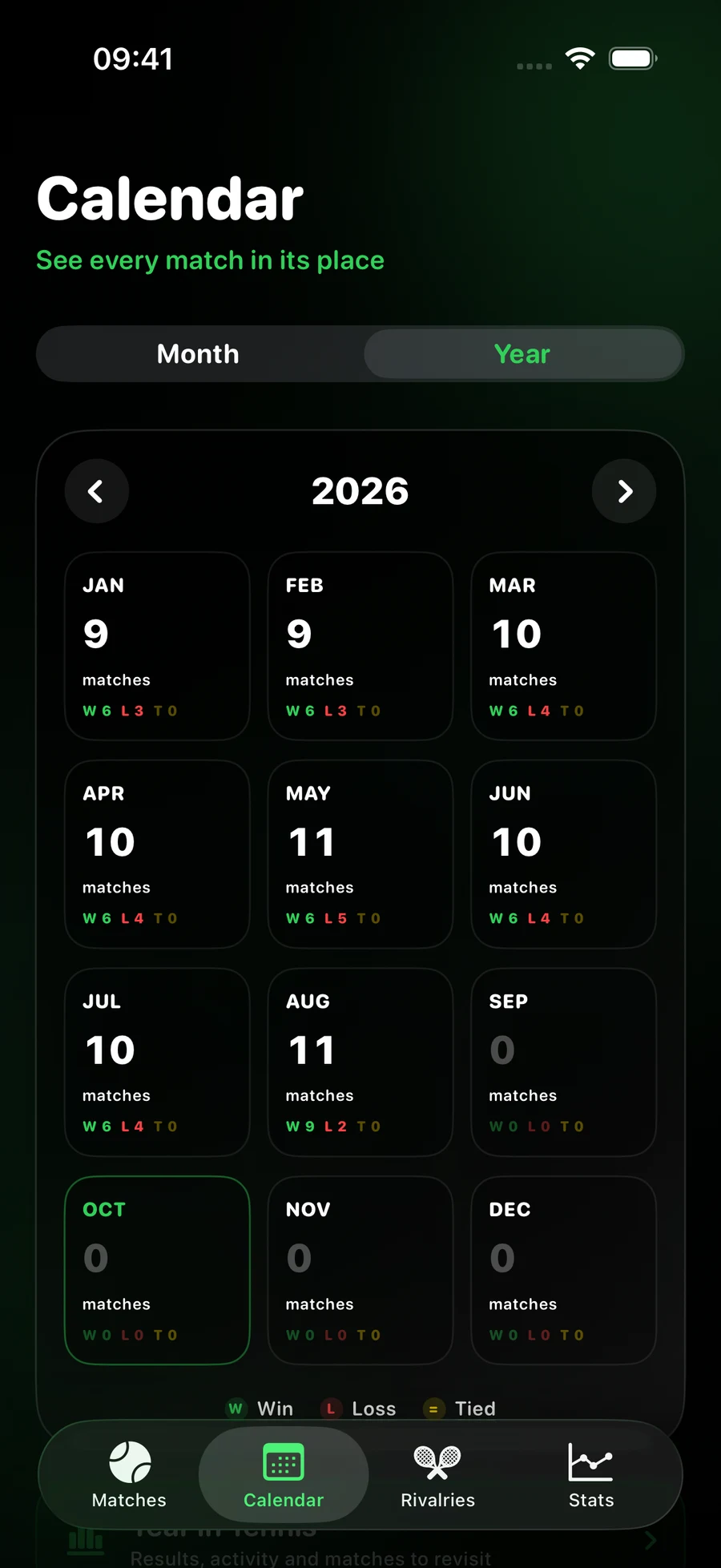
Take in the whole year.

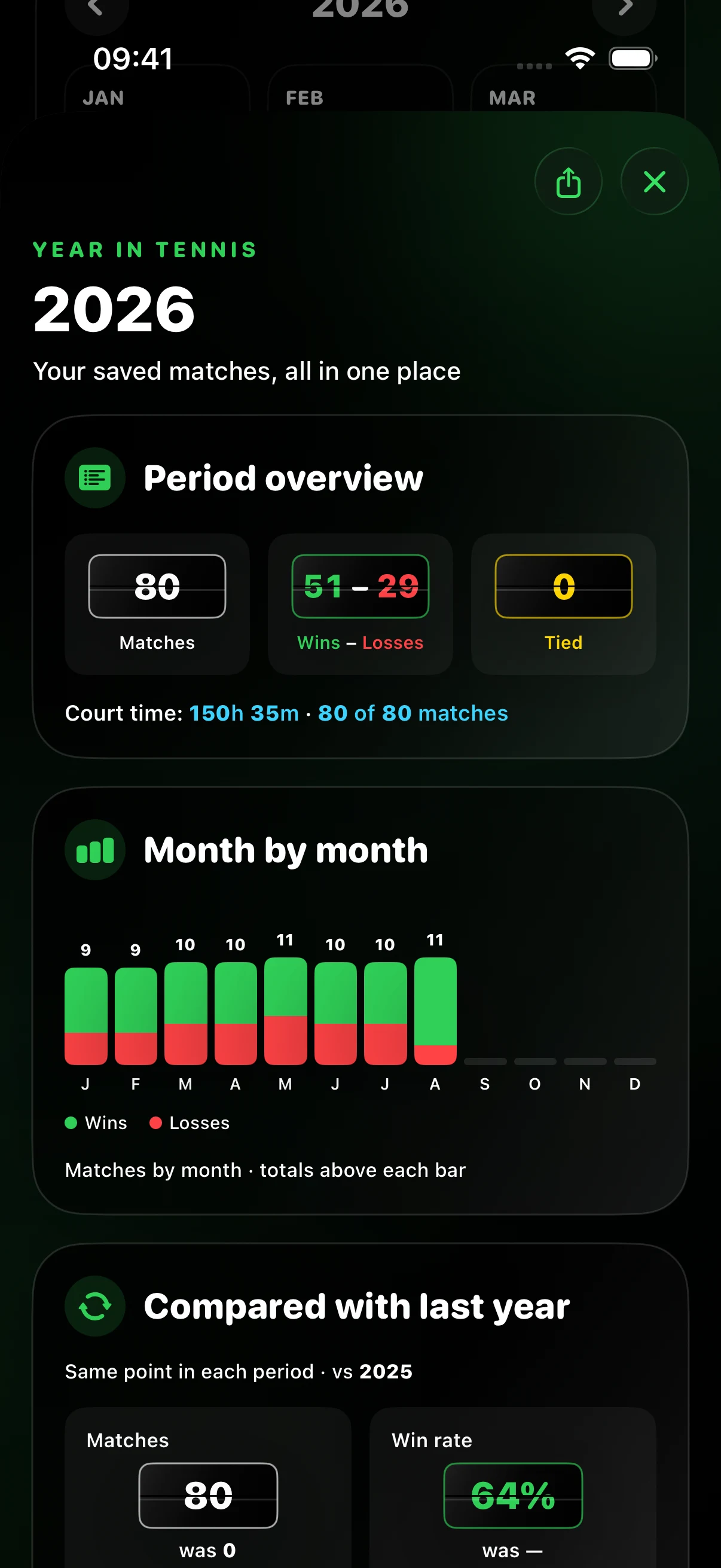
Watch the season take shape month by month. Explore results, comparisons and the achievements supported by your saved matches, then share your year.

Pro Year in Tennis: completed record, color-coded monthly activity and year comparison
03 · BOTH WATCH APPS

Your whole story, close at hand.

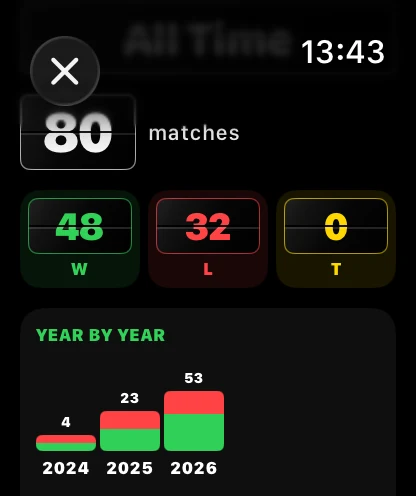
Open Month, Year or All Time in Tennis in Watch History. Revisit your activity and memorable achievements, then open the matches behind them.

Apple Watch All Time in Tennis with year-by-year activity and color-coded results
What’s new in both versions How to find your recap
The iPhone side of Pro

From every match to the bigger picture

Your latest result is only the beginning. Open the match, discover its highlights, explore your calendar and follow how your game develops over time.

Pro on iPhoneSyncs with both Watch apps

Your whole match.
Not just the score.

Played without keeping score on Watch? Your match still belongs here. Add the result on iPhone, remember the court and keep the moments that made it yours alongside your recorded history.

01 · ADD A PLAYED MATCH

Played it? Keep it.

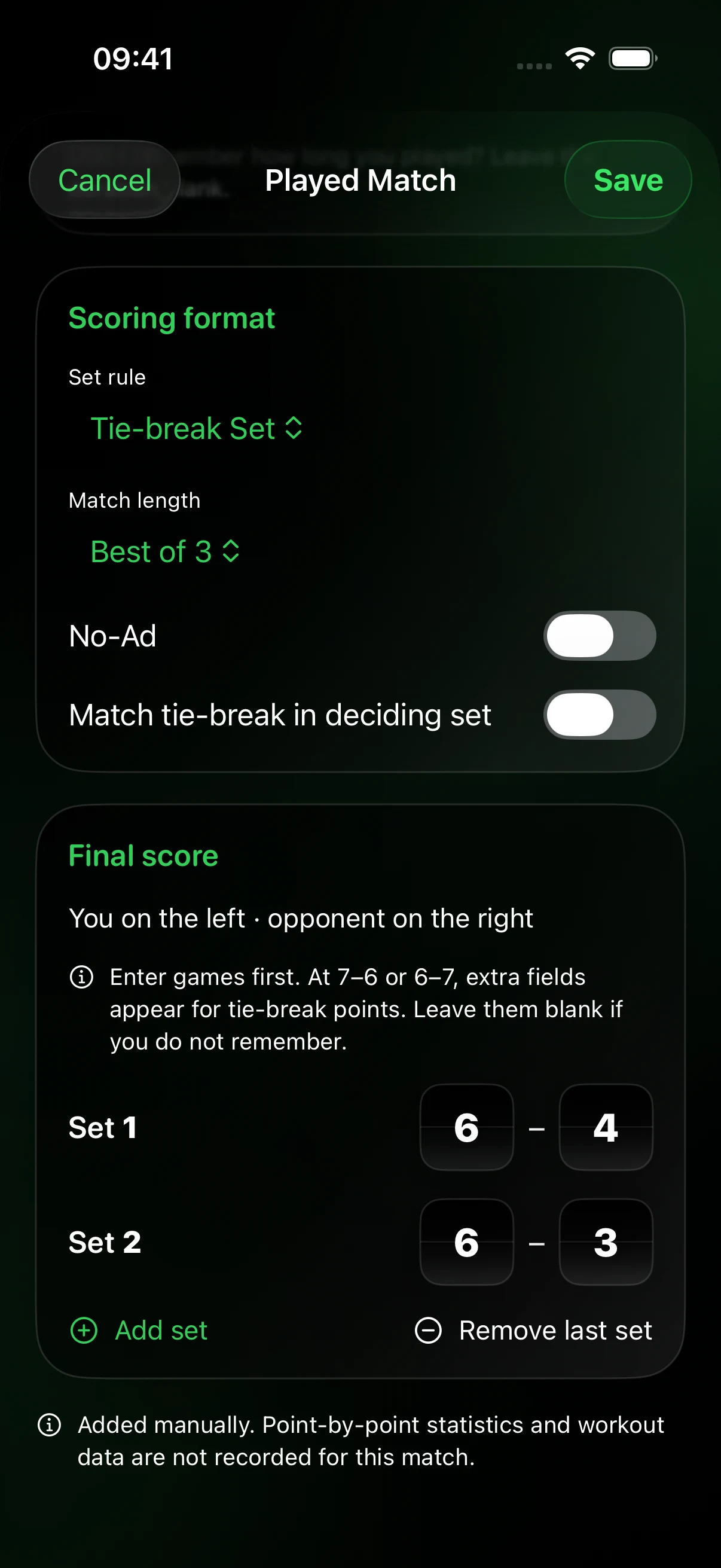
Enter the result on iPhone, including set scores and optional tie-break points. Save a completed match or a stopped match, even a tie. Include start and end times, or leave the duration unknown.

Manual match entry on iPhone with a 6–4, 6–3 result
02 · REMEMBER THE CONTEXT

Every court has a memory.

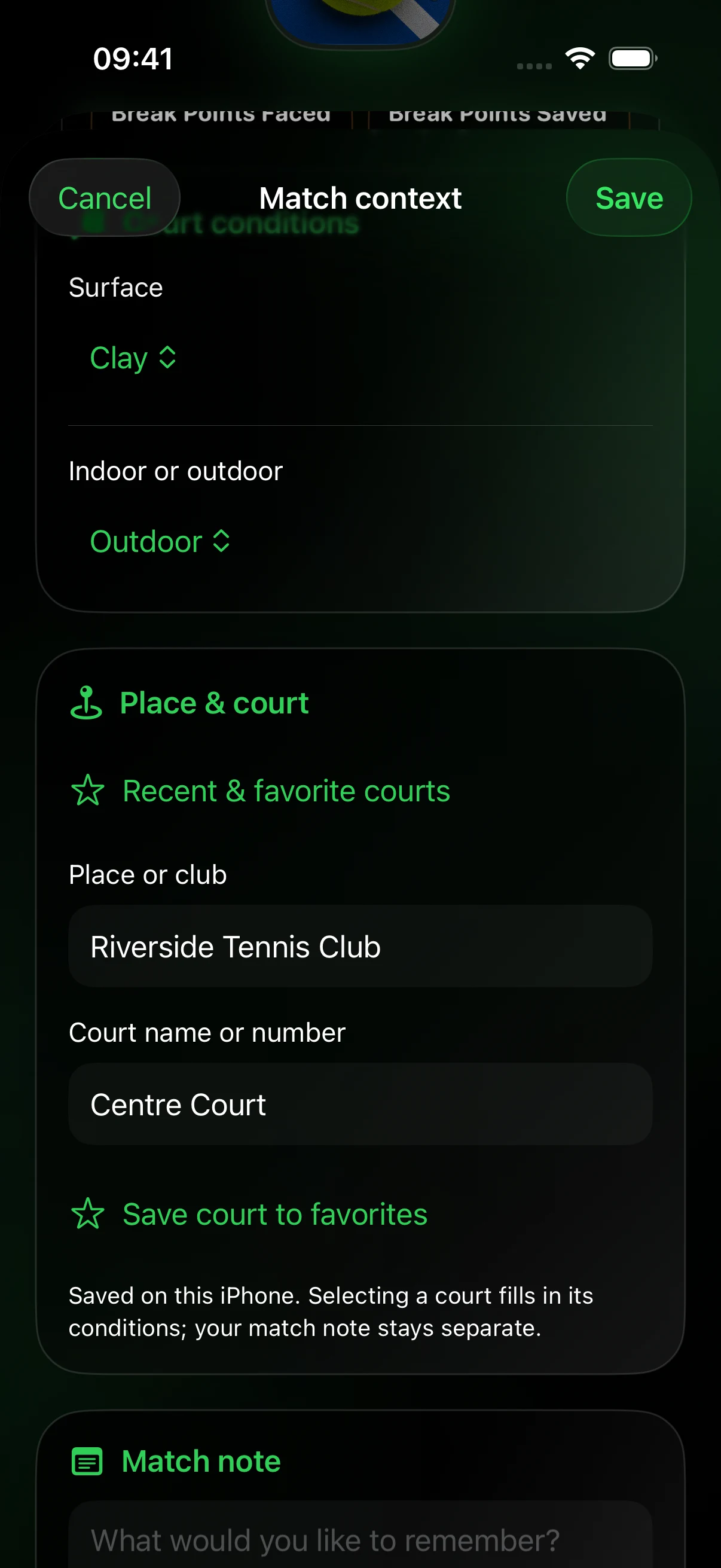
Add the surface, indoor or outdoor setting, club, court and a private match note. Reuse recent or favorite courts — and add context to older Watch-recorded matches, too.

Optional match context with Riverside Tennis Club, Centre Court, Clay and Outdoor
03 · FIND THE HIGHLIGHTS

More moments worth keeping.

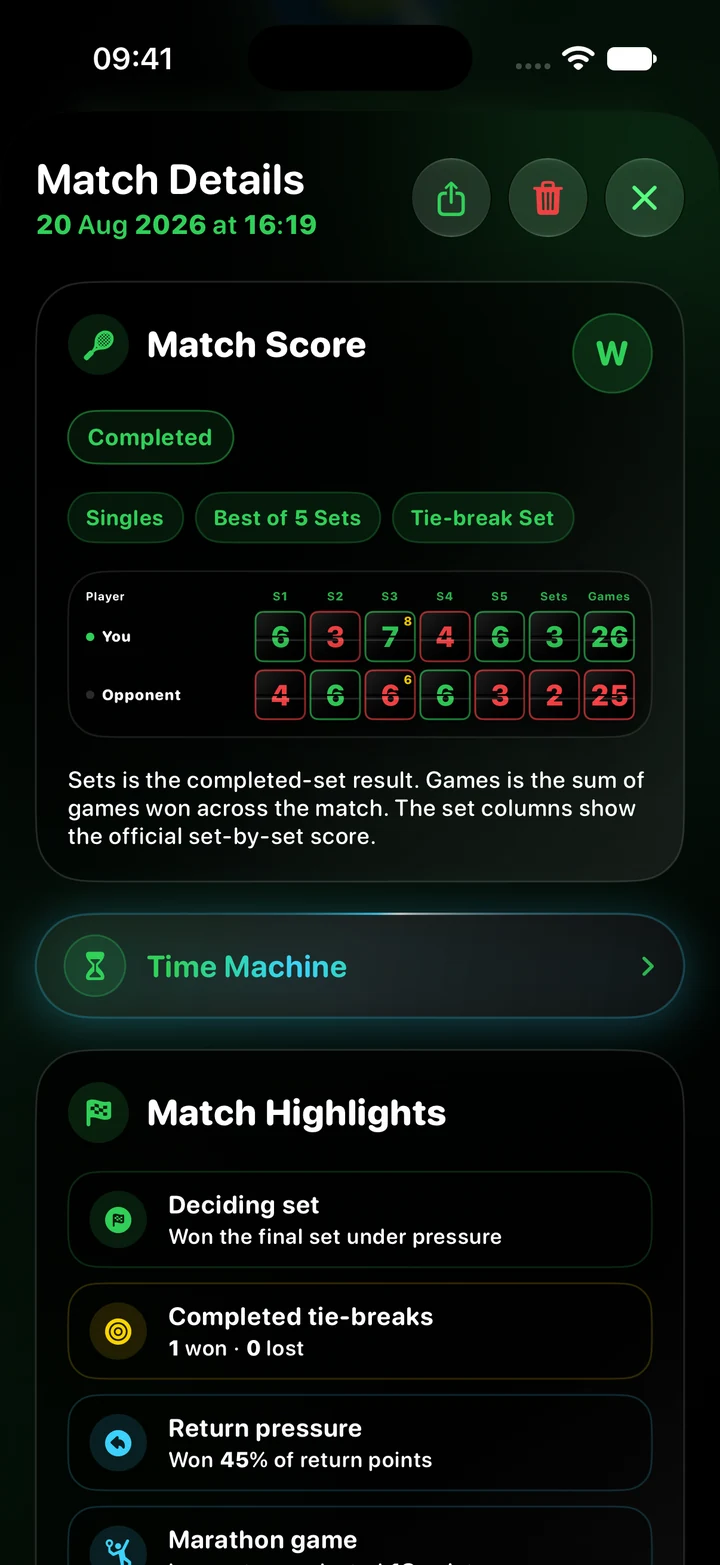
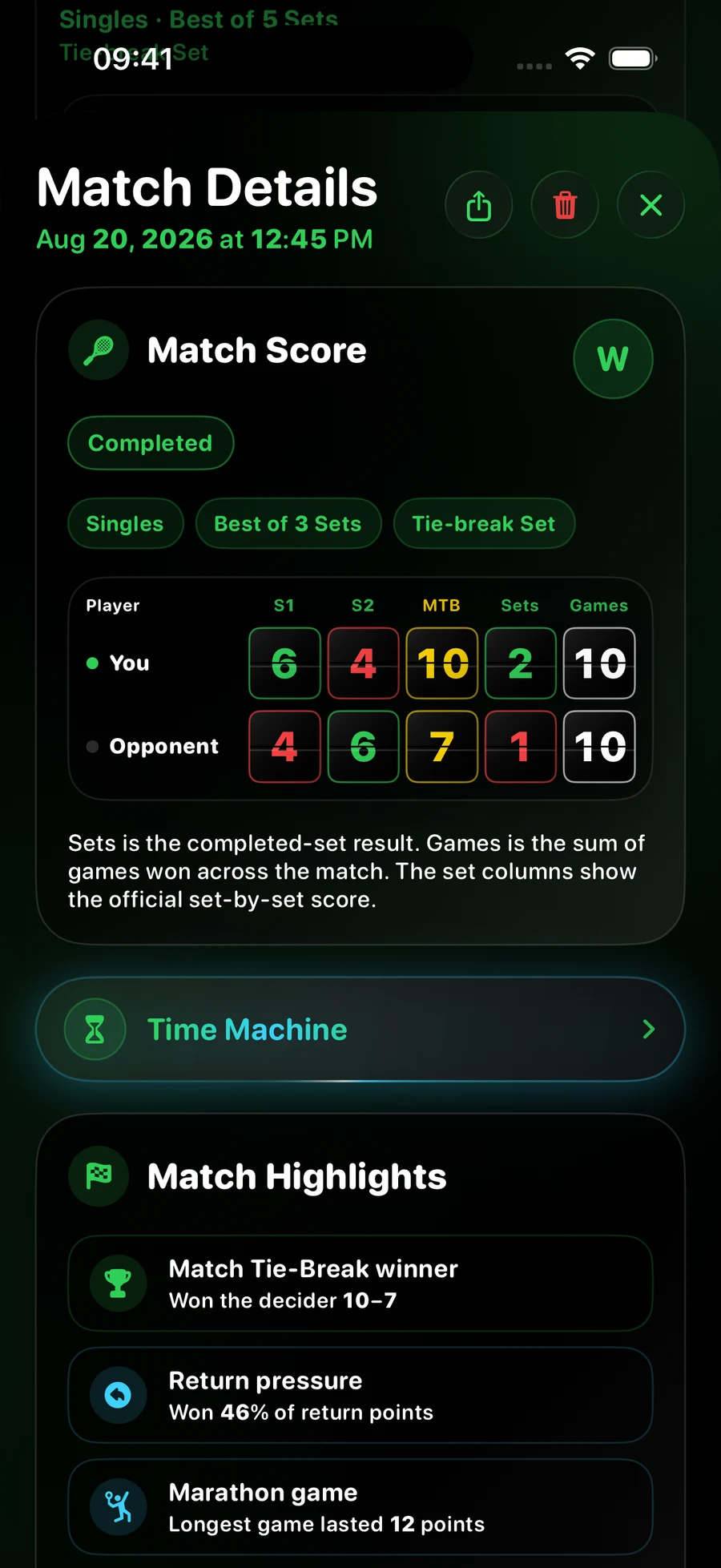
See every supported highlight in Match Details, from a comeback to a personal best or a milestone win. Shared cards feature up to six, chosen from the most interesting moments.

Recorded match highlights on iPhone, including a comeback and tie-break result
Manual matches · iPhone

A score to correct?
Keep the match. Fix the details.

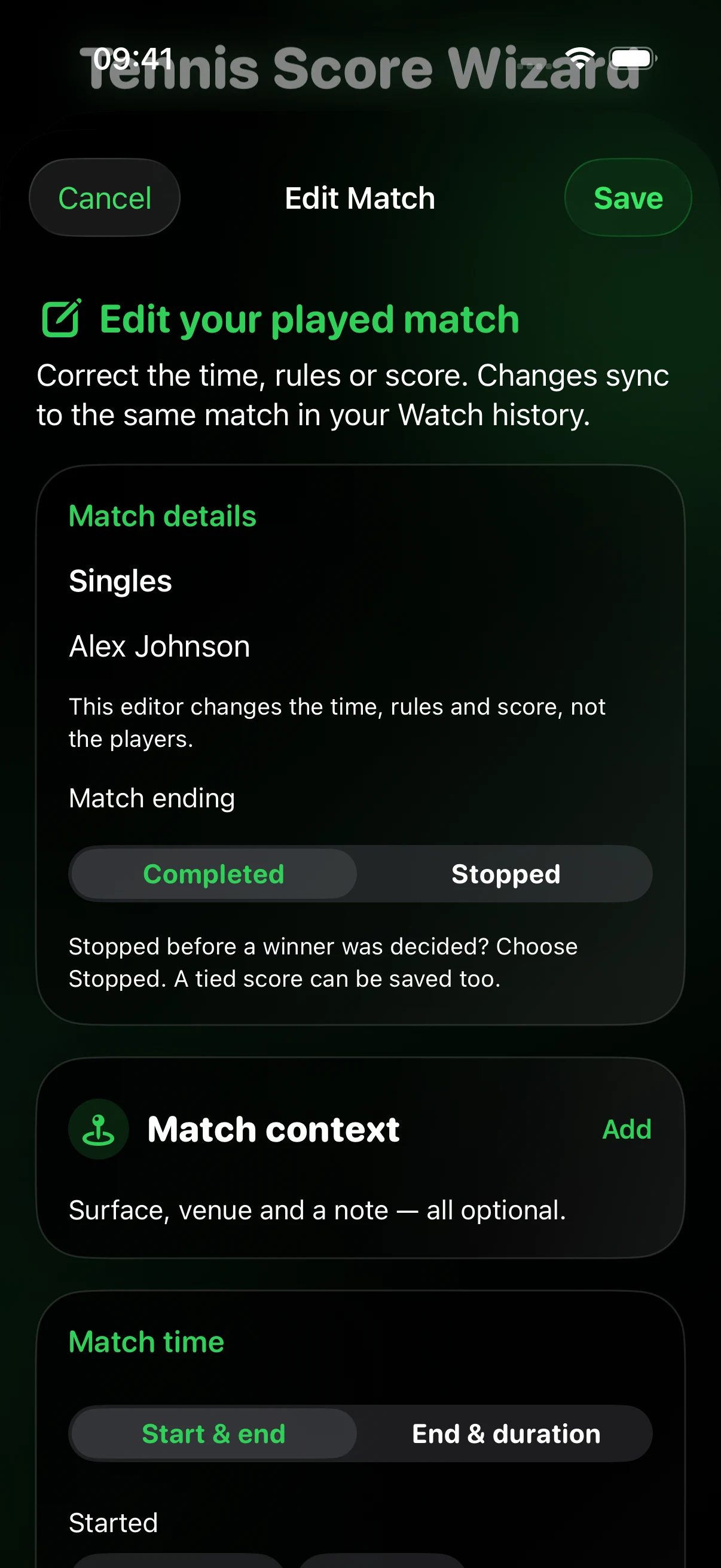
Open a manually added match and tap Edit match. Correct the date, time, scoring rules or result — without deleting the match and starting again.

Saving updates the same match, including its copy in Watch history. Watch-recorded scores stay protected; opponent assignments and court context have their own controls.

Adding and editing played matches →
Edit Match form on iPhone with existing match details, court context and timing controls
Both Watch apps

Added on iPhone.
Kept on your wrist.

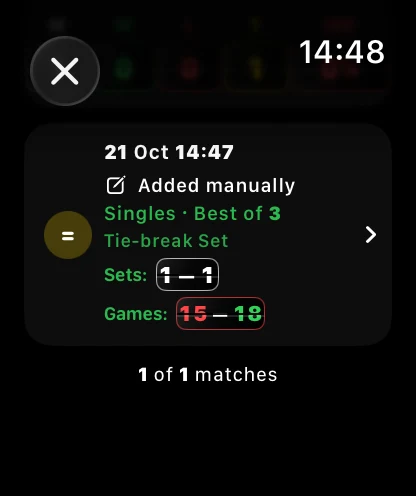
Manually added matches — and later corrections — sync to Pro Watch history and can reach Standalone through private iCloud sync under the same Apple Account.

They’re clearly marked Added manually. They show the saved result without empty point-statistics or workout cards.

How manual matches work →
Watch History labels a manually added tied result with 1–1 sets and 15–18 games
Match Flow in ProMomentum on both Watch apps

See how the match unfolded.

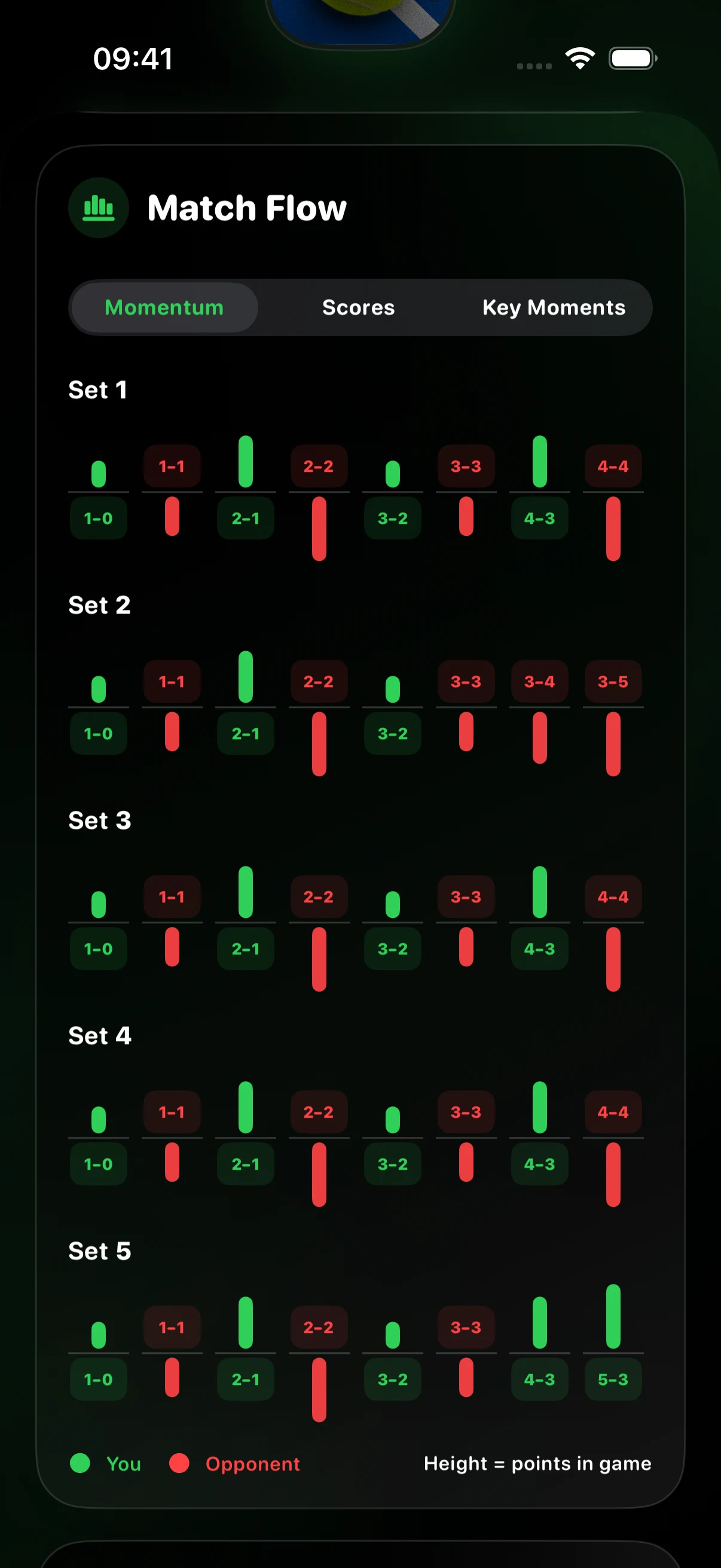
See the breaks, the long games and the swings that changed the match. Match Flow turns a recorded point history into a story you can follow, without extra taps during play.

01 · MOMENTUM

Follow every swing.

Trace the games you won and the ones that got away. Taller bars reveal longer games; the running score shows how each one moved the match forward.

Current Pro Match Flow Momentum screen with green and red game bars and running score tiles
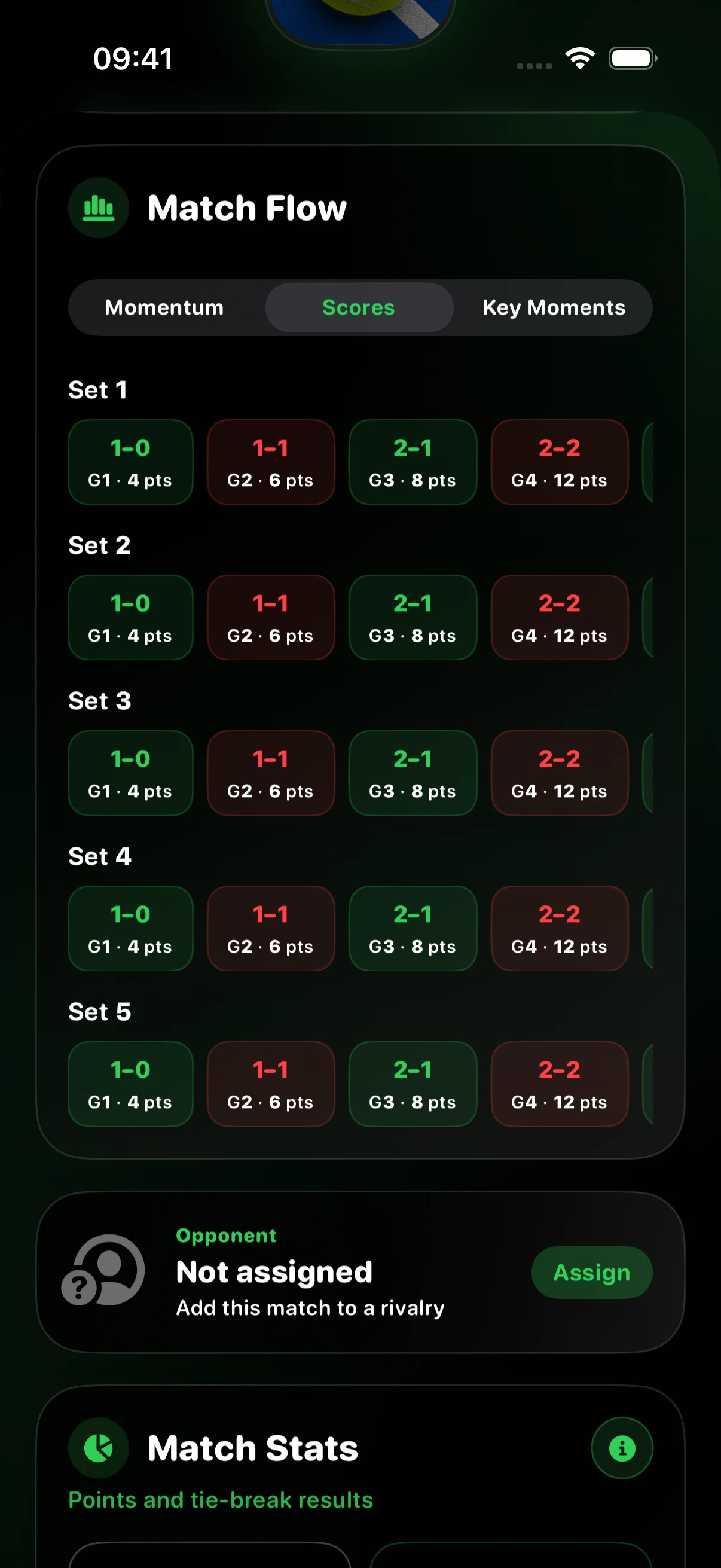
02 · SCORES

See the score develop.

Browse the score after each game, including the game number and its recorded point count. No extra taps are needed while playing.

Current Pro Match Flow Scores screen showing the running result after each recorded game
03 · KEY MOMENTS

Remember the turning points.

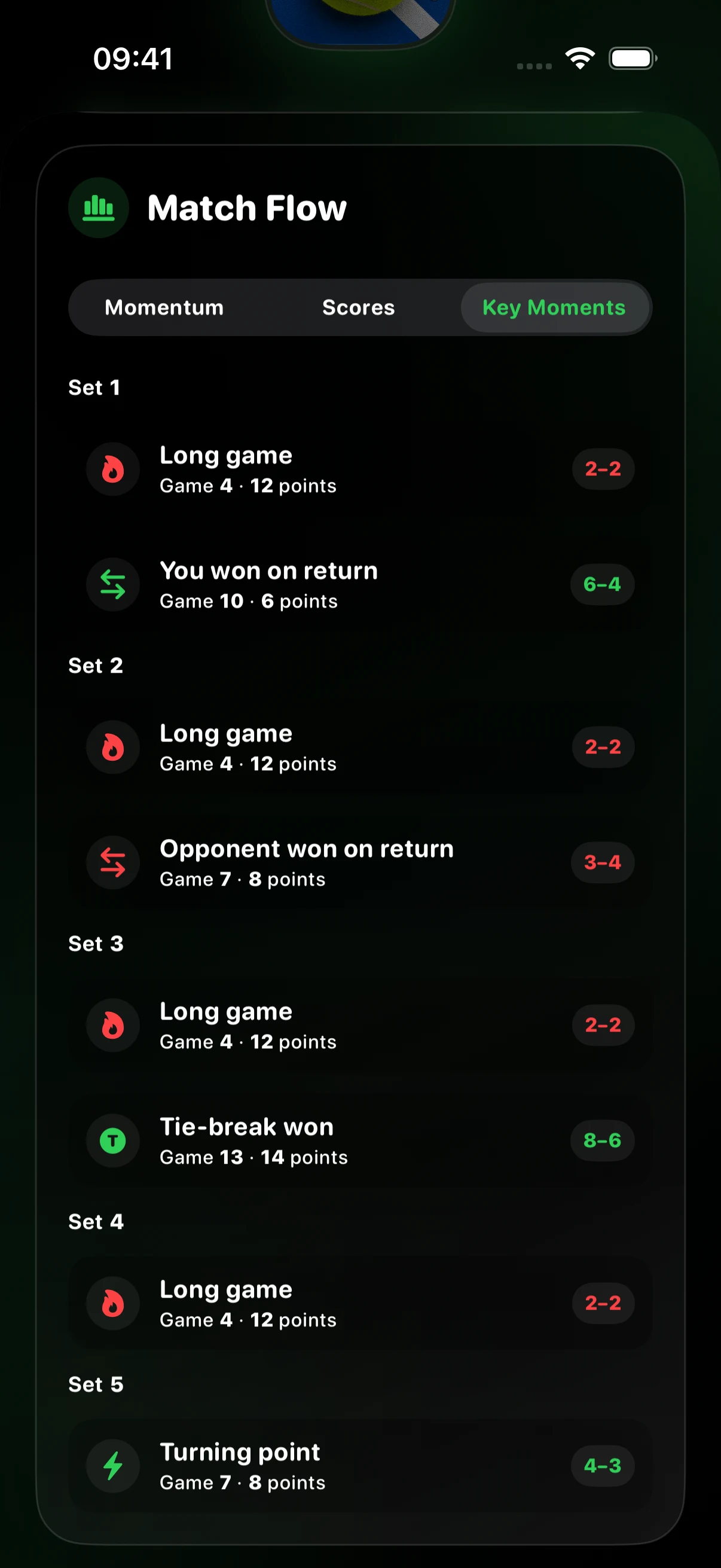
Head straight to the moments worth another look: the marathon game, the break of serve and other events supported by the recorded points.

Current Pro Match Flow Key Moments screen with a long game and a win on return
Both Watch apps

The story fits your wrist.

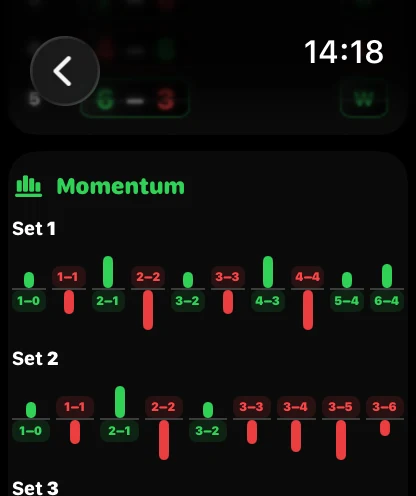
A quick look can bring it all back. Open a recorded match in Watch History to trace the game-by-game momentum and running score.

How Match Flow works →
Current Watch History Momentum view with compact game bars and score labels
Pro · iPhone

Take your history with you.

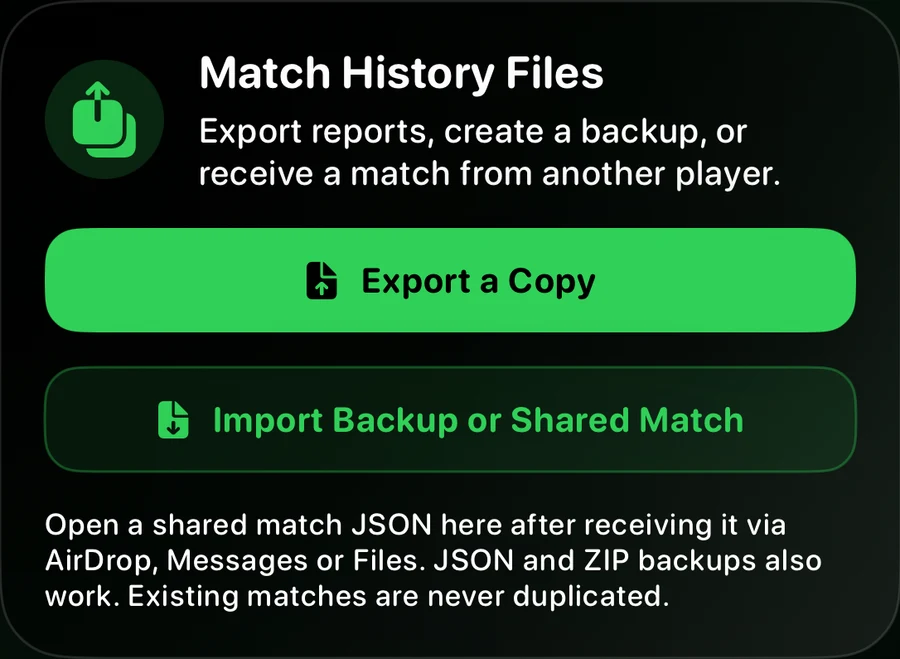
Keep a copy beyond the app. Export a readable CSV, Excel or PDF report, or save an importable JSON or ZIP backup. Want to send an opponent their match? Share a supported match file from their perspective, ready to import into Pro.

Export and backup guide →
Match History Files: export reports, create a backup or import a shared match
New in 2.0Pro on iPhone · both Watch apps

Every point has a story. Live it again.

The final score tells you who won. Time Machine lets you rediscover how it happened. Rewind a recorded match point by point, follow the server and see how the score and momentum changed. A recorded point history is required; this is a score replay, not camera footage.

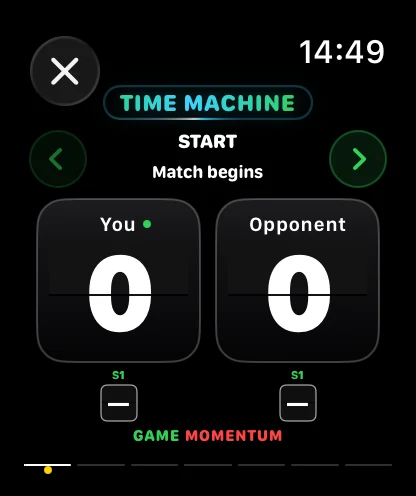
01 · THE START

Begin at the first serve.

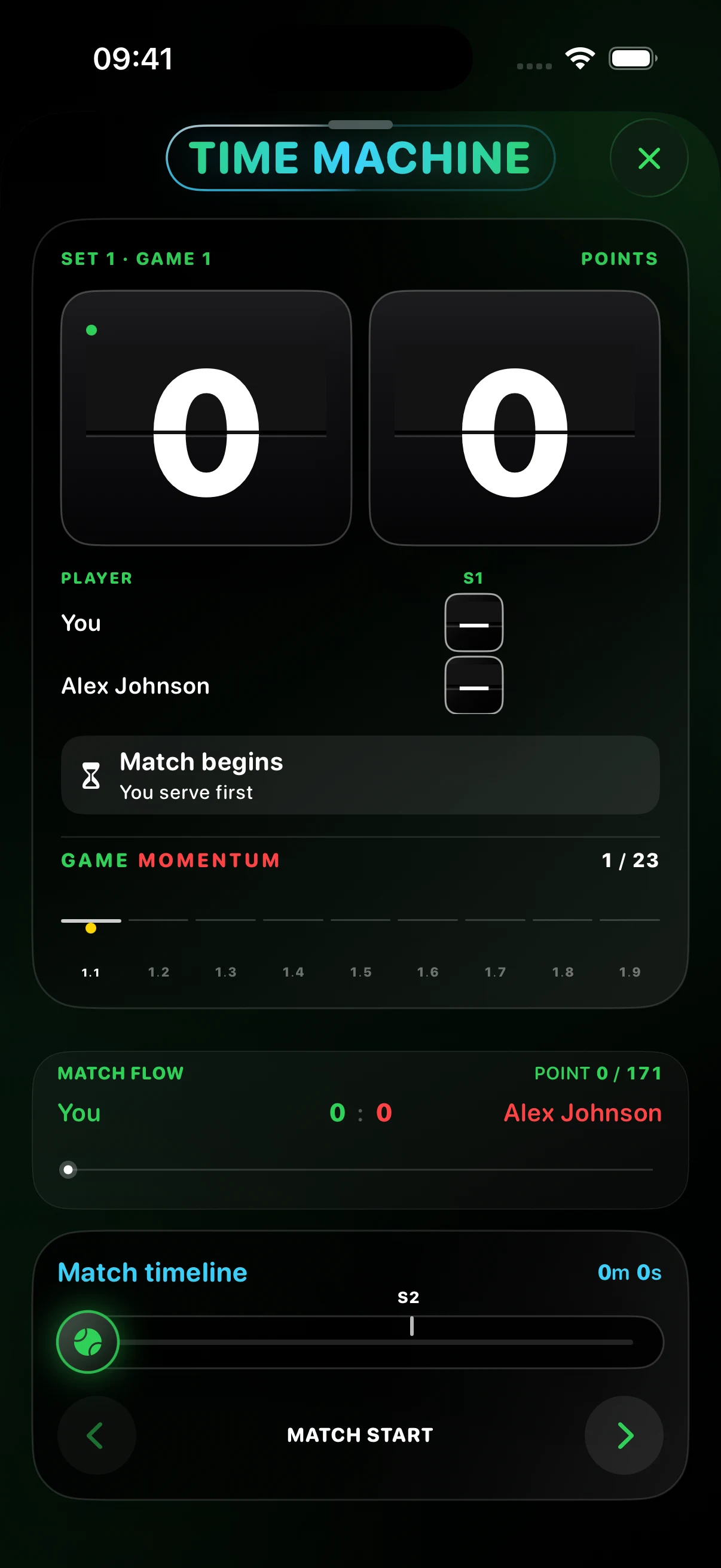
Go back to the moment before the first point, with the whole match still ahead of you.

Pro iPhone Time Machine at match start, with 0–0 points, unstarted set dashes and serving indicator
02 · THE TIE‑BREAK

See the pressure build.

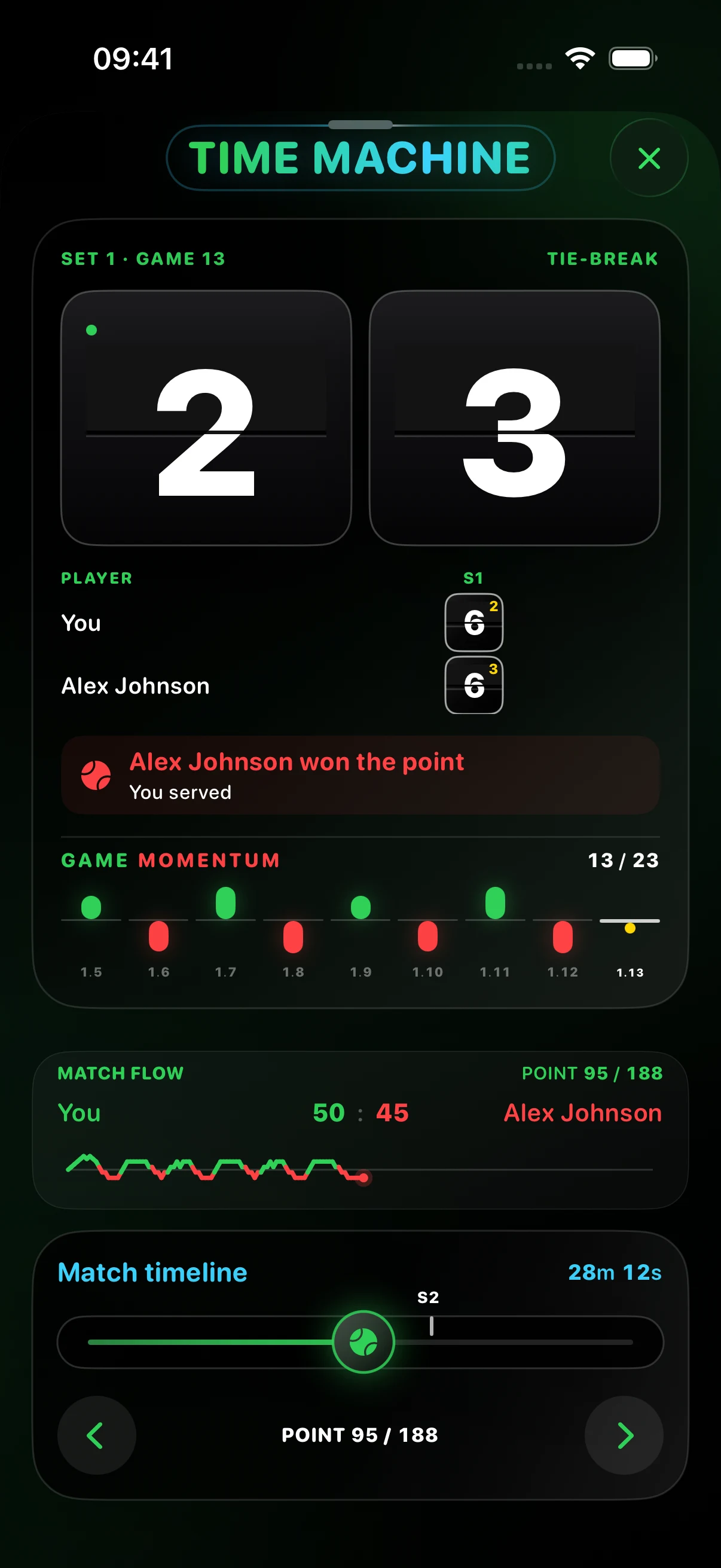
Feel the tension rise again as every point brings the set closer to its turning point.

Pro iPhone Time Machine during a set tie-break at 2–3, showing the 6–6 game score and both tie-break indices
03 · THE RESULT

Reach the final point.

See how every swing of momentum led to the result you remember.

Pro iPhone Time Machine at the final point, with a 7–6 6–4 result and red and green game momentum
Both Watch apps

Your replay on the wrist.

Replay on either Watch app with the arrows or Digital Crown. During a match, open Menu → Time Machine to revisit earlier points, then return straight to scoring. Replay never changes the score.

How Time Machine works →
Apple Watch Time Machine at match start with unstarted set dashes and centered player names
Rivalries · iPhone

Every opponent has a story.

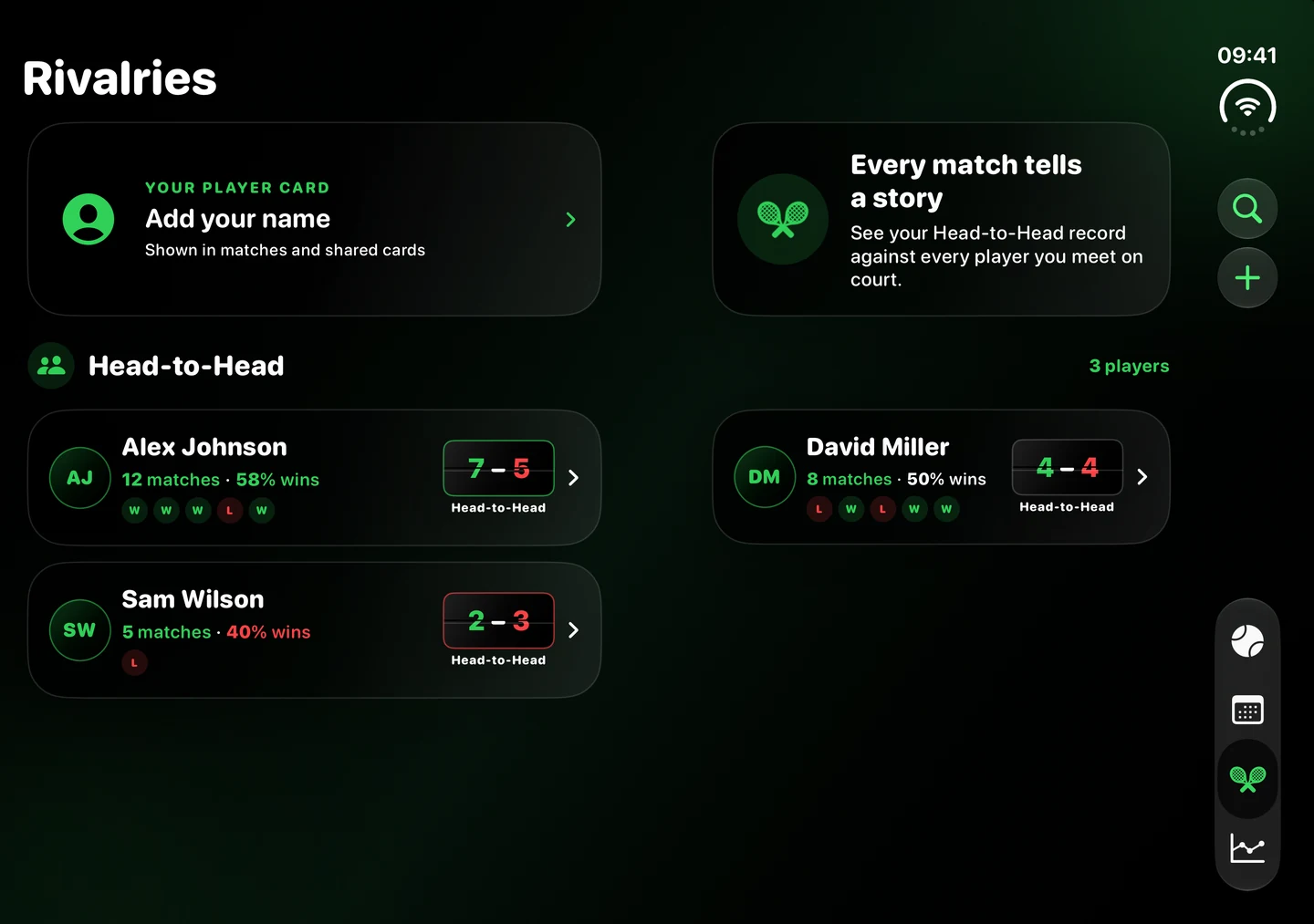
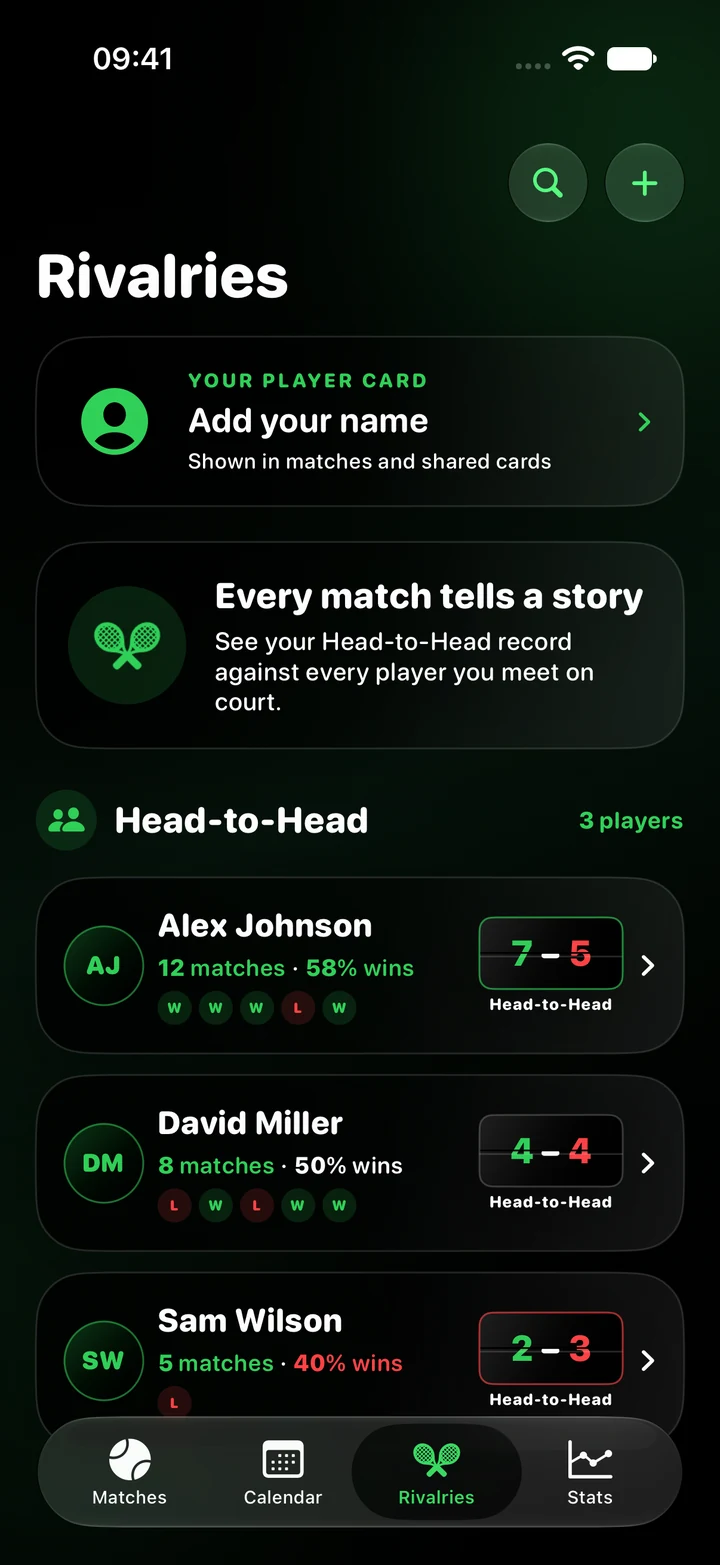
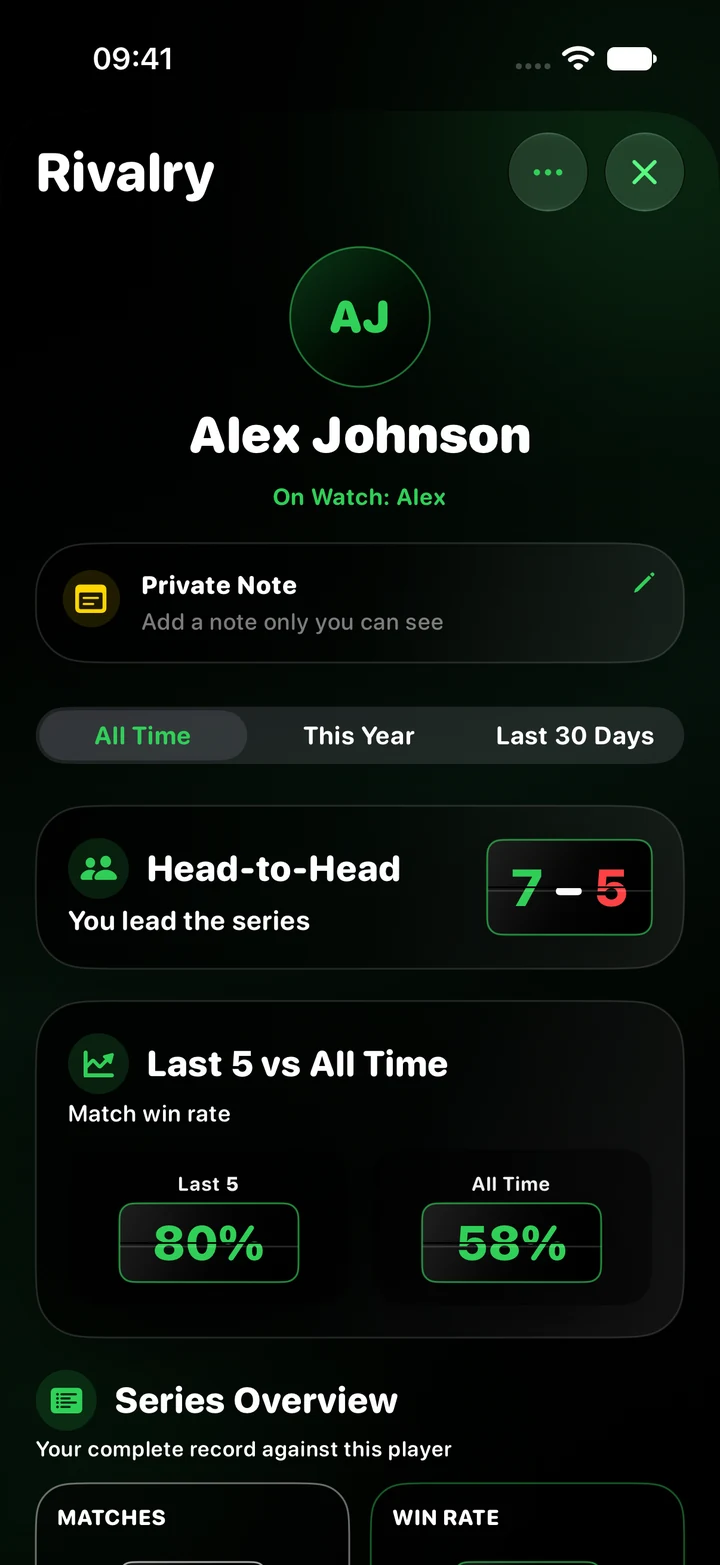
Some opponents become part of your tennis story. Keep your meetings together, compare recent form and discover the patterns behind your rivalry. Choose a saved Singles opponent on Watch or assign a past match later in Pro.

Learn how Rivalries works

Rivalry records currently use singles matches. Doubles scoring continues normally without assigning one opponent.

Rivalries in Pro 2.1 with your optional player card and saved opponents’ Head-to-Head records
01 · On court

Pick the opponent. Then just play.

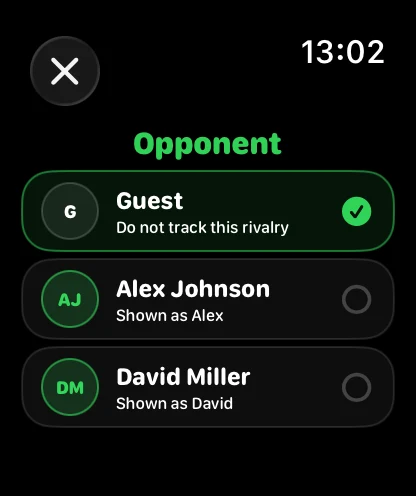
Choose Guest or a saved player during singles setup. The selected short name appears on the live scoring screen, while the same familiar scoring taps build the record automatically.

  • Create and manage players in Pro on iPhone
  • Sync the list privately to Apple Watch through iCloud
  • Assign an older saved singles match later
  • Keep Guest matches outside Rivalries
Apple Watch opponent picker showing Guest and saved players
Choose Guest or a saved player
Apple Watch scoreboard at Advantage–40, with yellow tie-break indices and 126 BPM heart rate
See the selected name while scoring
02 · The complete record

One player. Every angle.

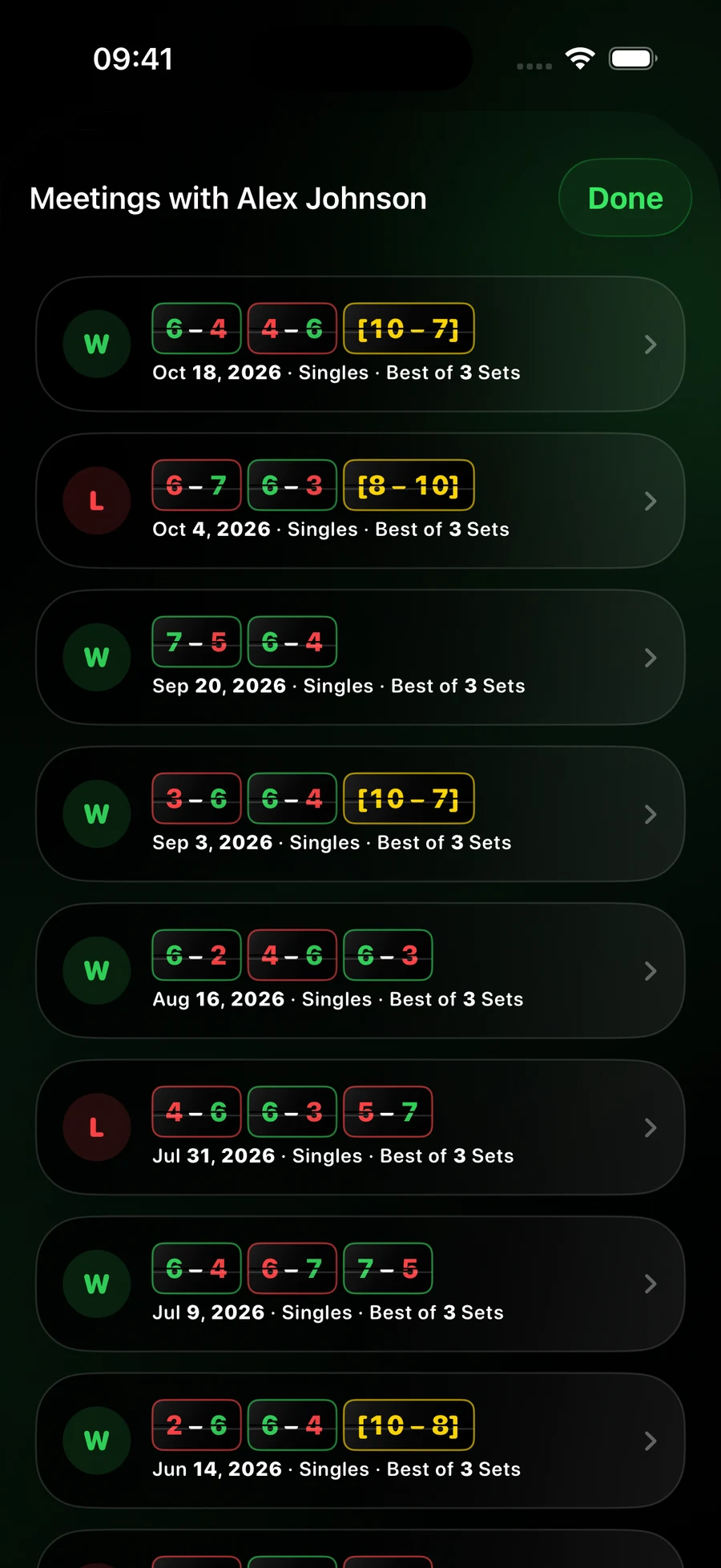
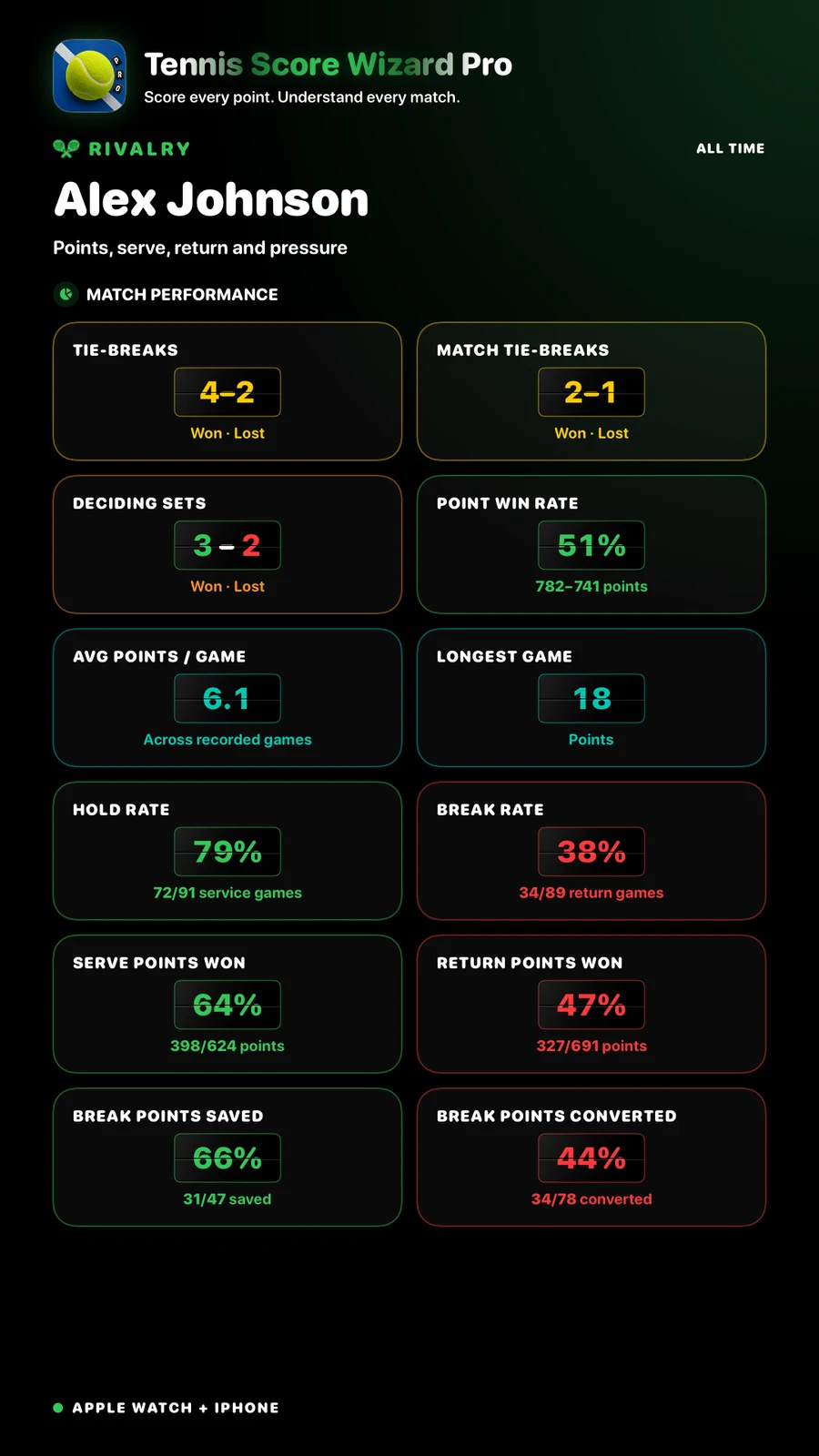
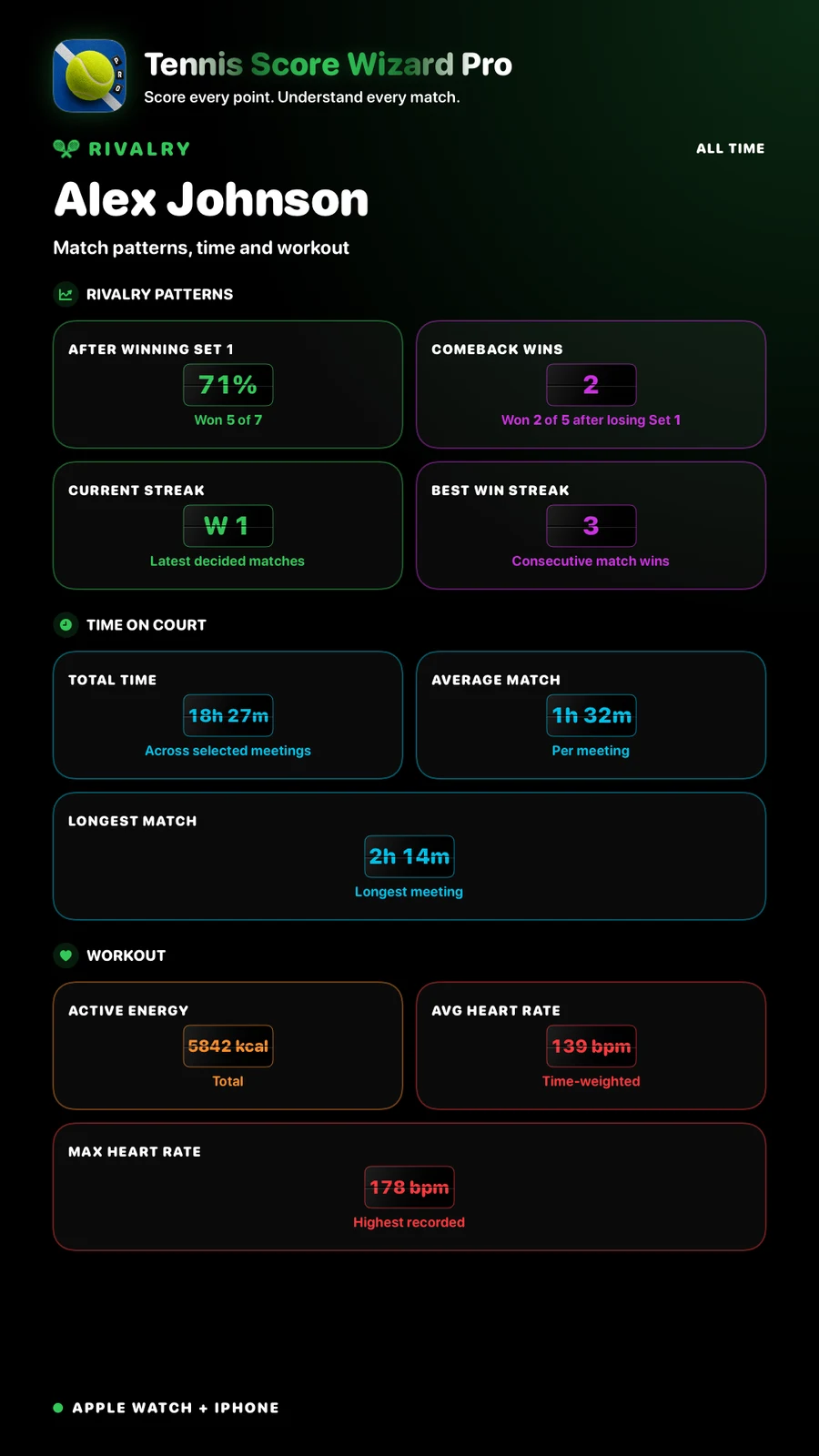
Filter the rivalry by All Time, This Year, or Last 30 Days. Compare recent form with the full period, review every meeting, and see only the statistics that were actually recorded.

Head‑to‑Head

Decided meetings, wins, sets, games, tie‑breaks, and Match Tie‑Breaks.

Match performance

Points, hold and break rates, serve and return, and pressure points.

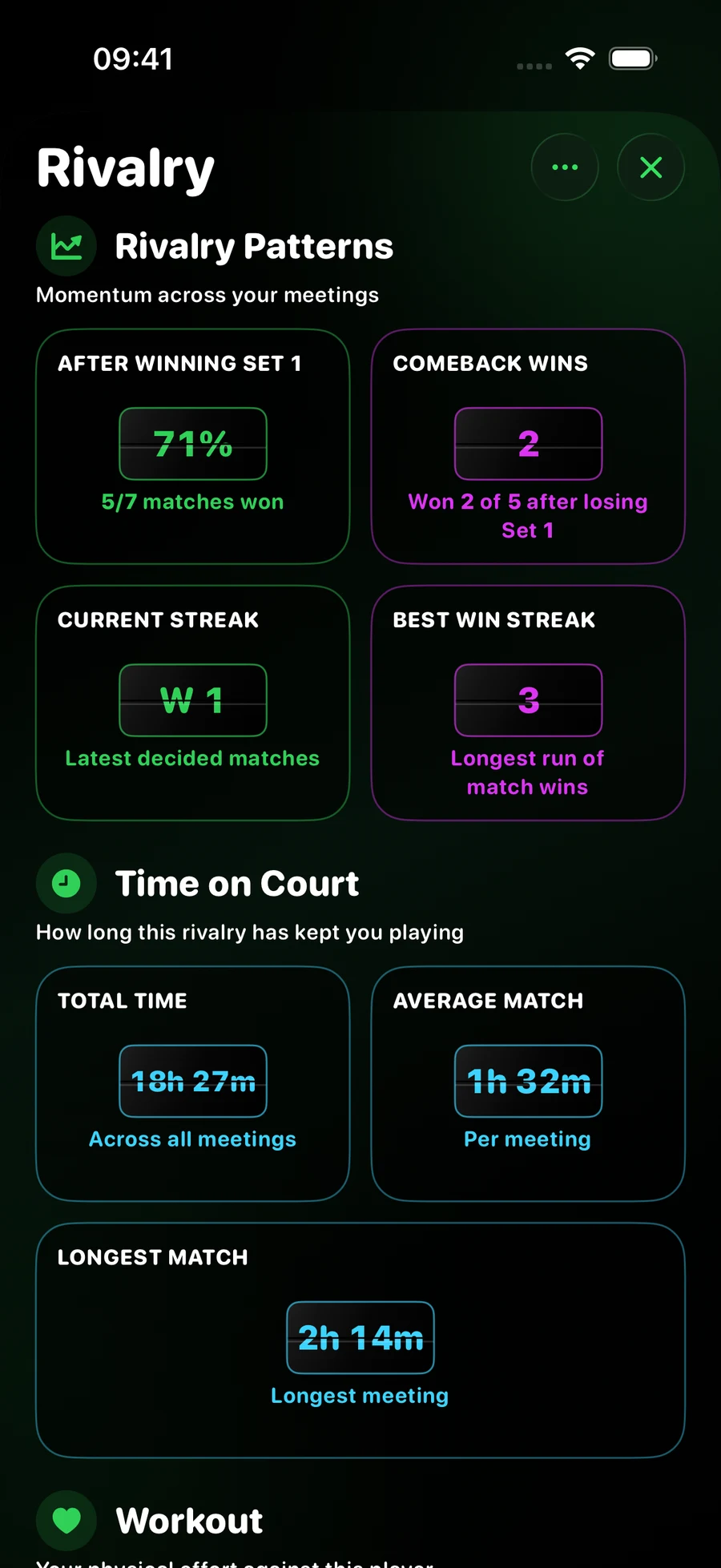
Patterns and effort

Wins after losing Set 1, streaks, time on court, heart rate, and energy.

Rivalry detail in Pro 2.0 with opponent name, period filters, Head-to-Head, recent form, and series overview
Head‑to‑Head and recent form
Rivalry pressure points, match patterns, time on court, and workout statistics
Performance, patterns, and effort
Complete list of saved meetings against one opponent
Every saved meeting
03 · Share the series

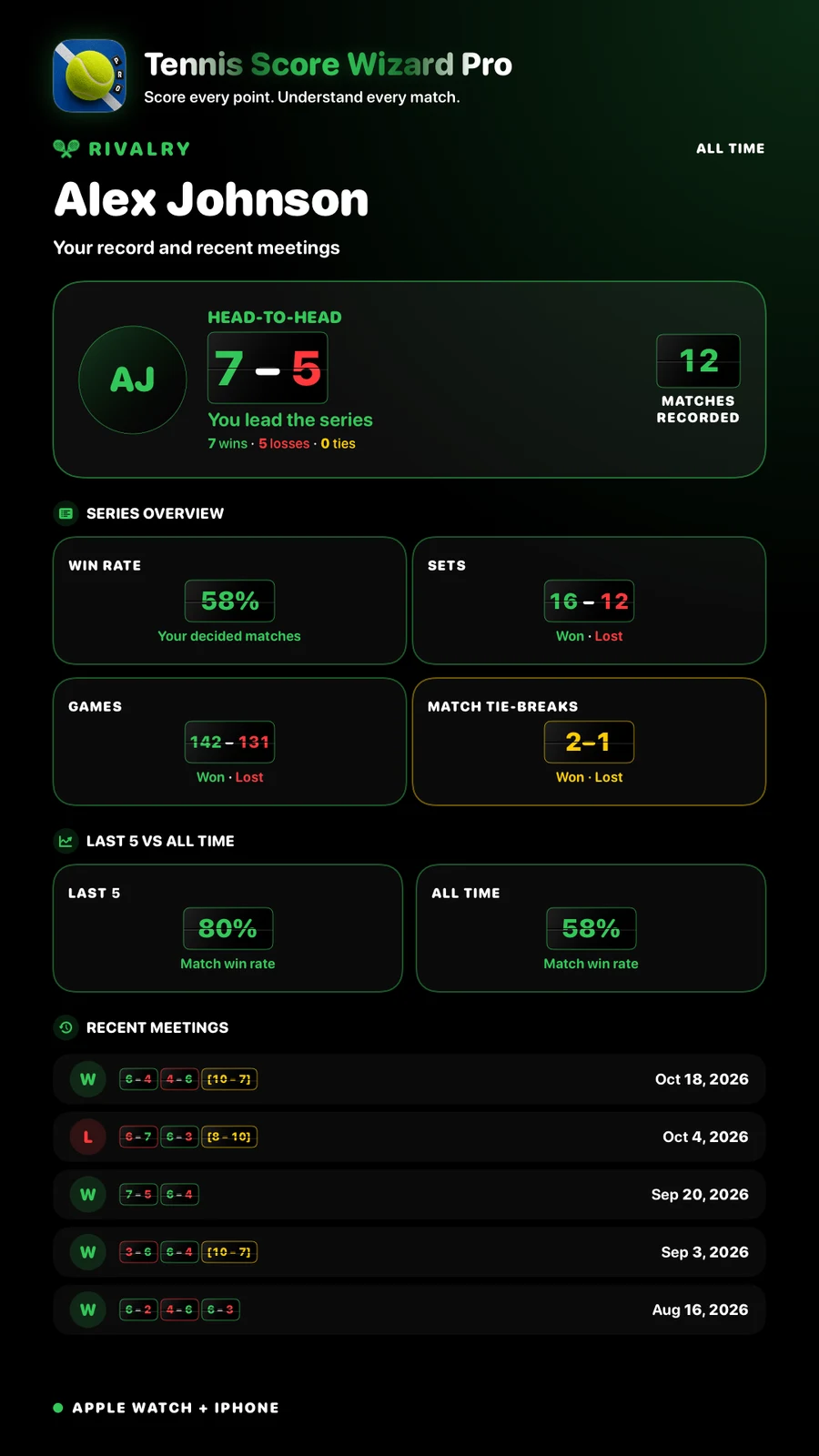
Three cards. One Rivalry story.

More than a scoreline: share your series, performance and patterns in a three-card story. The selected period sets the scene; private notes stay between you and the app.

Rivalry sharing card with Head-to-Head, series overview, and recent meetings
1 · Record and recent meetings
Rivalry sharing card with match performance statistics
2 · Match performance
Rivalry sharing card with patterns, time, and workout statistics
3 · Patterns, time, and workout
Made to share

Turn your tennis into a story

Give a great match the send-off it deserves. Turn its score, highlights and available stats into a polished card to share. Add court context if you like — your private match note stays private.

Standalone for Apple Watch

Your match. Your wrist. Every point remembered.

Choose One Set, Best of 3, or Best of 5; select an official or custom set format; score every point; and review your history and stats — all on Apple Watch, with no iPhone required.

Standalone features

A complete match experience on Apple Watch

Set up the match, score every point, record an optional workout, and review history and automatic stats without relying on iPhone.

Real tennis scoring

Score each point with large tap targets. The app automatically tracks 0, 15, 30, 40, deuce and advantage, plus games, sets, tie-breaks, and an optional deciding Match Tie-Break.

Automatic match stats

After a match, History can show point, serve, return, break-point, tie‑break, and match-flow stats generated from normal scoring taps.

Workout recording

Optionally save a tennis workout to the Health app and review Average Heart Rate, Maximum Heart Rate, and Active Energy.

Match control

Use coin toss server selection, serve-side guidance, Switch Server, Undo, automatic match finish, haptic feedback, and local match history.

Standalone gallery

Standalone on Apple Watch

Follow the complete Standalone flow: match setup, workout recording, live scoring, tie‑breaks, finished matches, history, and automatic stats — all on Apple Watch.

Apple Watch match setup with Singles, Doubles and One Set selected

Match setup

Choose Singles or Doubles, One Set, Best of 3 or Best of 5, then select the set and game rules you want to play.

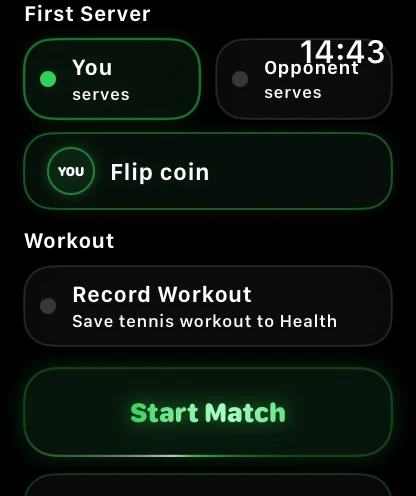
First server, coin toss, Record Workout, and Start Match

Server and workout

Pick the first server, use coin toss, enable Record Workout, and start the match from one screen.

Apple Watch scoreboard at Advantage–40, with yellow tie-break indices and 126 BPM heart rate

Live scoring

Score from large cards while the selected format, server, serve side, sets, workout status, and live heart rate stay visible.

Watch 2.0 finished result with a set tie-break and compact indices for both players

Tie‑break results

Keep both players’ set tie-break points visible beside the 7–6 score.

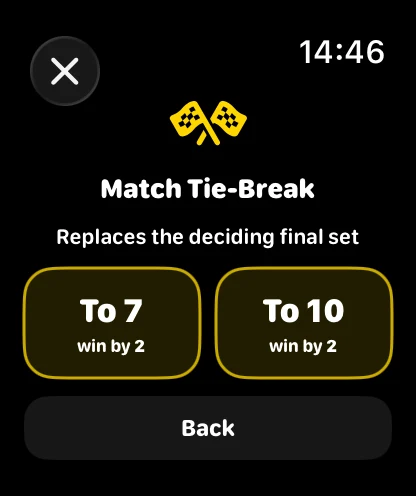
Choosing a deciding Match Tie-Break to 7 or 10 on Apple Watch

Choose the deciding Match Tie‑Break

When sets are tied before the deciding set begins, replace it with a Match Tie‑Break to 7 or 10, always win by 2.

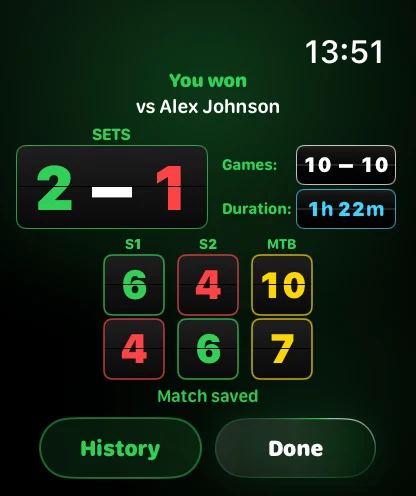
Watch 2.0 result showing a deciding Match Tie-Break to 10 as a separate score column

Finish with a Match Tie‑Break

The deciding Match Tie‑Break remains separate from regular sets in the finished result.

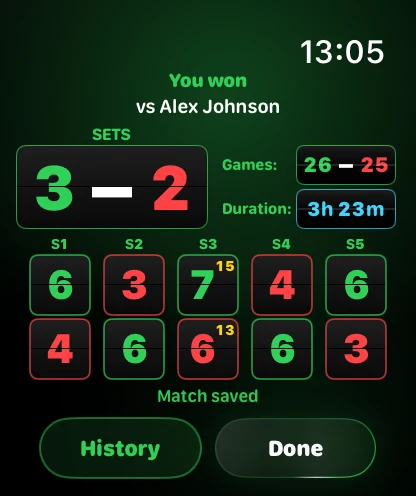
Watch 2.0 finished match with five separate flip-score set tiles

Match finished

When the match is decided, the app keeps one to five set scores readable and provides quick access to History or Done.

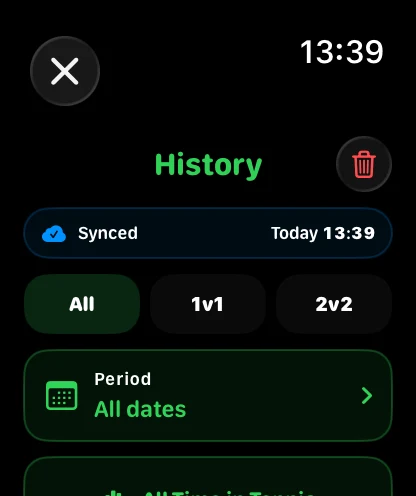
Apple Watch History with match-type and period filters and sync status

History and sync status

Browse by year and month, filter Singles or Doubles, and check sync status directly on Apple Watch. Your full saved history stays available as older matches load.

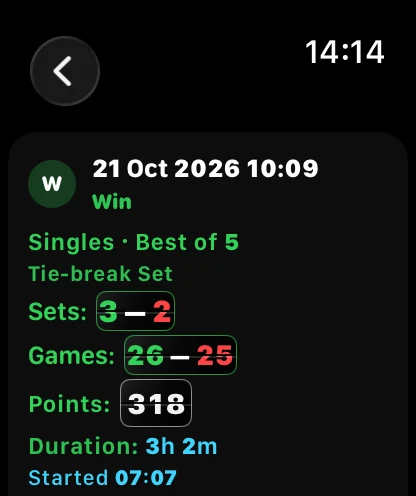
Saved match summary with result, set format, duration, points, and workout status

Match summary

Open a saved match to review score, games, duration, total points, workout status, and stopped-match context.

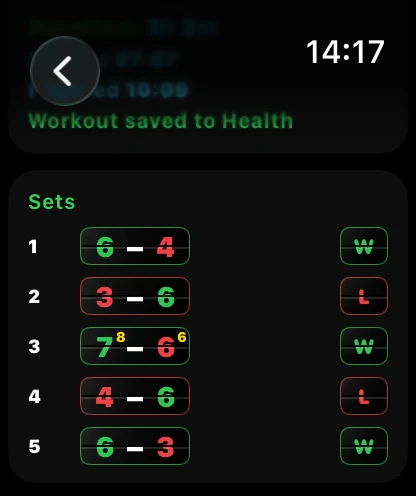
Set-by-set match score with tie-break result

Sets and tie‑breaks

Review every set and the recorded tie‑break score in the set-by-set summary.

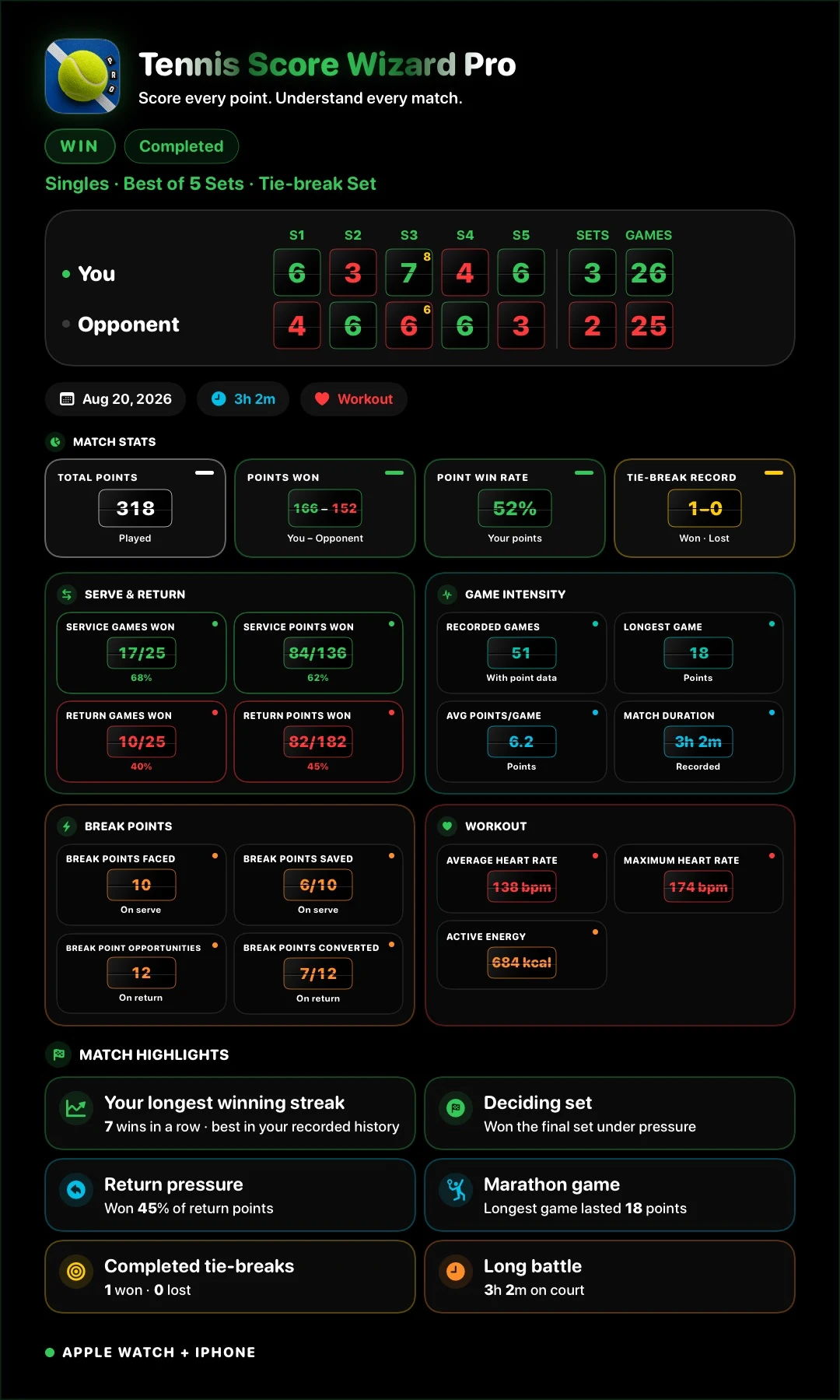
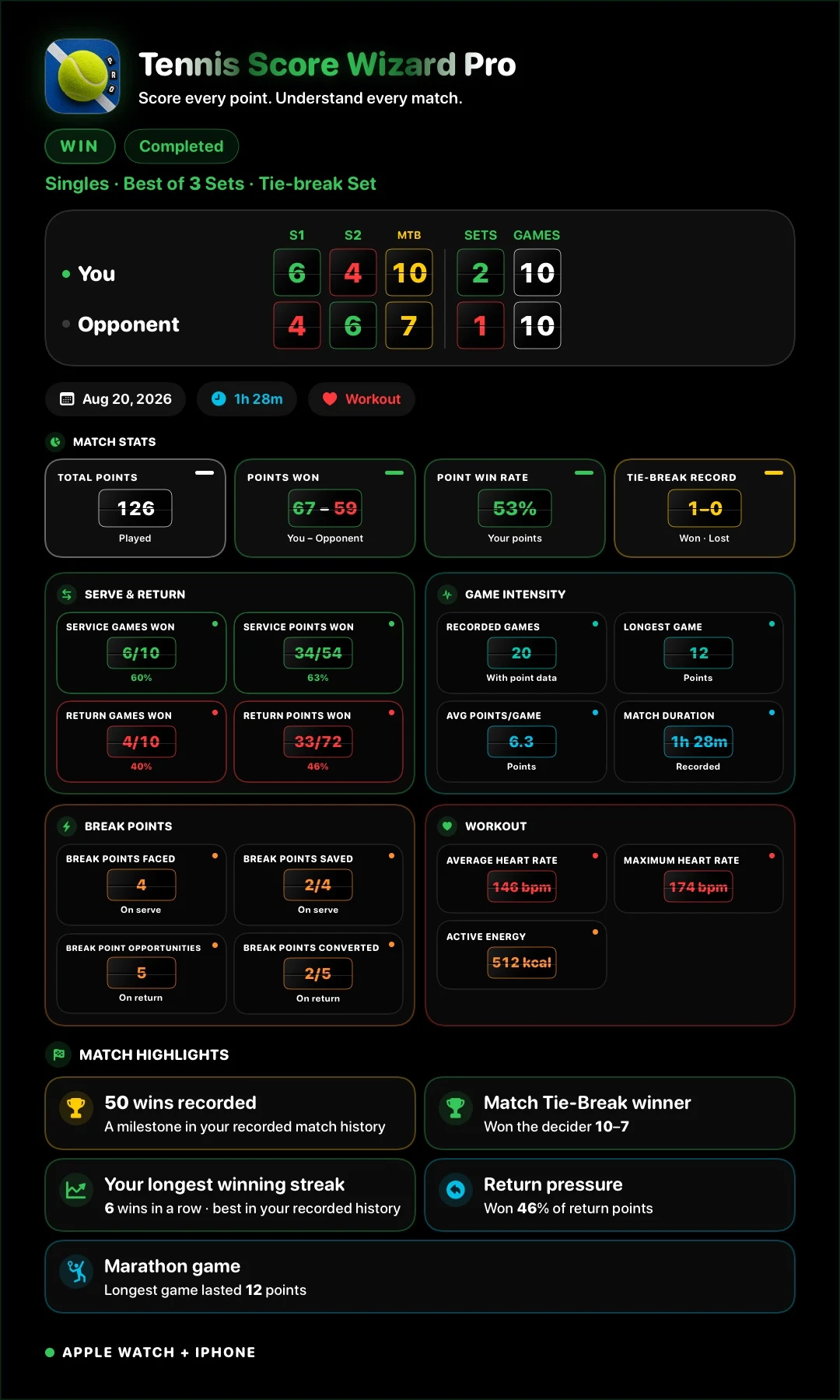
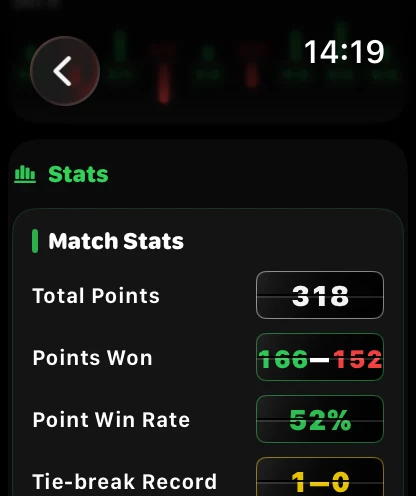
Match statistics with total points, points won, and point win rate

Match stats

See Total Points, Points Won, and Point Win Rate. A tie-break record appears when the match includes one.

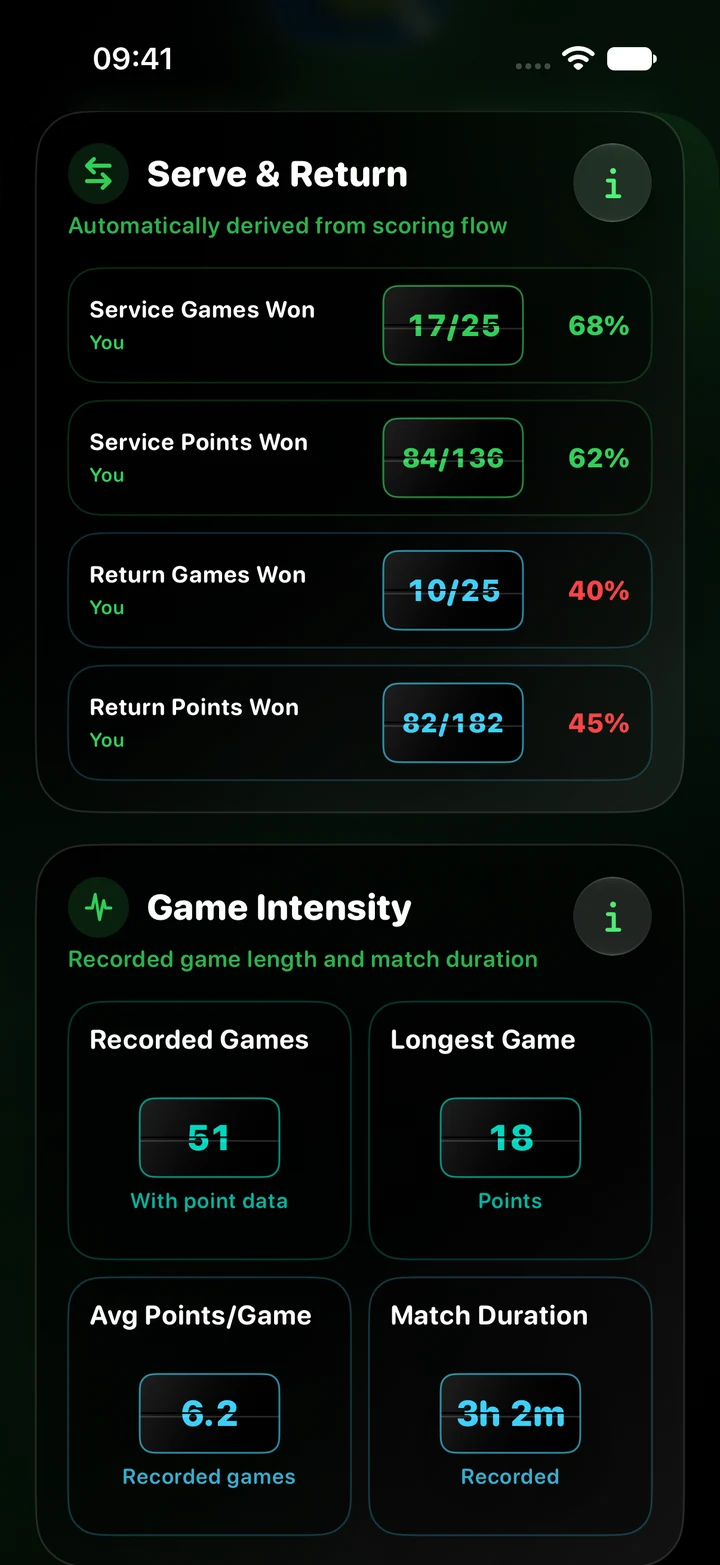
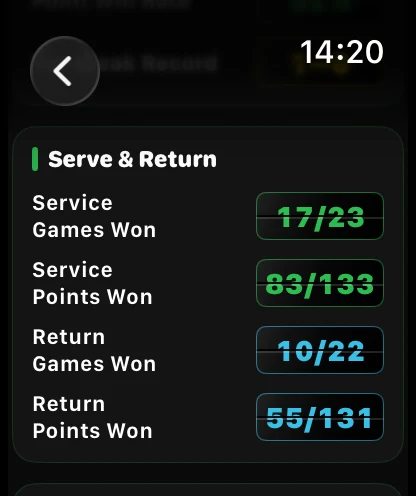
Service and return statistics on Apple Watch

Serve and return

Review Service Games Won, Service Points Won, Return Games Won, and Return Points Won.

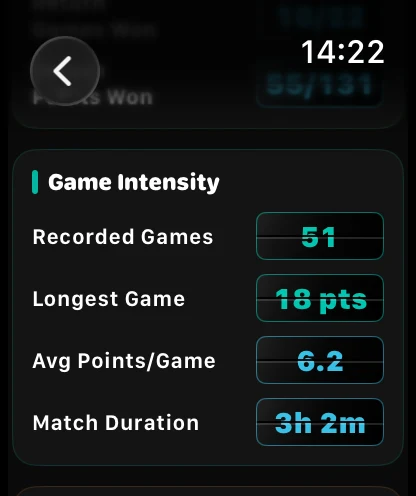
Game Intensity statistics on Apple Watch

Game Intensity

See Recorded Games, Longest Game, Average Points per Game, and Match Duration.

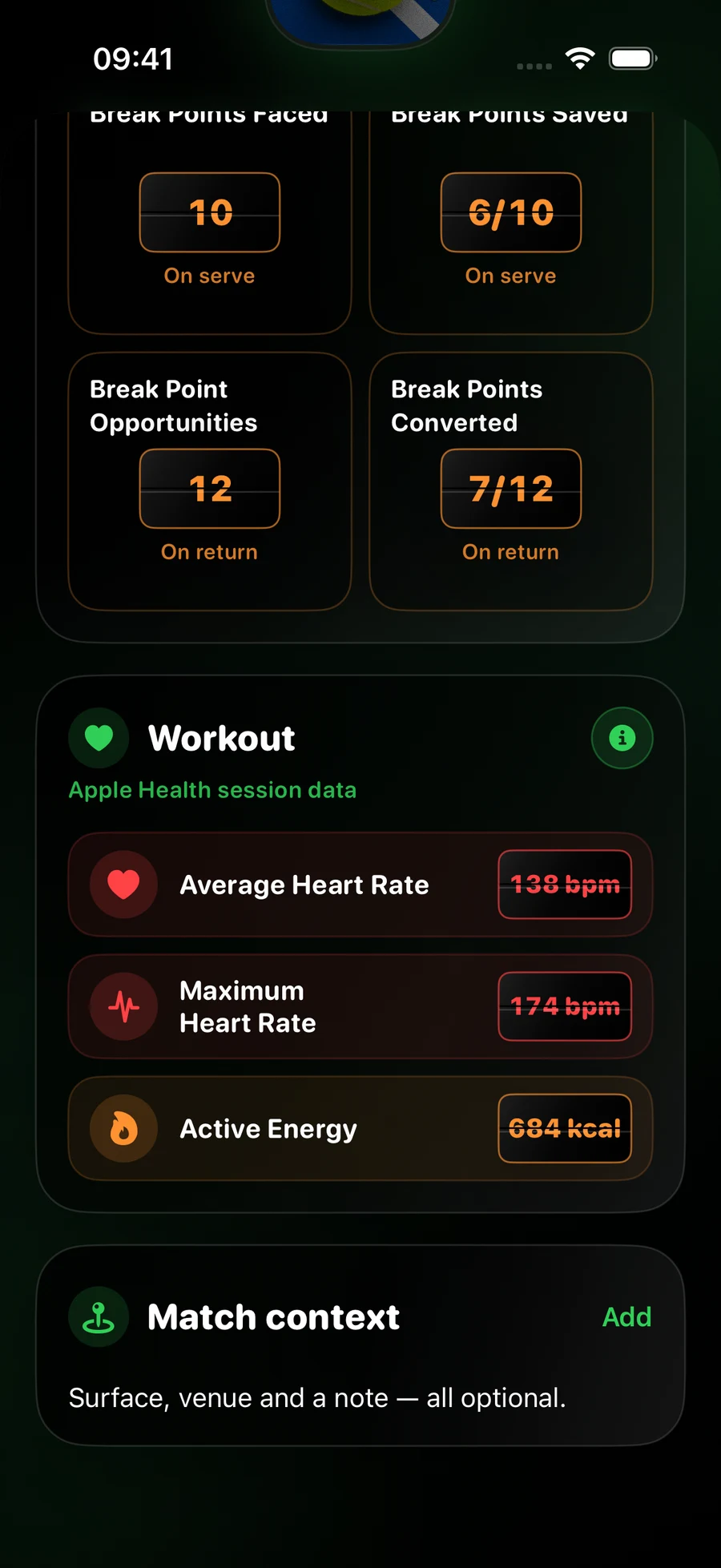
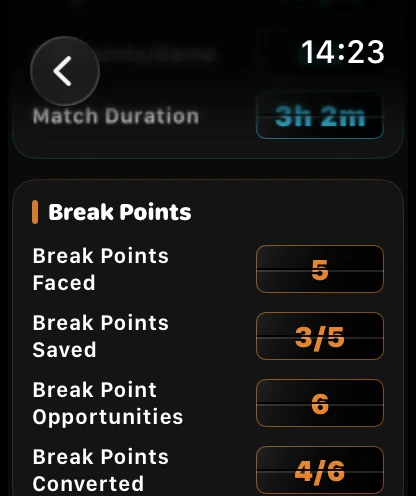
Break-point statistics on Apple Watch

Break points

Review Break Points Faced, Saved, Opportunities, and Converted.

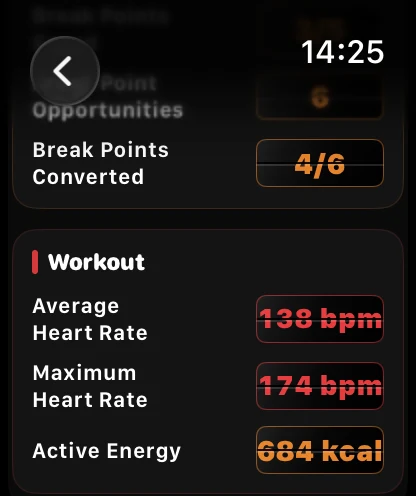
Workout statistics with heart rate and active energy

Workout stats

Recorded workouts can show Average Heart Rate, Maximum Heart Rate, and Active Energy.

Apple Watch Complications

Add Tennis Score Wizard to a supported Apple Watch face and open the app with a single tap.

Apple Watch Ultra Corner Complication

Corner Complication

Pin Tennis Score Wizard to an accessory corner complication for instant match access.

Apple Watch Circular Complication

Circular Complication

Add Tennis Score Wizard to a circular complication and start scoring with a single tap.

Built into both versionsApple Watch scoring

Play the format you actually use.

Both versions include the same automatic Apple Watch scoring engine: faster official formats, No‑Ad games, and a Custom Set builder, with familiar on-court controls.

One Set and Custom Set setup

Play a complete match as a single set when time is limited.

Choose the game target, win-by rule, tie‑break start, and target as one coherent preset.

Keep six-game advantage sets or start a regular tie‑break at 6–6.

Apple Watch match setup with Singles, Doubles and One Set selected

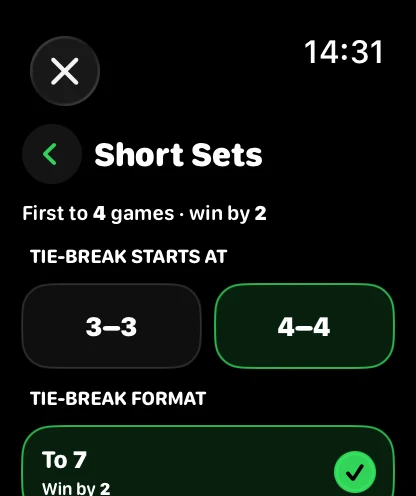
Official Short Set choices

First to four games, with a tie‑break at 3–3 or 4–4 and a 7-point or deciding 5-point finish.

Apple Watch Short Sets configuration with tie-break start and target options

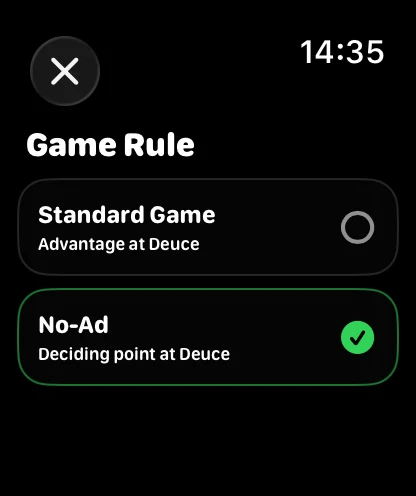
No‑Ad at deuce

A deciding point at deuce keeps every selected set format moving.

Apple Watch Game Rule picker with No-Ad selected

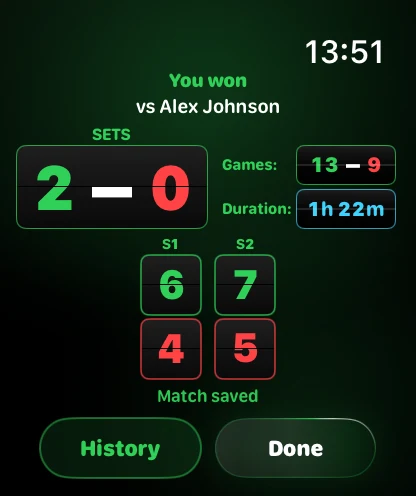
Your win, set by set.

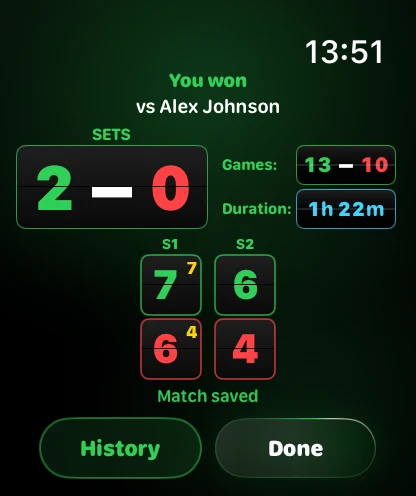
See the final score, games and time on court together in one clear result.

Apple Watch 2.0 result card for a completed match win with separate flip-score tiles

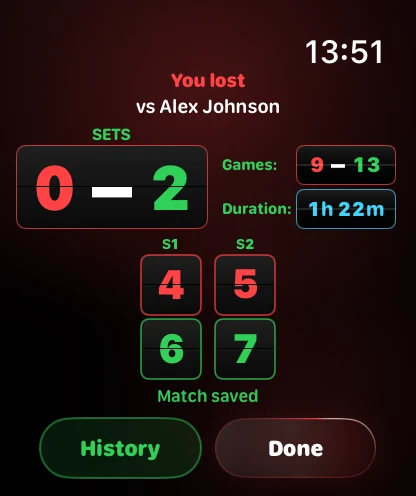
Every result tells a story.

Review the score and match duration after a loss, then open History to look back at the match.

Apple Watch 2.0 result card for a completed match loss with separate flip-score tiles

One to five sets, clearly shown

Wins, losses, and stopped matches are immediately distinct, while one to five sets and tie‑break scores stay readable.

Apple Watch 2.0 finished match screen showing five separate set-score tiles and compact tie-break points
Both Watch apps

Find that match again.

A favorite match, last month’s form or your entire saved tennis story. Find it in Watch History, filter by period and match type, or open Month, Year and All Time in Tennis.

Start with a period.

Open History and tap Period. Keep all dates, or narrow the list while using All, 1v1 or 2v2.

Pro Watch History with All, 1v1 and 2v2 filters and the Period control

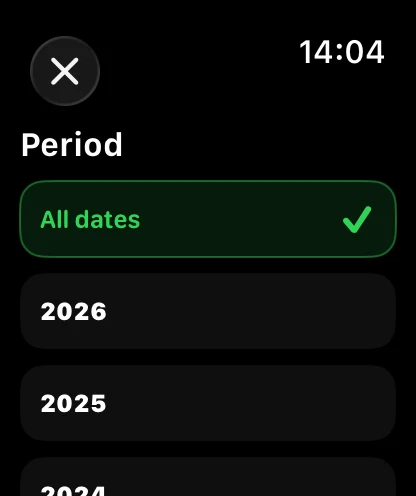
Choose your year.

Pick from years with saved matches. All dates brings the full timeline back into view.

Watch History Period menu with All dates and available years

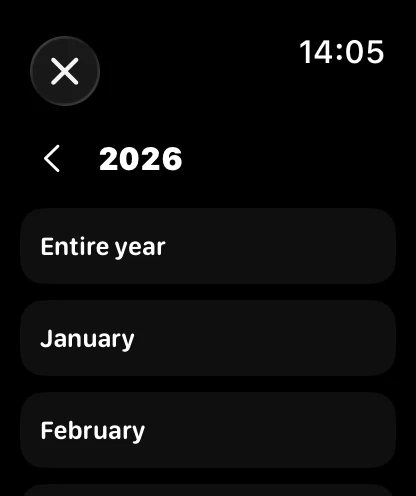
A month or a whole season.

Choose a month with matches, or Entire year to review the season together.

Watch History filter for 2026, with Entire year, January and February
iCloud match sync

Your match history on Apple Watch and iPhone.

Keep the matches you scored on Apple Watch beside the results you added in Pro on iPhone. With the same Apple Account, private iCloud sync brings your saved history together—including opponent assignments and the context you chose to keep.

Apple Watch History with sync status and the Period filter Apple Watch

Score matches with Standalone or Pro and check the latest sync status in History.

Private iCloud sync

Your saved history stays in your Apple Account’s private iCloud storage, not on a Tennis Score Wizard server.

✓ Synced
Saved match history on iPhone in Pro iPhone

Add and edit played matches, keep court context, review recorded statistics and check private iCloud sync in Pro.

From wrist to bigger picture

Finish scoring on Watch, then revisit the saved match on iPhone in Pro—with room for its points, statistics and story.

Know your history is saved

Check sync status in History to see when your records are up to date or need another connection.

Your tennis stays yours

Each Apple Account keeps its own private history. There is no extra Tennis Score Wizard account to create.

Score now, restore later

Scoring remains available without iCloud. Successfully synchronized matches can download again after reinstalling under the same Apple Account.

Version comparison

The same Watch scoring. More ways to keep your matches on iPhone.

Pro combines the complete Apple Watch scoring app with match entry, analysis, Rivalries and sharing on iPhone. Standalone keeps the full scoring experience on your Watch without an iPhone app.

Experience
Pro iPhone + Apple Watch Watch + iPhone
Standalone Apple Watch
Complete Apple Watch app
✓ Included
✓ Included
Flexible formats, live scoring, Undo, and serve guidance
On Apple Watch
On Apple Watch
Match history and detailed stats
On Apple Watch and iPhone
On Apple Watch
Time Machine for recorded points
Replay on Apple Watch and in a larger timeline on iPhone
Point-by-point replay on Apple Watch
Watch history filters by year and month
✓ Included
✓ Included
Month, year and all-time views
Month, Year and All Time on Watch; month/year recaps and all-time Stats on iPhone
Month, Year and All Time activity and achievements on Watch
Workout and heart-rate details
On Apple Watch and iPhone
On Apple Watch
Apple Watch complications
✓ Included
✓ Included
iCloud match sync
✓ Included
✓ Included
Opponent profiles and Rivalries
Create and manage on iPhone + select on Watch
Select profiles synced from separately purchased Pro
Synchronized iPhone experience
✓ Included
Not required
Monthly and yearly match calendar
On iPhone
Not included
Long-term performance stats and trends
On iPhone
Not included
Shareable text summaries and visual cards
On iPhone, including period recaps
Not included
Add and edit played matches
Add and edit on iPhone; sync to Watch history
Receives entries made in separately purchased Pro through iCloud
Court context and private match notes
Add and edit on iPhone
Preserved with synced match records
Match Highlights
All applicable in iPhone details; up to six in sharing
Not displayed on Watch
Match Flow with recorded points
Watch Momentum + three views on iPhone
Compact Momentum on Watch
History reports and restorable backups
Export and import on iPhone
Not included
Best for
Players who want the full Watch app plus a larger post-match view
Players who want everything on their wrist
Shared across both versions

The same care for every point.

Both versions include flexible Watch scoring, Time Machine, automatic statistics from your scoring taps, Month, Year and All Time recaps, private iCloud sync and optional workouts. Pro adds a bigger replay, played-match entry, Rivalries, sharing and analysis on iPhone. Live scoring stays on Watch.

Match Stats Guide

Both Watch apps calculate point-by-point statistics from your normal scoring taps. You do not need to enter aces, winners or rally length. Manually added matches contribute their saved results, not point-by-point or workout data.

Points

See how many points each side won—not just who won the sets. Point totals offer another perspective on the contest.

Serve

Shows how well you performed in your own service games. Service games are games where you served. Service points are individual points played on your serve.
Return

Shows how well you performed when the opponent served. Return games won are breaks of serve. Return points won show how often you won points against the opponent’s serve.

Break Points

Break points saved are break points you survived on your serve. Break points converted are chances you won when the opponent was serving.

Game Intensity

Shows the scale of play: Recorded Games, Longest Game (in points), Average Points per Game, and Match Duration.

Workout

If Record Workout is enabled and Health permission is granted, History can show Average Heart Rate, Maximum Heart Rate, and Active Energy for the saved tennis workout.

Quick examples

Here is how to read common stat lines after a real match.

Points 67–72

You won 67 recorded points; your opponent won 72. This is a point total, not the set or game score.

Service games 3/10

You served in 10 games and won 3 of them. This shows how often you held your own serve.

Return games 6/11

The opponent served in 11 games and you broke serve 6 times.

Break points saved 4/11

You faced 11 break points on your serve and saved 4.

Break points converted 6/13

You had 13 chances to break the opponent’s serve and converted 6.

Avg points/game 6.3

Each game lasted about 6 points on average. Higher numbers usually mean longer, tighter games.
Older matches

Matches saved before automatic stats were added may not include stats. A manually added match also has no point-by-point statistics, regardless of the app version.

Privacy

Match history is stored locally. When iCloud is available, saved matches can also synchronize through the private CloudKit database for your Apple Account. Health access remains optional and is used only for workout recording and related workout details.

Quick help

How do I start a match?

Choose Singles or Doubles, select One Set, Best of 3, or Best of 5, choose the set and game rules, pick the first server manually or with coin toss, optionally enable Record Workout, then start scoring.

How do I record a workout?

Enable Record Workout during setup. If you allow access to Health data, the match can be saved as a tennis workout in the Health app.

How does live heart rate work?

Live heart rate is shown during recorded workouts when access is allowed and heart rate data is available from Apple Watch.

What does Menu do?

During a live match, Menu gives access to actions such as Switch Server, stopping an unfinished match, opening history, or starting a new match.

How does Undo work?

Undo reverses the last scored point and restores the previous match state, including points, games, sets, server, serve position, tie‑break state, and automatic stats counters.

How does the serve marker work?

The ball in the white-bordered indicator marks the side for the next serve. For your opponent, it is shown from your end of the court: their right appears on your left. At No-Ad deuce, the side indicator is hidden because the receiver chooses. The serving player’s score card has a green border.

Understanding match history

Both versions keep saved results readable on Apple Watch. Pro also brings the same match history to iPhone for a larger view.

What do Win and Loss mean?

Win means you won the completed match by sets. Loss means the opponent won the completed match by sets.

What does Stopped mean?

Stopped means the match was saved before normal completion. The app keeps the real match context, including sets, games, duration, points, and stats collected so far. A stopped match with a leader counts toward Match Record, Win Rate, and streaks; a tied stopped match is neutral.

What are S1, S2, and S3?

S1, S2, and S3 mean Set 1, Set 2, and Set 3. For example, S1 6–3 means the first set ended 6 games to 3.

Why are there small yellow numbers?

They are the recorded set tie-break points, not extra games. The main set score still counts games; a deciding Match Tie-Break is shown separately.
What does a small number beside 7–6 mean?

It is the set tie-break score: 7–66 in a compact result means the losing side scored six tie-break points. The set tiles can show both players’ points. Ordinary set tie-break indices have no parentheses; a deciding Match Tie-Break stays separate in square brackets.

How are stopped matches evaluated?

The app compares completed sets first, then completed games in the current unfinished set. Points in an unfinished game or tie-break do not decide the match leader. Games from earlier sets are not added together. If sets and current-set games are equal, the stopped result is Tied. A clear leader counts as a win or loss in statistics and streaks; the match still keeps its Stopped label.

What happens to an unfinished set?

For stopped matches, the current unfinished set is saved if it had progress, so history keeps the real match context, for example S3 0–1.

Played it already? You can still keep it.

Can I add a match after playing?

Yes. In Pro on iPhone, choose Add Played Match. Enter the score, select Completed or Stopped, and add any timing you remember. The saved result can sync to both Watch apps.
Can I correct a manually added match?

Yes. Open Match Details and tap Edit match to correct its date, time, rules or score. Save updates the existing result and synchronizes the correction to Watch history. This editor is only for manual matches, not Watch-recorded scores.
Can I record a tie?

Yes. Choose Stopped when play ended before a winner was decided. A tied result can be saved with its current score.

Can I add context to older matches?

Yes. Open Match Details on iPhone and add or edit Match context. The original Watch-recorded score, timing and statistics are preserved.

What changes when I edit the opponent or context?

Opponent changes update the assignment and relevant Rivalry views. History-based highlights use the current saved history. Optional court information and personal notes do not create new statistical achievements.

Manual entry guide →   Court context and privacy →

FAQ

Does the app collect data?

The apps do not require a Tennis Score Wizard account or use advertising trackers. Tennis Score Wizard does not operate a match-history server. Match history is stored locally and, when iCloud is available, can synchronize through the private CloudKit database for your Apple Account.

Does Health access have to be enabled?

No. Health access is optional. You can score tennis matches without recording a workout.

Do match stats require extra taps?

During Watch scoring, stats are generated from your normal scoring taps. Manually added matches contribute their saved results. Point-by-point statistics and workout measurements appear for recorded matches when available.

How do Rivalries work?

Create an opponent in Pro on iPhone, choose that player before a singles match on Apple Watch, and score normally. Tennis Score Wizard connects the saved match to the player and builds Head‑to‑Head, recent form, performance, patterns, time, workouts, and meeting history automatically. Standalone can use profiles synchronized through the same Apple Account. Guest keeps a match outside Rivalries.

Can I use it for doubles and tie‑breaks?

Yes. The app supports Singles, Doubles, One Set, Best of 3, Best of 5, advantage and tie‑break sets, official Short Sets, No‑Ad, Custom Set, and an optional deciding Match Tie‑Break to 7 or 10.

Can I delete match history?

Yes. Saved matches can be deleted from the history screen, and the deletion is synchronized when iCloud sync is available.

Privacy

Your match history stays private.

Match history and Rivalry player profiles are stored locally and can synchronize through the private CloudKit database for your Apple Account. Tennis Score Wizard does not operate a match-history server and does not sell match or Rivalry data or use it for advertising.

Health access is optional and is used only to record tennis workouts and show available workout data when permission is granted.

Read the Privacy Policy

Independent developer

Support the next match.

Tennis Score Wizard is designed, built, and maintained by one independent developer. If it helps your game, you can support the continued development of the app.

Support with Apple

If you would like to support the next chapter, leave an optional one-time tip in Pro on iPhone. Apple handles the purchase confirmation and payment.

Small Tip App Store Match Ball App Store Supporter App Store
In Pro on iPhone: Matches → Info → Support Development.

Support with crypto

Send optional support directly using a verified project wallet. The network will always be shown next to the currency.

Tap a currency to copy the address, or open its QR code. No memo is required for USDT or GRAM.

Support is completely optional and does not unlock app features or digital content. Always verify the wallet address and network before sending cryptocurrency.

Support